How to Check Cash Book / Petty Cash in Sleek Bill
Hello Sleek Bill users, welcome to the Sleek Bill Knowledge Hub.
Tracking your business cash transactions is important for record-keeping. Whether you need to see the cash received, payments made or petty cash expenses, this is tracked easily in Sleek Bill using the Cash Book and Petty Cash module.
You will be able to find any cash transaction within seconds with the robust searching and filtering options and exports the file whenever needed.
Why is it necessary to check the cash book?
A regularly kept cash book allows you to track all cash movements and keeps your accounts in order.
Benefits of Using the Cash Book in Sleek Bill
• View all cash receipts and payments in one place.
• Track petty cash expenses easily.
• Search transactions by party name.
• Filter records using multiple criteria.
• Find transactions for a specific date range.
• Export cash book records for accounting and auditing.
• Maintain accurate financial records.
How to Check Cash Book / Petty Cash in Sleek Bill?
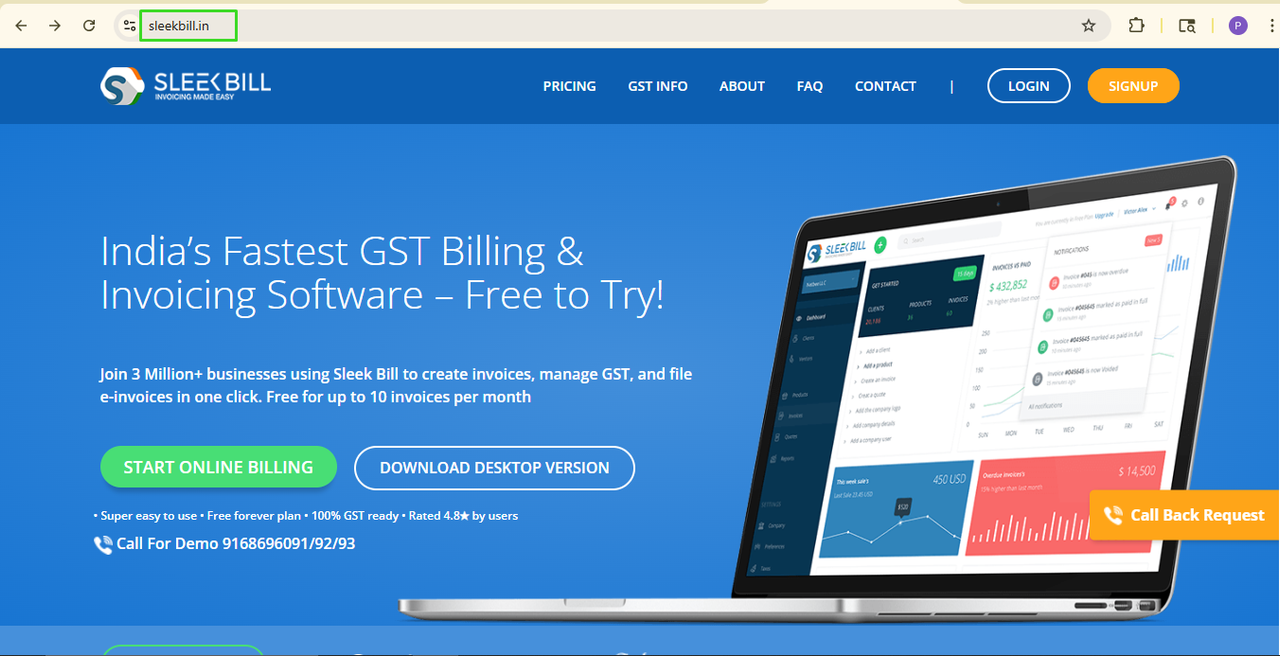
Step 1: Visit the Sleek Bill Website
Open your web browser and visit the official Sleek Bill website.
Website: https://www.sleekbill.in
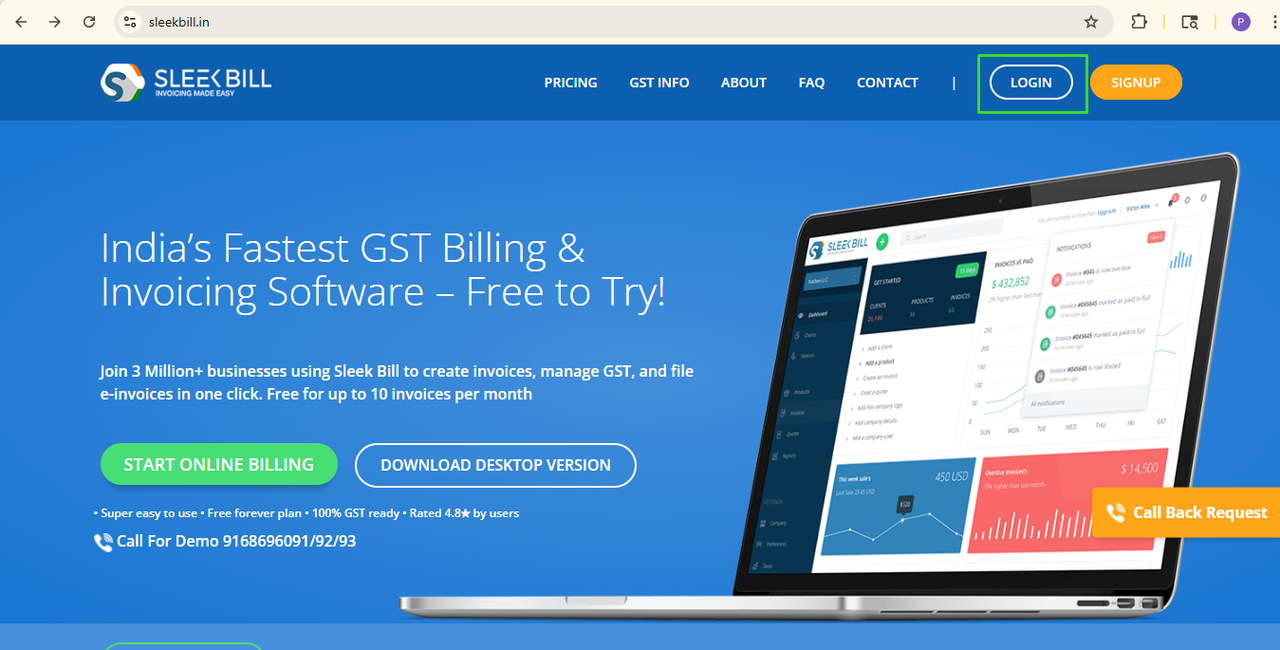
Step 2: Click on the Login Button
On the homepage, click the Login button to access your Sleek Bill account.
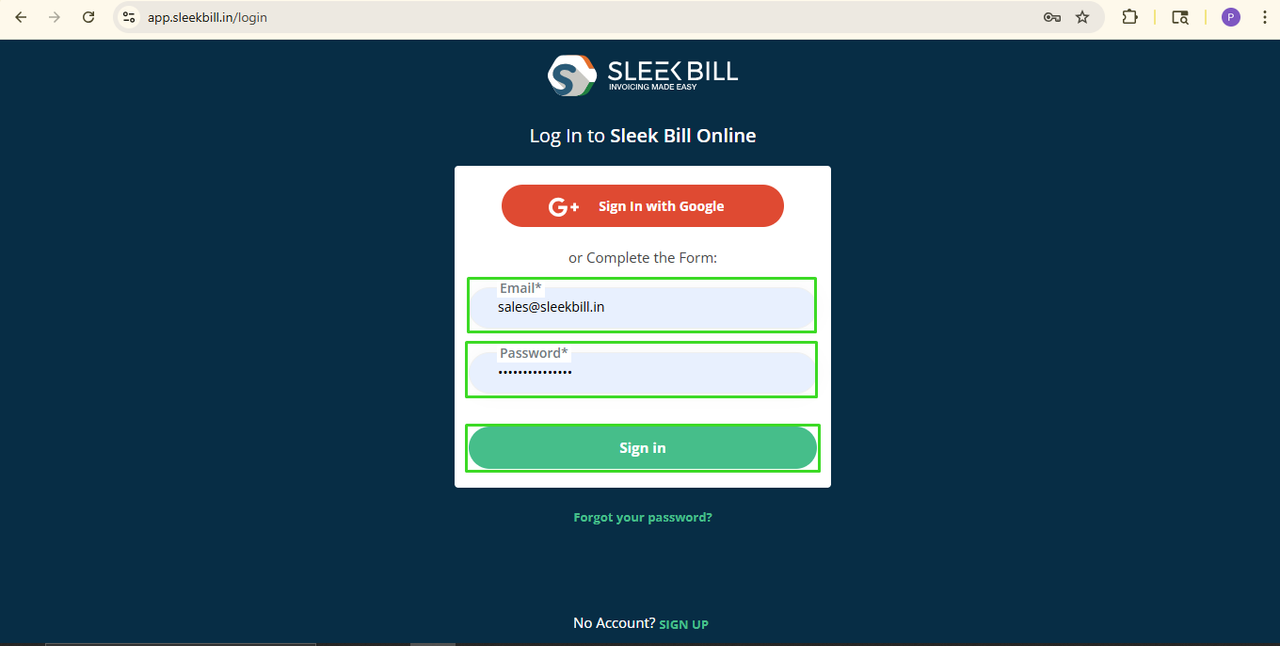
Step 3: Enter Your Login Credentials
Enter your User ID and Password, then click Sign In.
You will be redirected to your Sleek Bill dashboard.
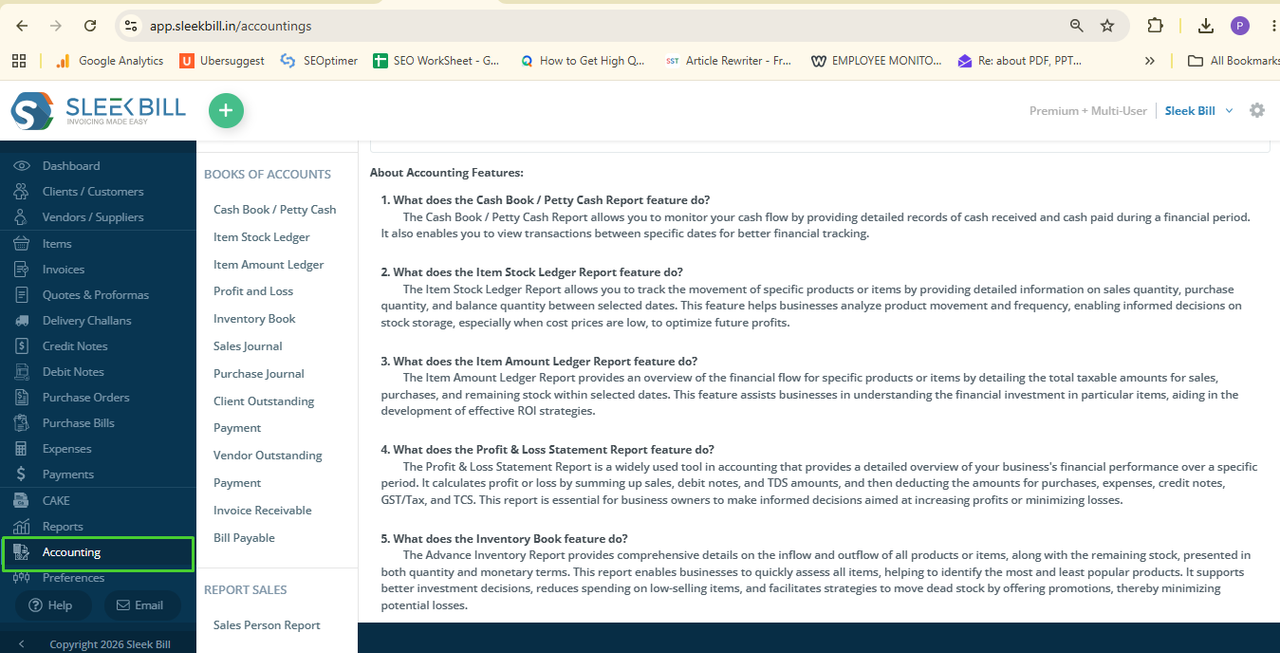
Step 4: Open the Accounting Menu
From the left-side menu, click on the Accounting tab.
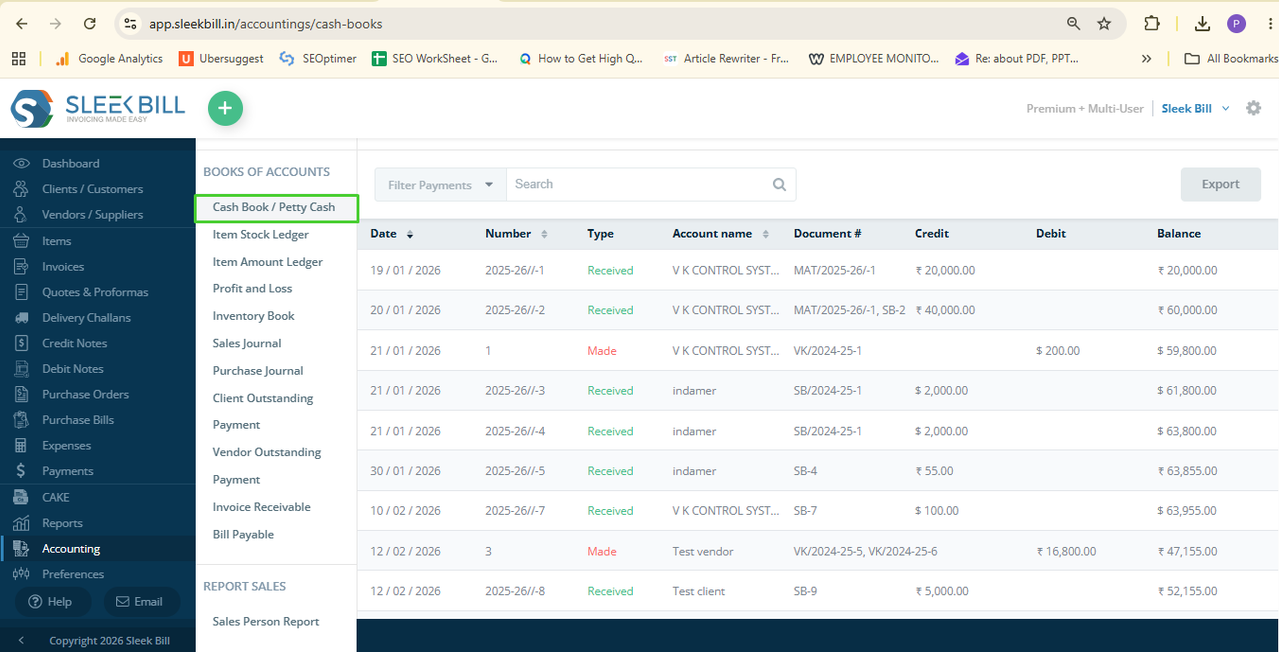
Step 5: Select Cash Book / Petty Cash
Under the Accounting section, click Cash Book / Petty Cash.
Here you can view all your cash transactions, including payments received, payments made, and petty cash entries.
Step 6: Search Cash Transactions
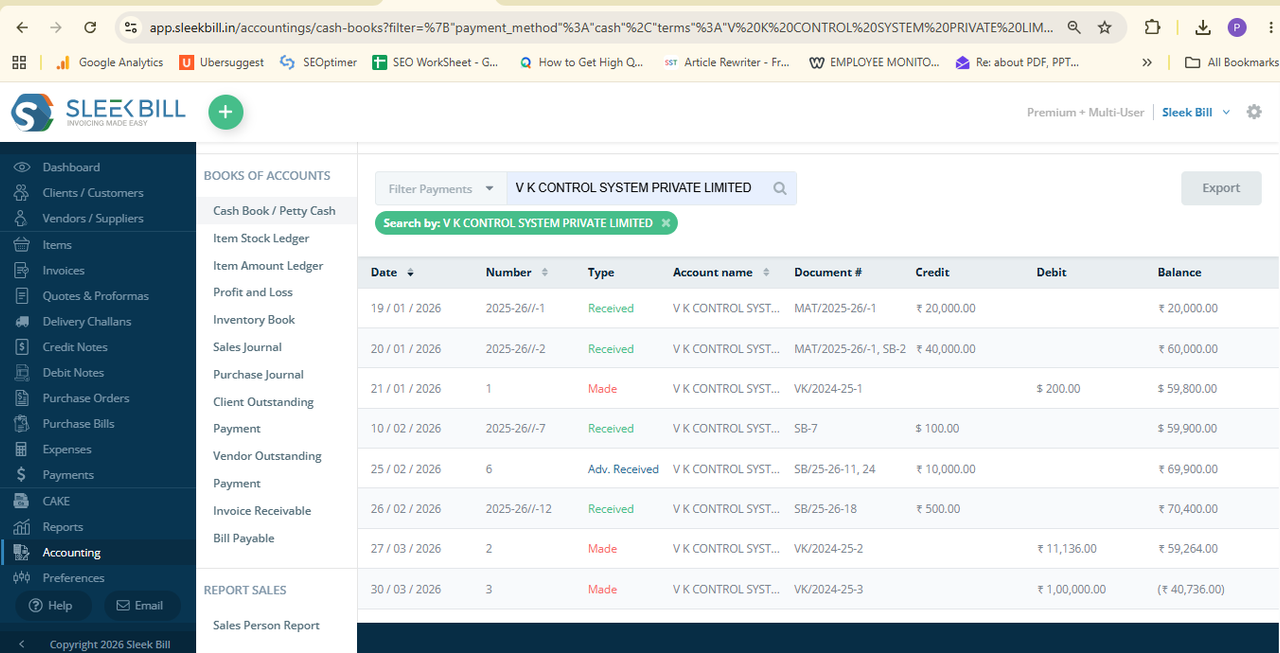
If you're looking for a specific transaction, simply enter the Party Name in the search box.
Sleek Bill will instantly display the matching cash records.
Step 7: Use Filters for Advanced Search
For more specific results, click the Filter Payments button.
You can search cash transactions using one or more of the following filters:
• Party Name
• Document Number
• Date Range (Between Specific Dates)
• Payment Type
Available payment types include:
• Payment Made
• Payment Received
• Advance Payment Made
• Advance Payment Received
You can also combine multiple filters to quickly find the exact transaction you need.
After selecting the required filters, click the Apply button.
The filtered cash book records will be displayed on your screen.

Step 8: Export the Cash Book
After having successfully located the required transactions, use the Export button.
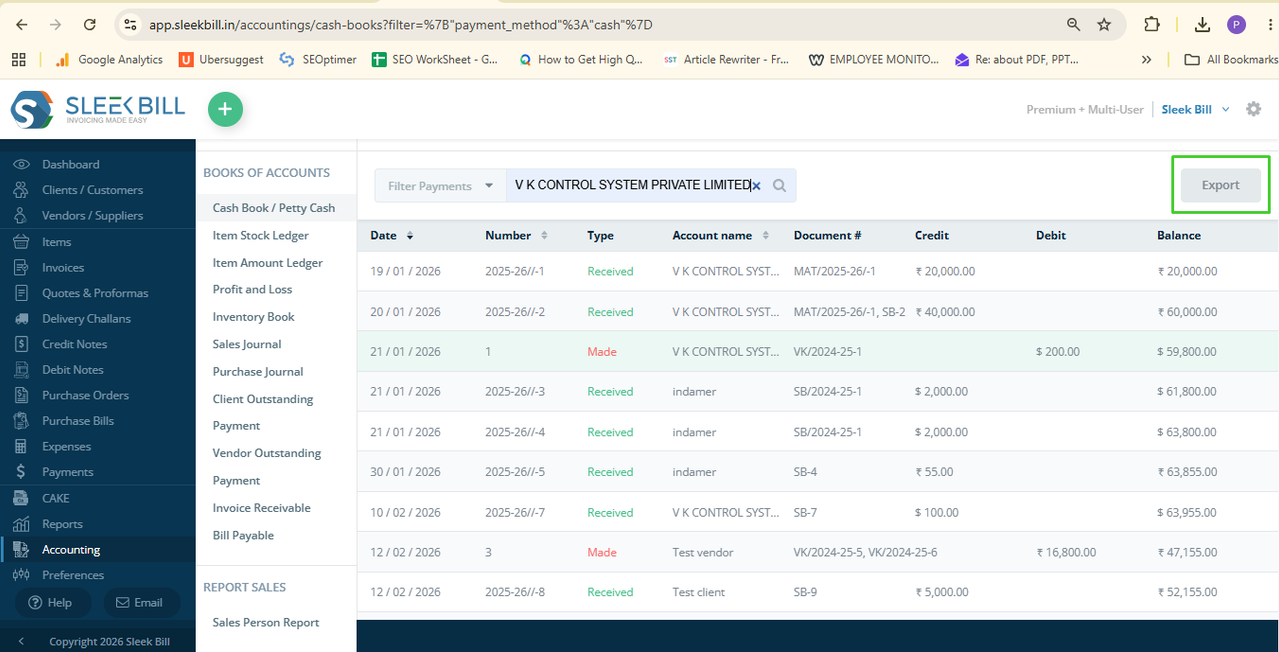
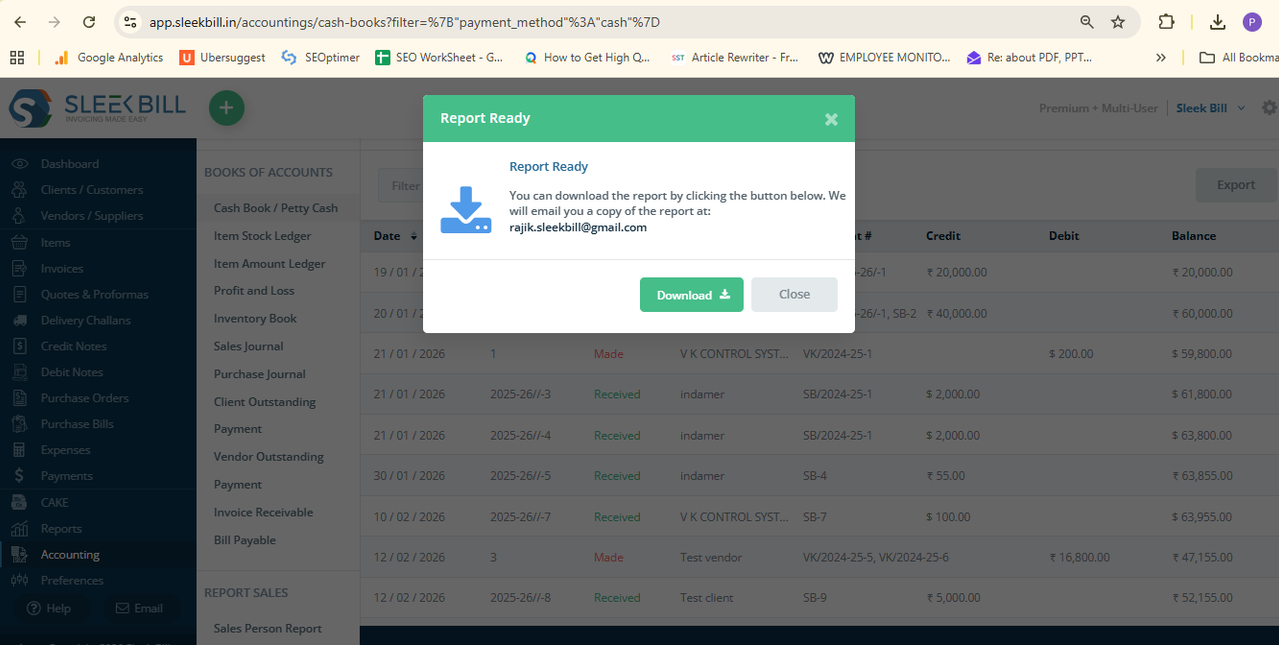
Sleek Bill will take a copy of the selected cash book data and export it. This makes it easy to send to your accountant, store business records or refer back to.
Conclusion
The Cash Book /
Petty Cash option in Sleek Bill makes it easy to maintain a complete control on
the cash transactions of your business. You can quickly look for payments
received, monitor expenses, check petty cash or export the reports with having
the extra effort using the search and filter options.
Maintains your
records; promotes efficiency in your ongoing accounts.
Was this article helpful?