How to Check Item Amount Ledger in Sleek Bill
Managing inventory is not just about tracking stock quantities—it is equally important to monitor the financial value of every item you buy and sell. The Item Amount Ledger in Sleek Bill helps businesses analyze the monetary movement of each product, making it easier to understand sales, purchases, and the remaining inventory value.
Whether you are a retailer, wholesaler, distributor, or manufacturer, the Item Amount Ledger provides valuable insights that help improve purchasing decisions, inventory planning, and profitability. Sleek Bill includes this report as part of its advanced inventory and accounting features.
What is an Item Amount Ledger?
An Item Amount Ledger is a financial inventory report that displays the value of each item over a selected period. Instead of showing only stock quantities, it focuses on the monetary value associated with purchases, sales, and closing inventory.
The report typically includes:
- Item Name
- Purchase Amount
- Sales Amount
- Opening Stock Value
- Closing Stock Value
- Selected Date Range
This helps business owners understand how much revenue each product generates and how much inventory value is still available.
Why Use the Item Amount Ledger?
The Item Amount Ledger helps you:
- Monitor the financial value of every product.
- Compare purchase value against sales value.
- Analyze product-wise business performance.
- Make informed purchasing decisions.
- Track inventory value without manual calculations.
- Improve profitability analysis.
- Prepare accurate financial reports.
How to Check Item Amount Ledger in Sleek Bill
Follow these simple steps to generate the Item Amount Ledger report.
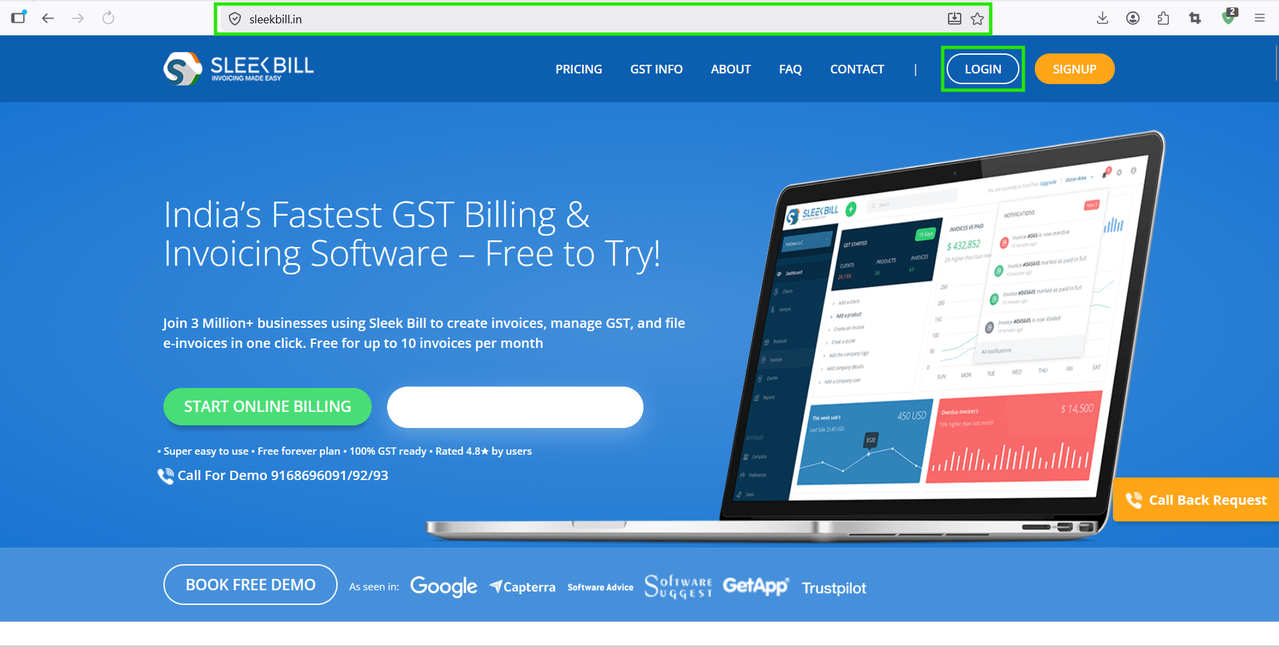
.png)
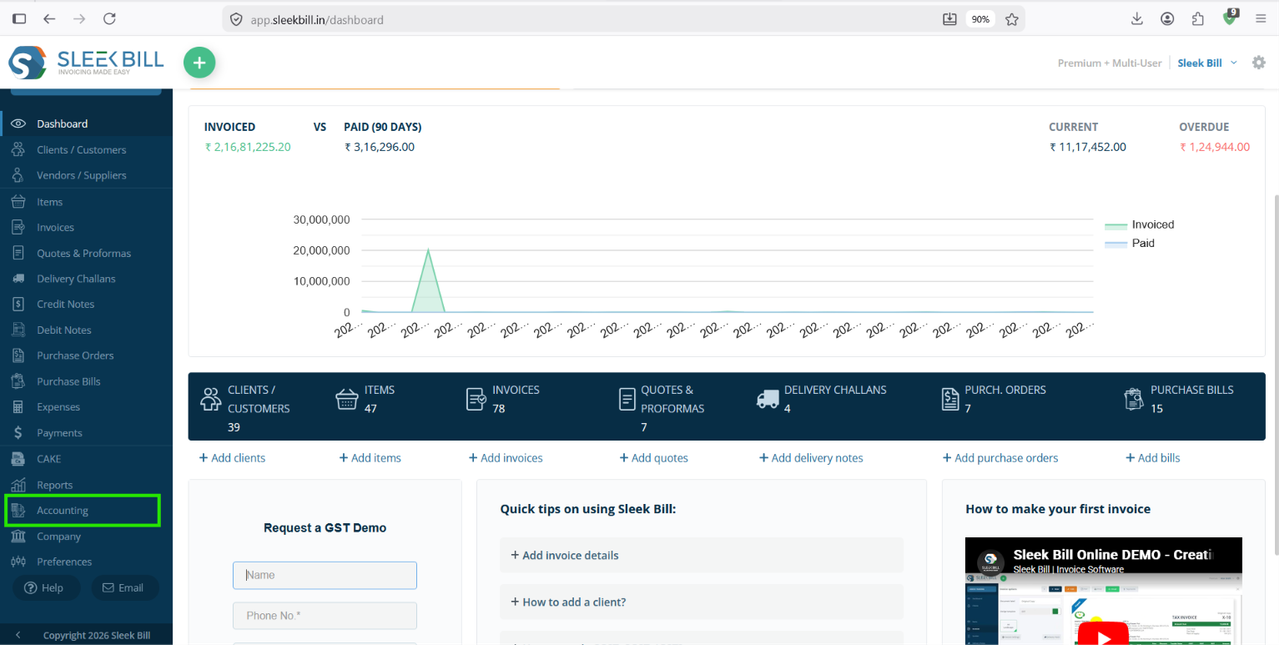
Step 2: After logging in, you will reach the dashboard. From the left navigation menu, click on Accounting.
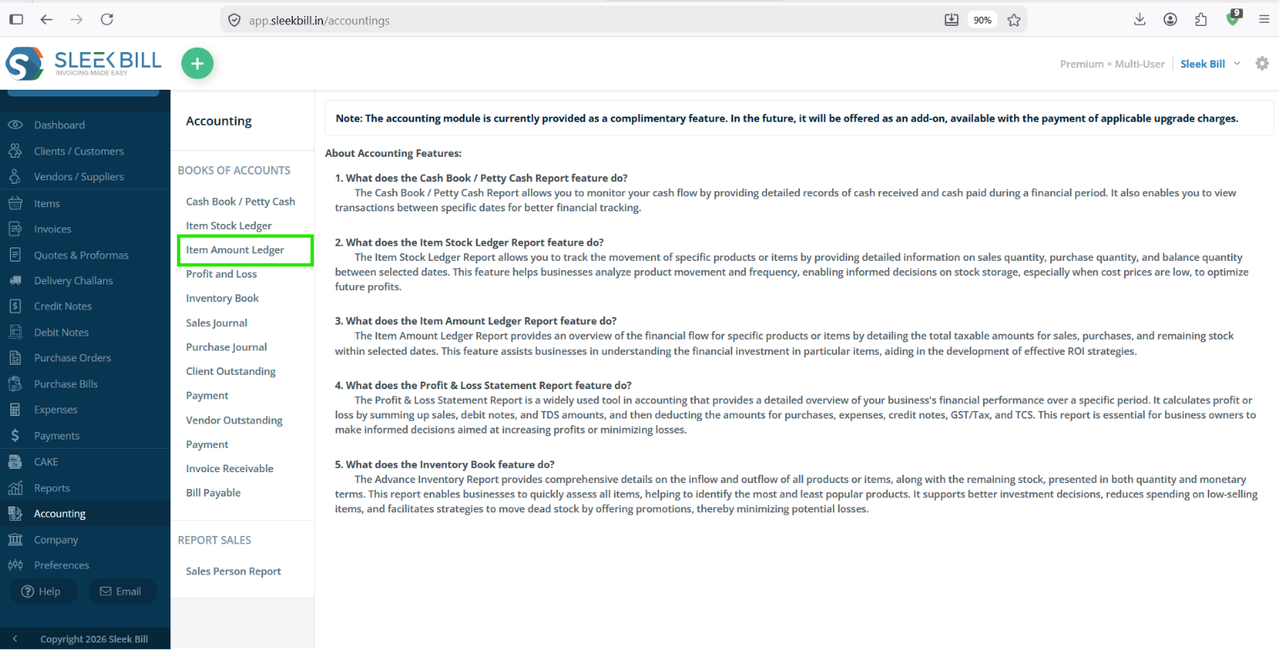
Step 3: Inside the Accounting section, open Item Amount Ledger.
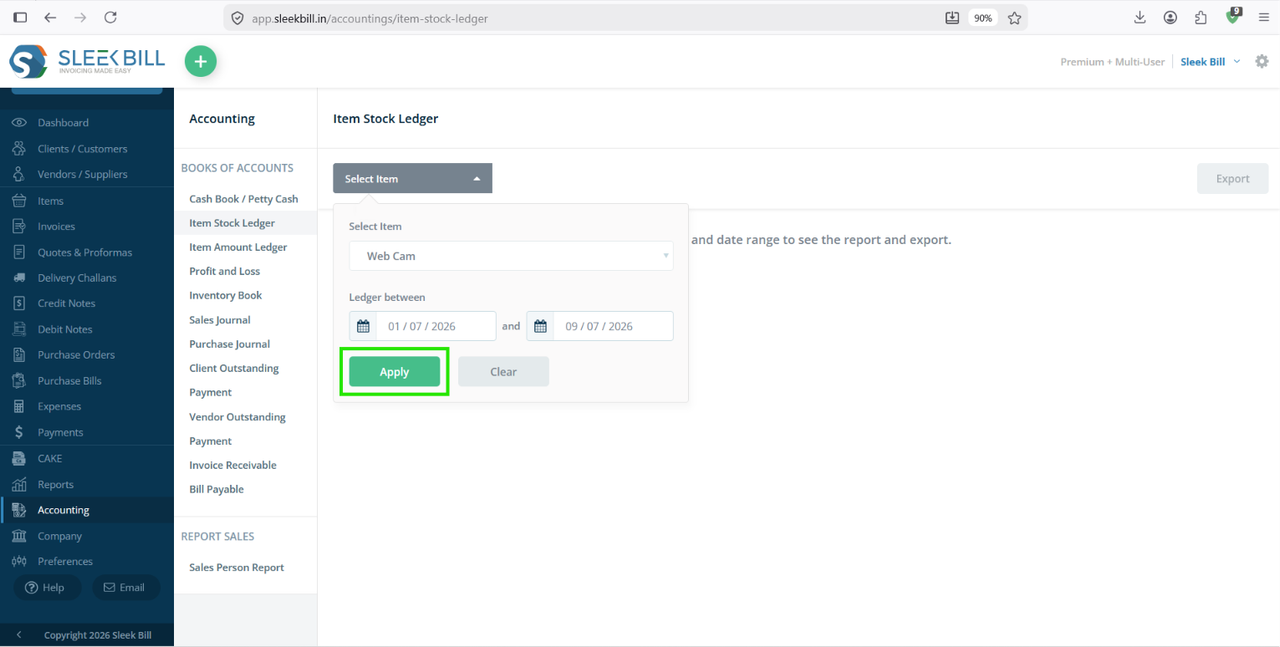
Step 4: Choose the desired item and date from Start Date and To End Date to generate the ledger for a specific period.
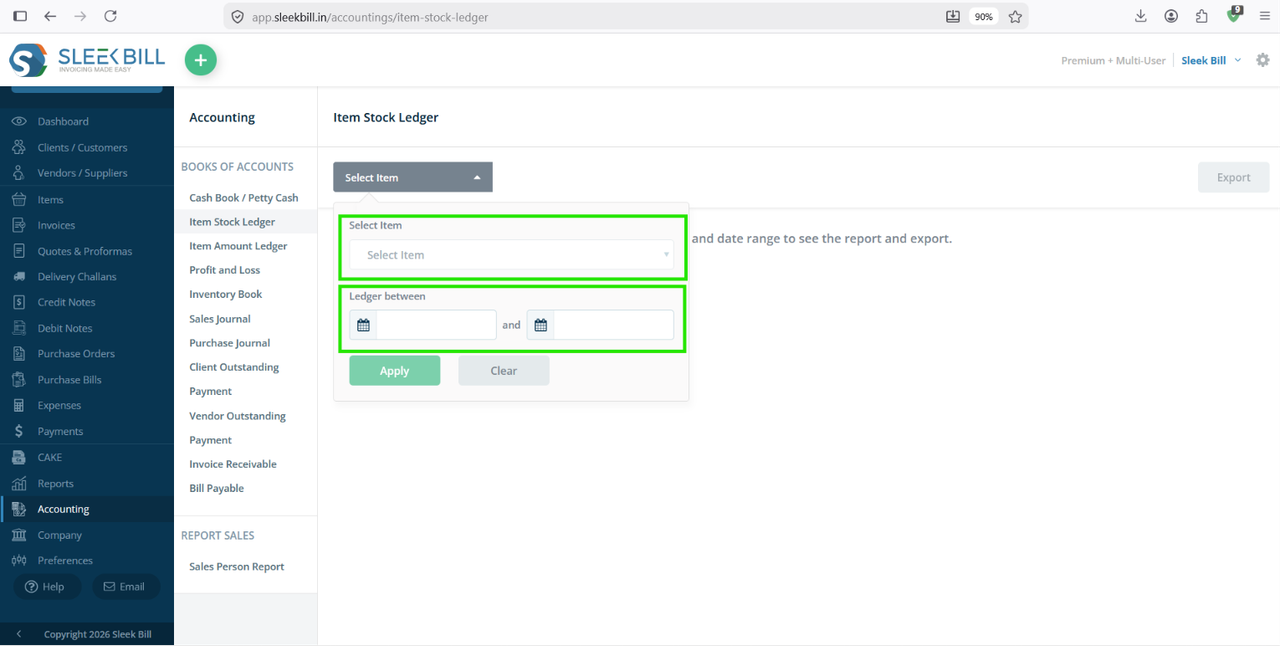
Step 5: Then click on apply button to generate ledger.
Step 6: Sleek Bill will instantly generate the Item Amount Ledger displaying:
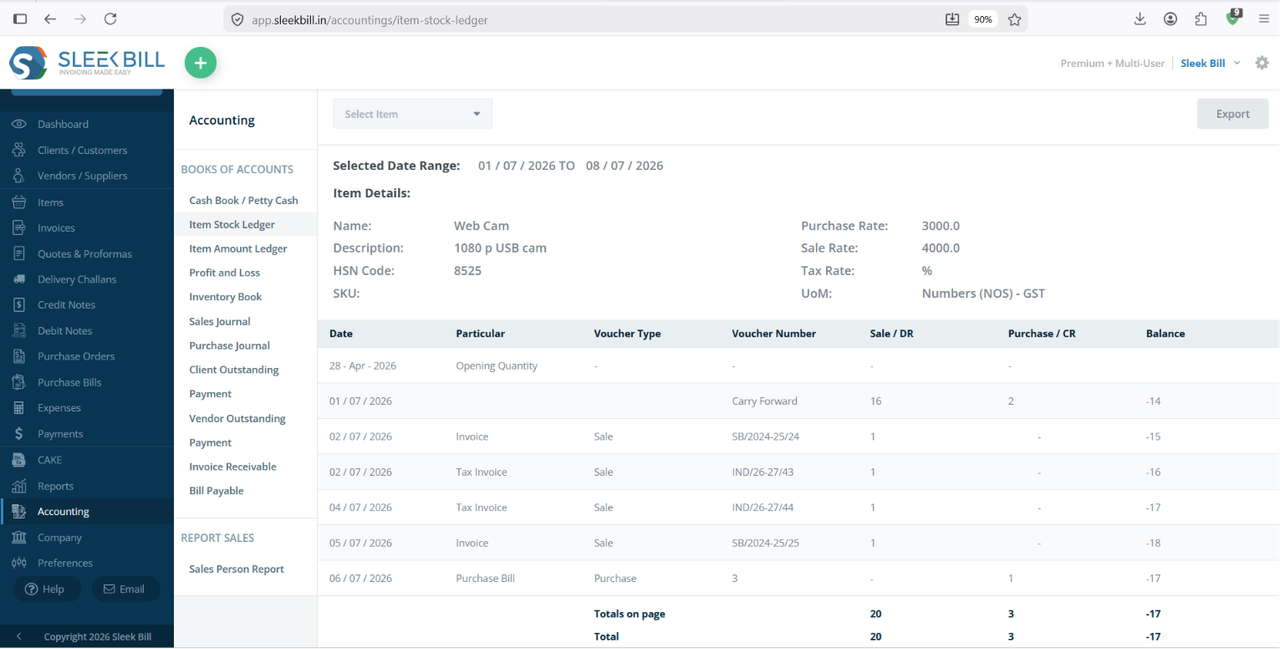
Date: Displays the date on which the transaction was recorded.
Particular: Shows the details or description of the transaction related to the item.
Voucher Type: Indicates the type of document used for the transaction, such as Sales Invoice, Purchase Bill, Credit Note, or Debit Note.
Voucher Number: Displays the unique reference number assigned to the transaction voucher.
Sale / DR: Shows the amount debited or the value of items sold in the transaction.
Purchase / CR: Displays the amount credited or the value of items purchased in the transaction.
Balance: Shows the running balance of the item's financial value after each transaction.
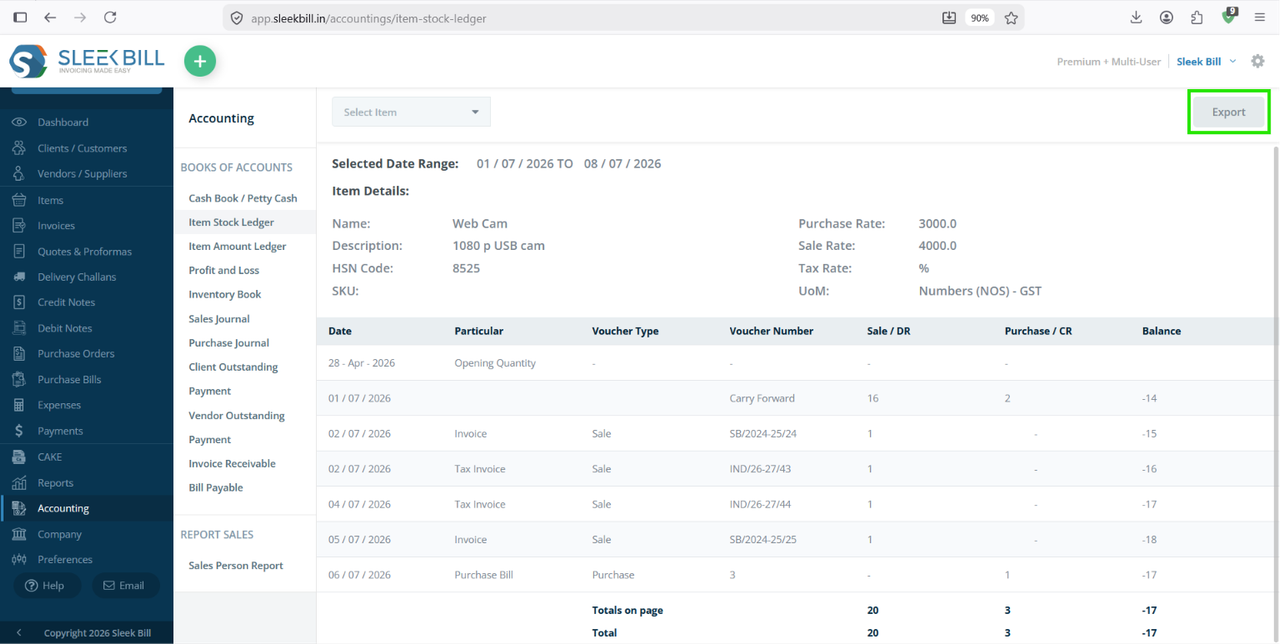
Step 7: You can export it for accounting, auditing, or business analysis.
Conclusion
The Item Amount Ledger in Sleek Bill provides a clear picture of your inventory's financial value, helping you track purchase amounts, sales amounts, and remaining stock value with ease. Instead of manually calculating inventory costs, you can generate detailed reports in just a few clicks and make smarter business decisions based on accurate financial data.
If you want better inventory control and product-wise financial insights, the Item Amount Ledger is an essential report that every business should review regularly.
Was this article helpful?