📊 Reports & Data
How to Check Item Stock Ledger in Sleek Bill
Hello Sleek Bill users, welcome to the Sleek Bill Knowledge Hub.
Keeping track of your inventory/stock is very important for every business. Whether you run a retail shop, wholesale business, trading or manufacturing company, knowing your current stock movement helps you make better purchasing and sales decisions.
Sleek Bill makes it easy to check the complete stock history of any item through the Item Stock Ledger. You can view all purchase and sales transactions, check the available balance, and even export the report for future reference.
Why Should You Check the Item Stock Ledger?
The Item Stock Ledger helps you monitor every stock transaction in one place.
Benefits of Using the Item Stock Ledger
• View complete stock movement for any item.
• Track purchase and sales history.
• Check the available stock balance.
• Search records by item name.
• Filter transactions for a specific date range.
• Export the report for accounting and auditing.
• Improve inventory planning and stock management.
How to Check the Item Stock Ledger in Sleek Bill ?
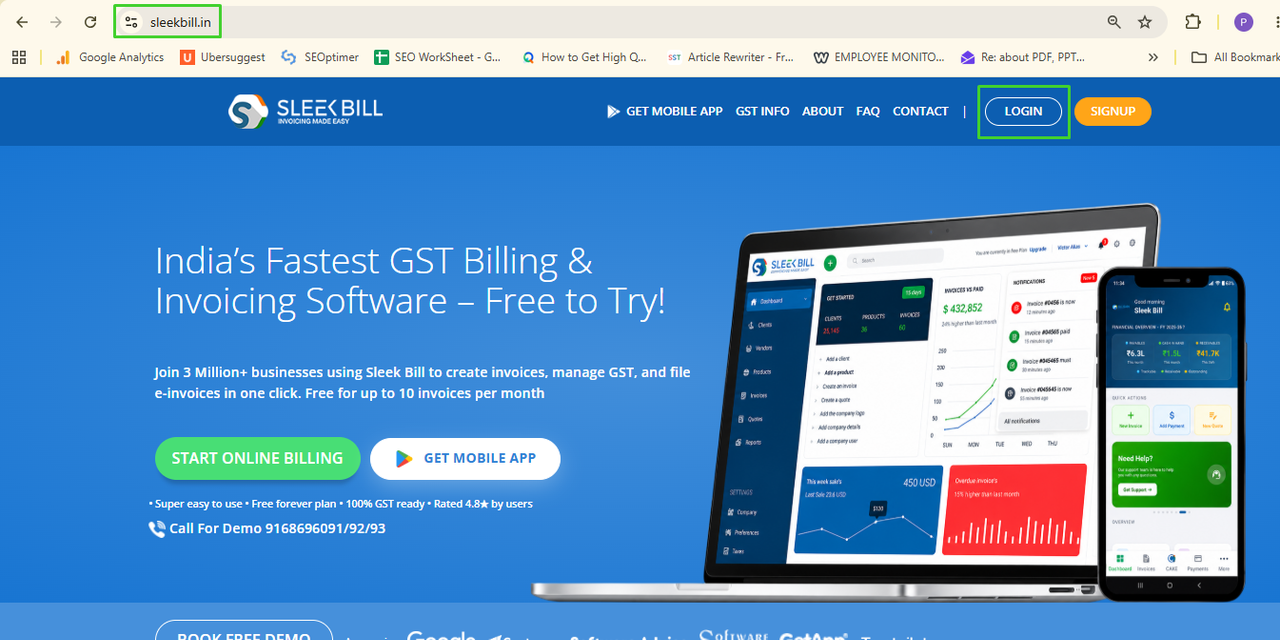
Step 1: Open the Sleek Bill Website & Login
Visit www.sleekbill.in. Click the Login button available on the website.
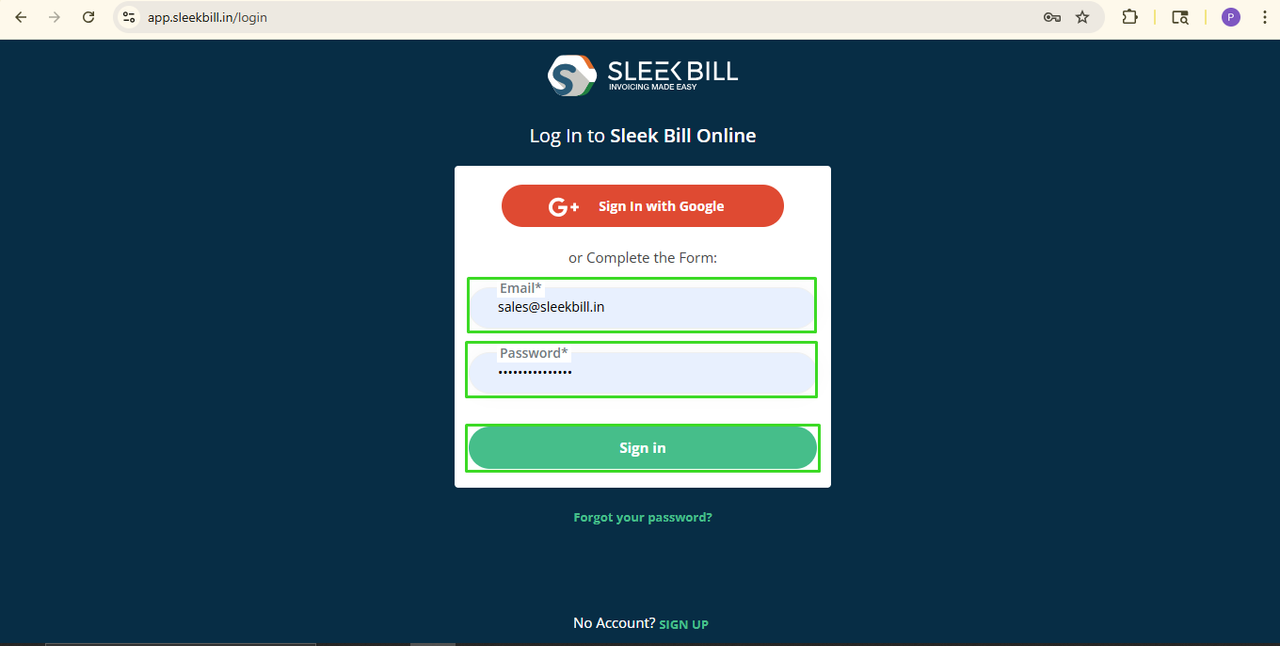
Step 2: Sign in process
Enter your email ID and Password, then click the Sign In button.
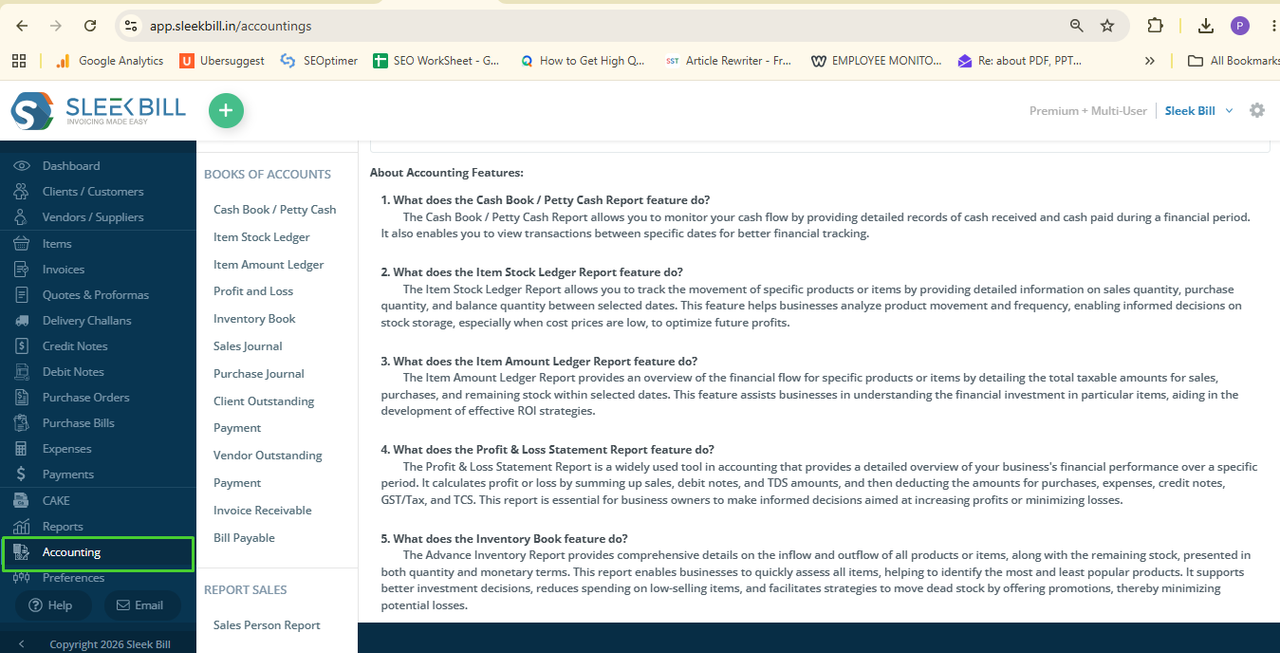
Step 3: Open the Accounting Menu
After logging in, you will reach the Sleek Bill dashboard.
Click on the Accounting tab from the left-side menu.
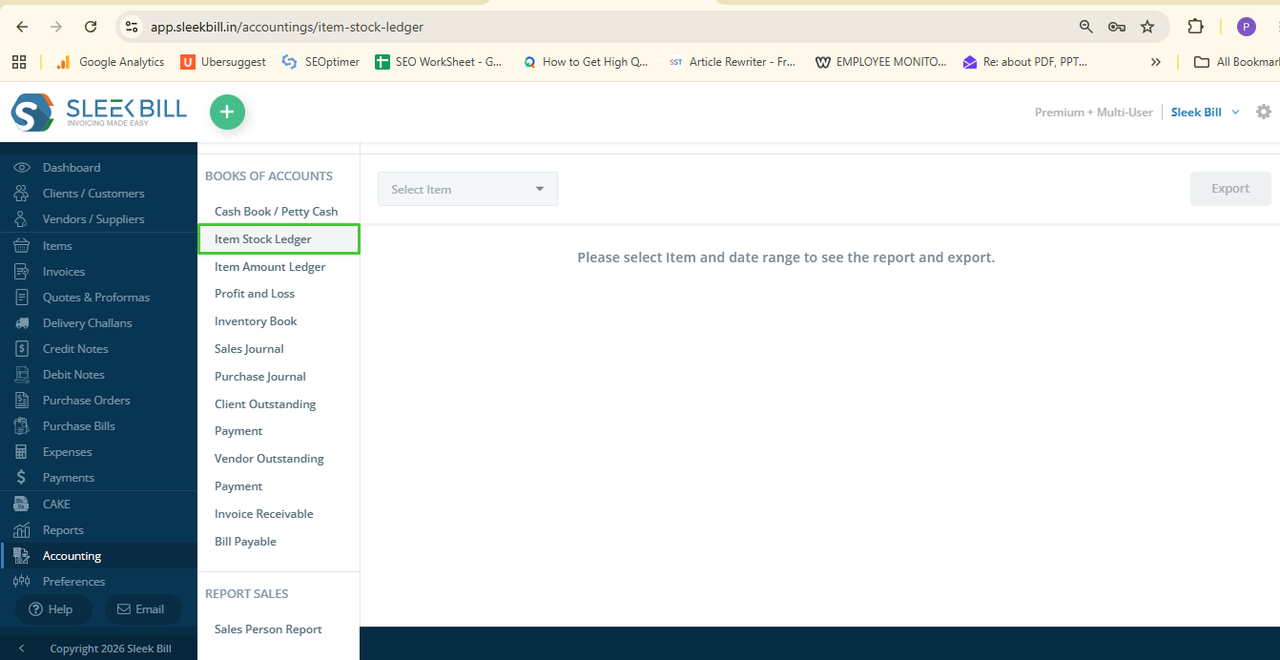
Step 4: Select Item Stock Ledger
Under the Accounting section, click Item Stock Ledger.
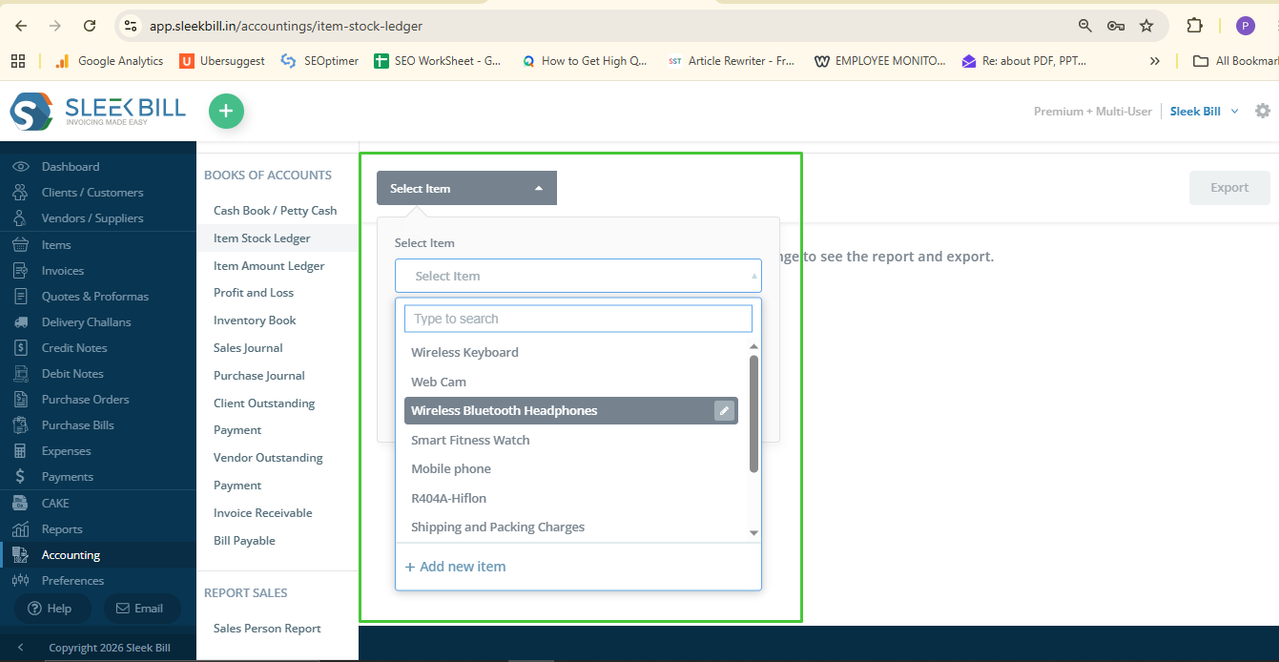
Step 5: Select the Item
Click on the Select Item field.
You can search for the required item simply by typing the item name.
Step 6: Select the Date Range
Choose the required From Date and To Date.
If you want to view transactions for a specific period, simply select the desired date range.
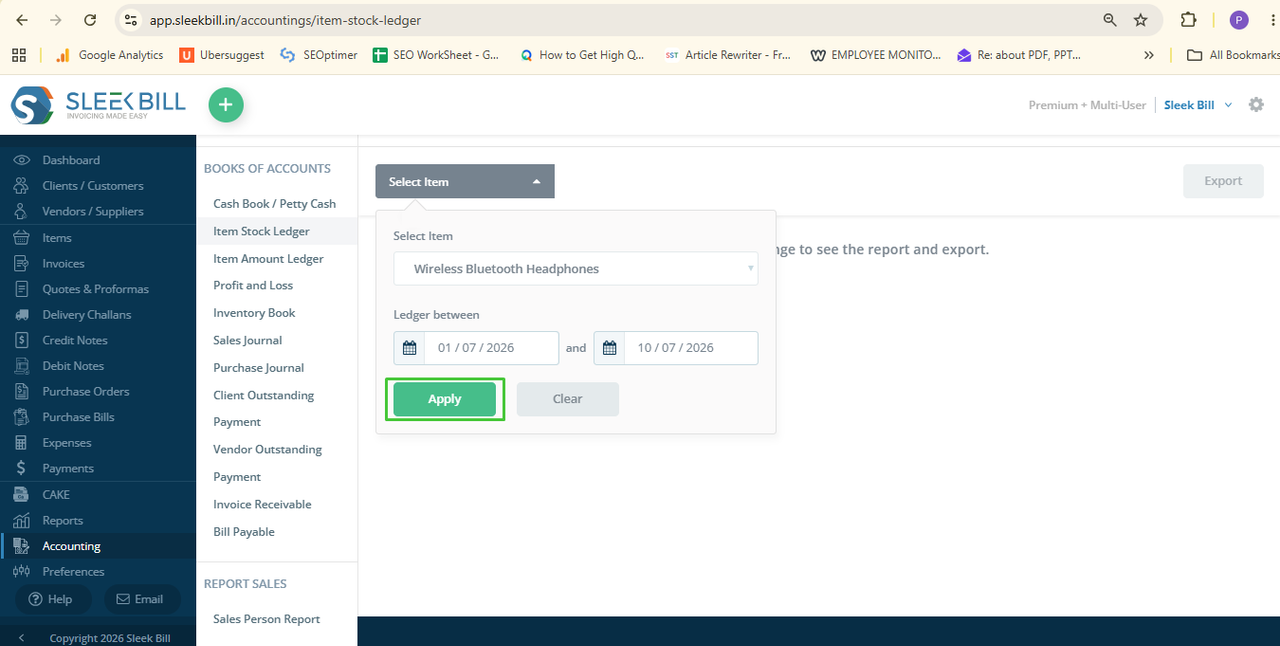
Step 7: Click the Apply Button
After selecting the item and date range, click the Apply button.
The report will be generated instantly.
Item Stock Ledger Report
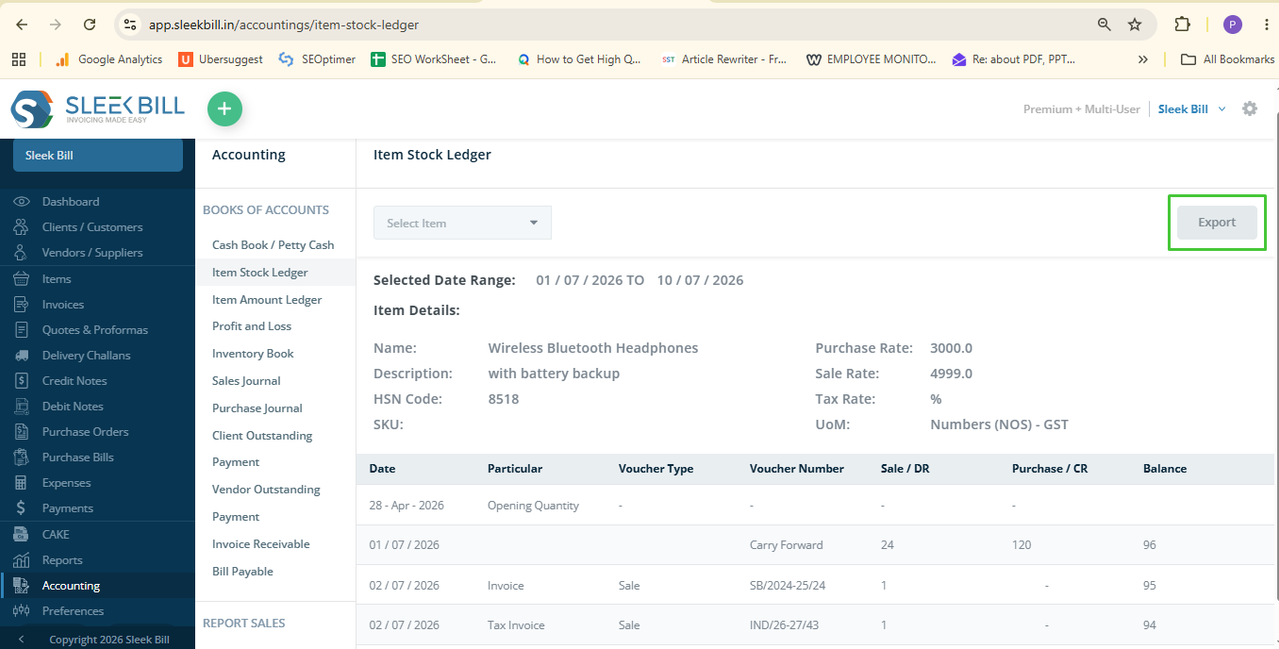
After clicking Apply, the screen displays complete stock information for the selected item.
You will see details such as:
• Selected Date Range
• Item Name
• Description
• HSN Code
• SKU
• Purchase Rate
• Sale Rate
• Tax Rate (%)
• Unit of Measurement (UoM)
Below the item details, a complete transaction table is displayed containing:
Date Particular Voucher Type Voucher Number Sale / DR Purchase / CR Balance
This report helps you understand every stock movement from purchases, sales, returns, and the current available balance.
Step 9: Export the Stock Ledger
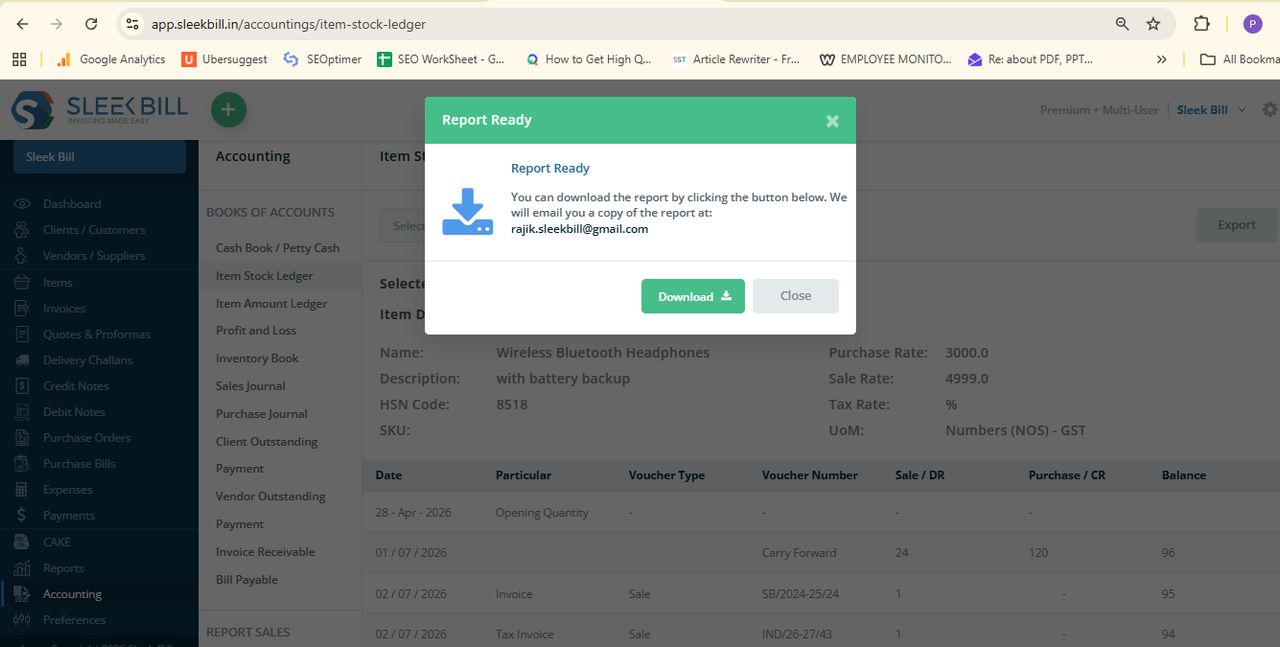
Simply click the Export button. stock ledger will export, save it or share the report,
The report can be helpful for accounting, auditing, inventory management, or business analysis.
Conclusion
The Item Stock Ledger in Sleek Bill gives you a complete view of every inventory transaction in just a few clicks. Allow you to control stock movements, monitor the integrity of purchases and sales, maintain an accurate inventory records and produce reports, as and when needed.
No matter what kind of business you run, from a small one to a fledgling enterprise, regularly checking the Item Stock Ledger helps to keep control of your stock and make informed business decisions.
Was this article helpful?