How to Check the Sales Person Report in Sleek Bill
Tracking how
each salesperson is doing isn't just useful—it's key if you want your business
to grow. Whether you’re keeping an eye on sales goals, figuring out incentives,
or just checking in on the team, the Sales by User report in Sleek Bill lays
everything out for you. You pick the time frame, and in a few clicks, you’ve
got a clear map of who sold what.
Why Check the Sales Person Report?
The Sales by
User report helps businesses:
• Track individual salesperson
performance.
• Compare sales across different team
members.
• Calculate commissions and incentives
easily.
• Monitor sales trends over a specific
period.
• Export reports for meetings, audits,
or business analysis.
Whether you own
a retail store, wholesale business, or service company, this report helps you
make better business decisions with accurate sales data.
Steps to Check
the Sales Person Report in Sleek Bill
Follow the
steps below to generate your Sales Person Report.
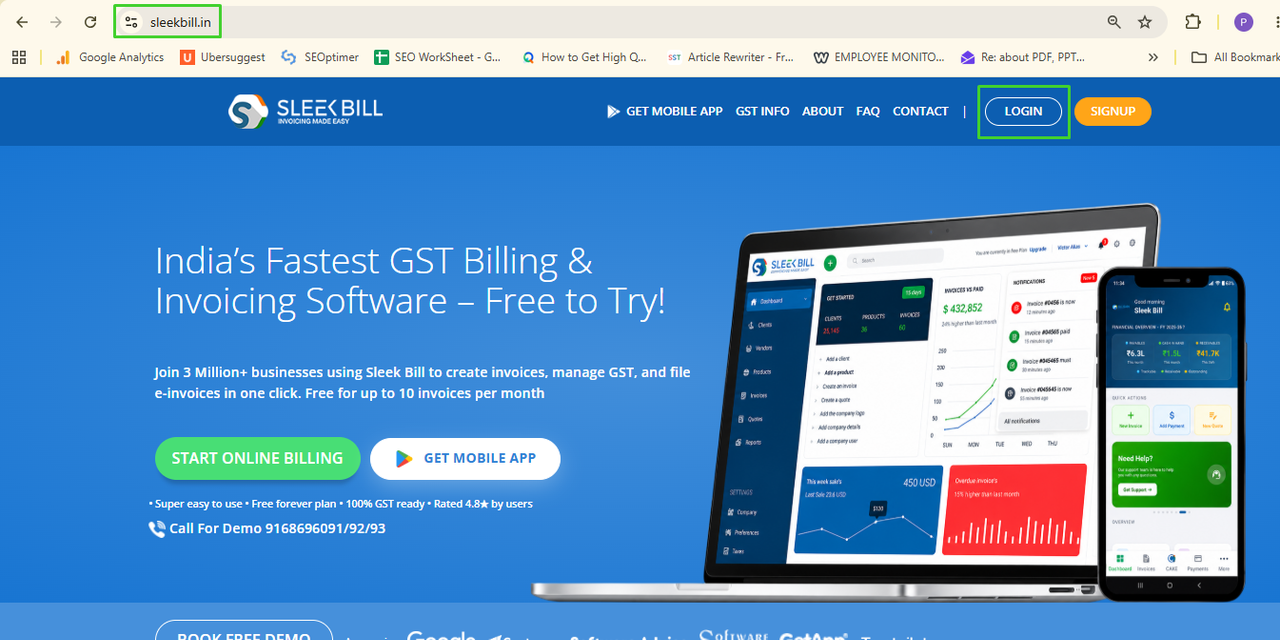
Step 1: Visit to Sleek Bill site https://sleekbill.in/ and click on login button.
Step 2: Login
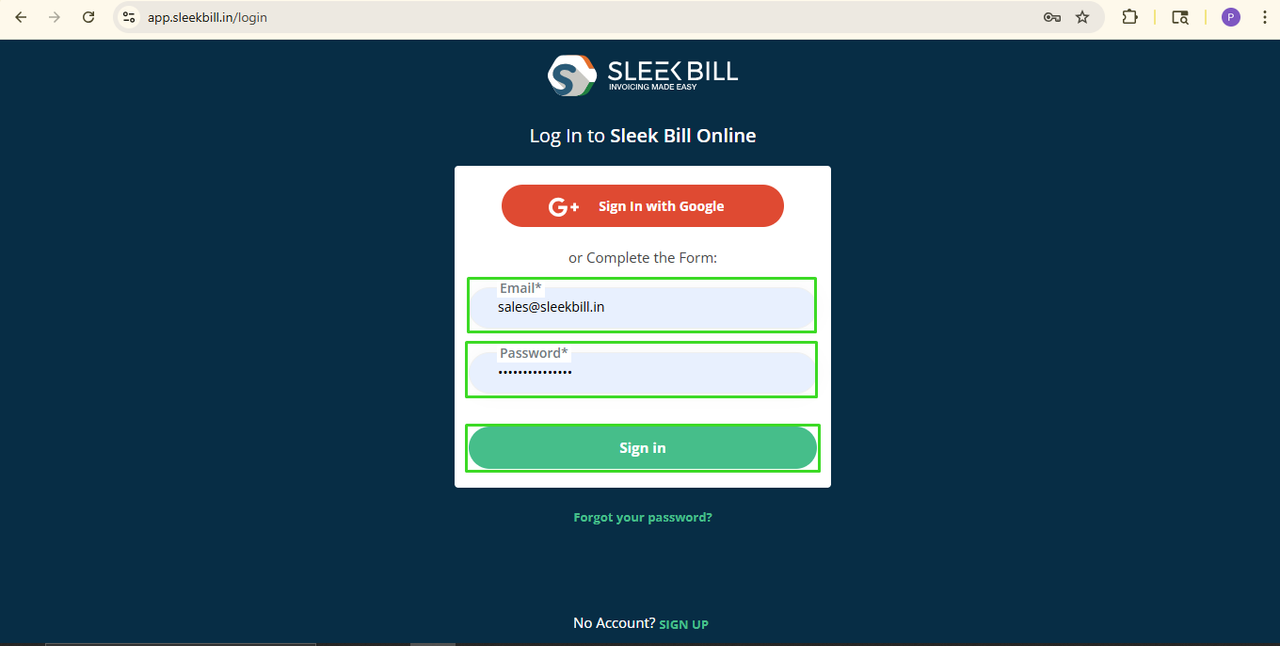
to Sleek Bill
Open Sleek Bill
and log in with your account credentials.
Step 3: Open
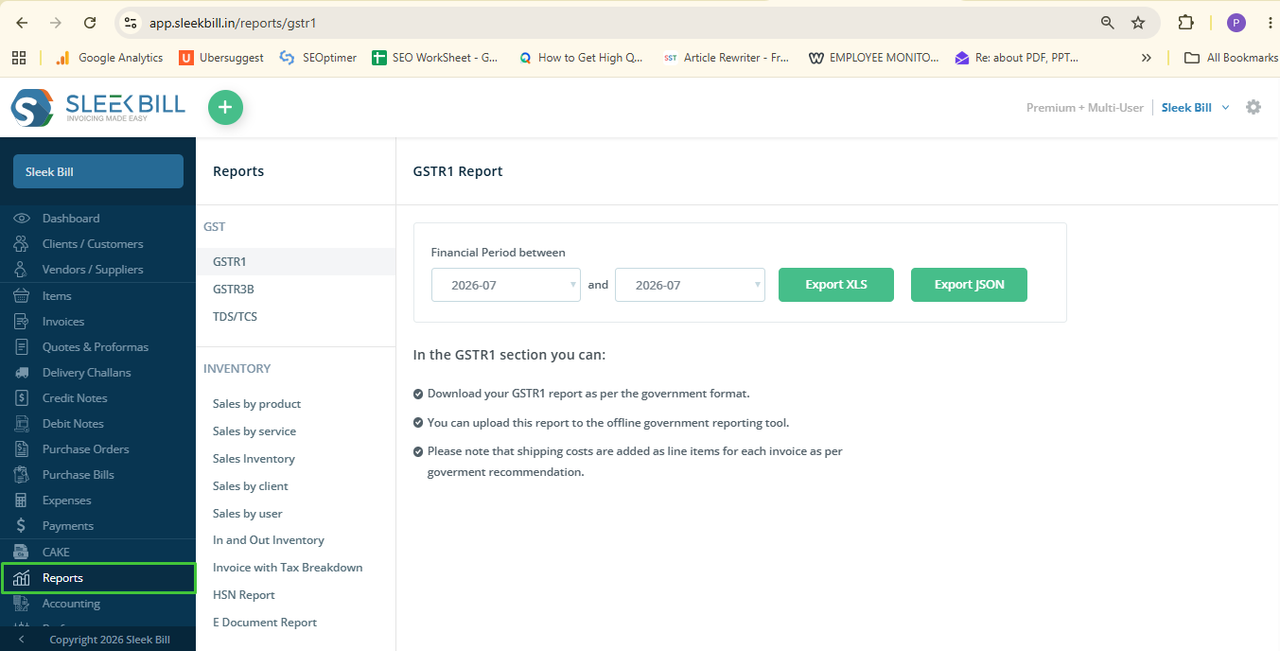
Reports
From the main
dashboard, click on Reports.
Step 4: Select
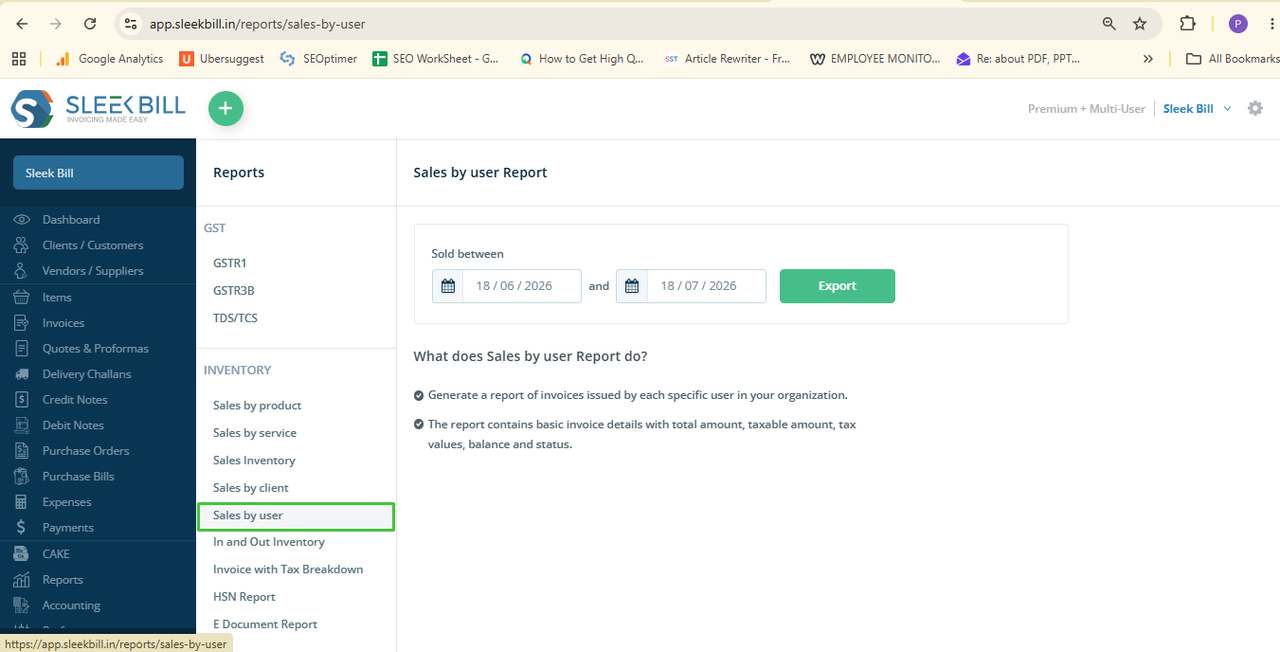
"Sales by User"
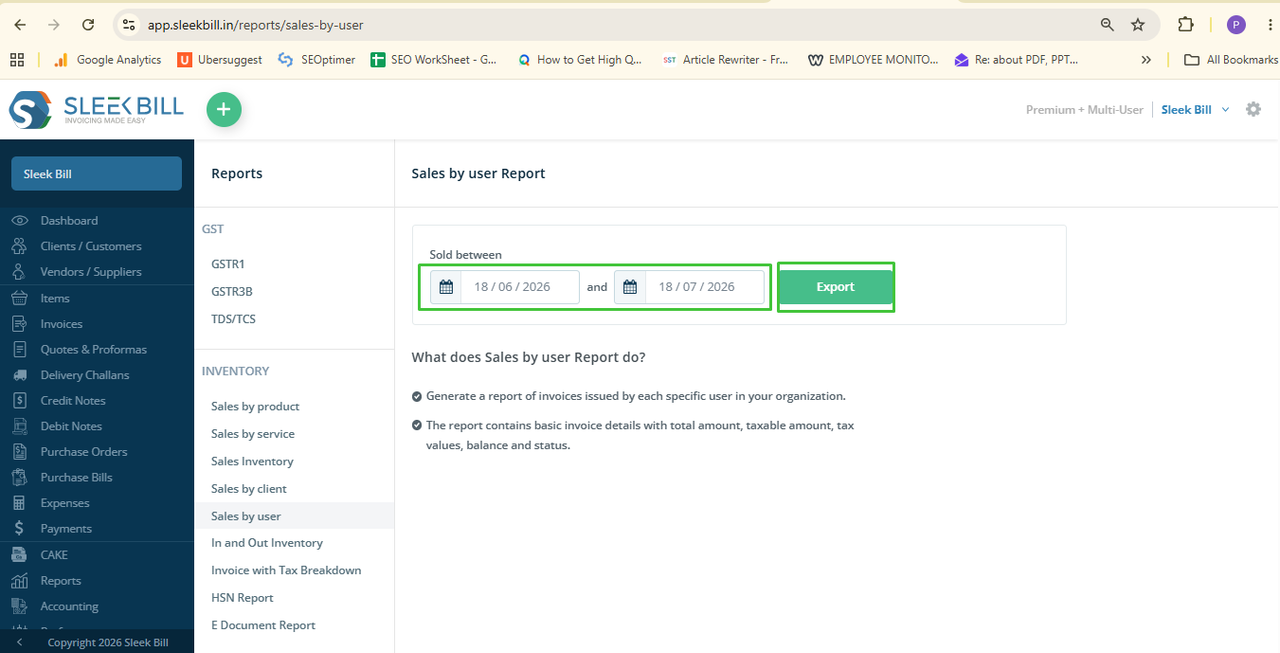
Under the Sales
Reports section, click on Sales by User.
This report
displays sales data based on the users or salespersons who created invoices.
Step 5: Choose
the required reporting period by selecting:
Select From Date,
To Date.
This allows you
to generate reports for any custom time period, such as daily, weekly, monthly,
quarterly, or yearly.
Step 6: Export the Report
After selecting the date range, click the Export button.
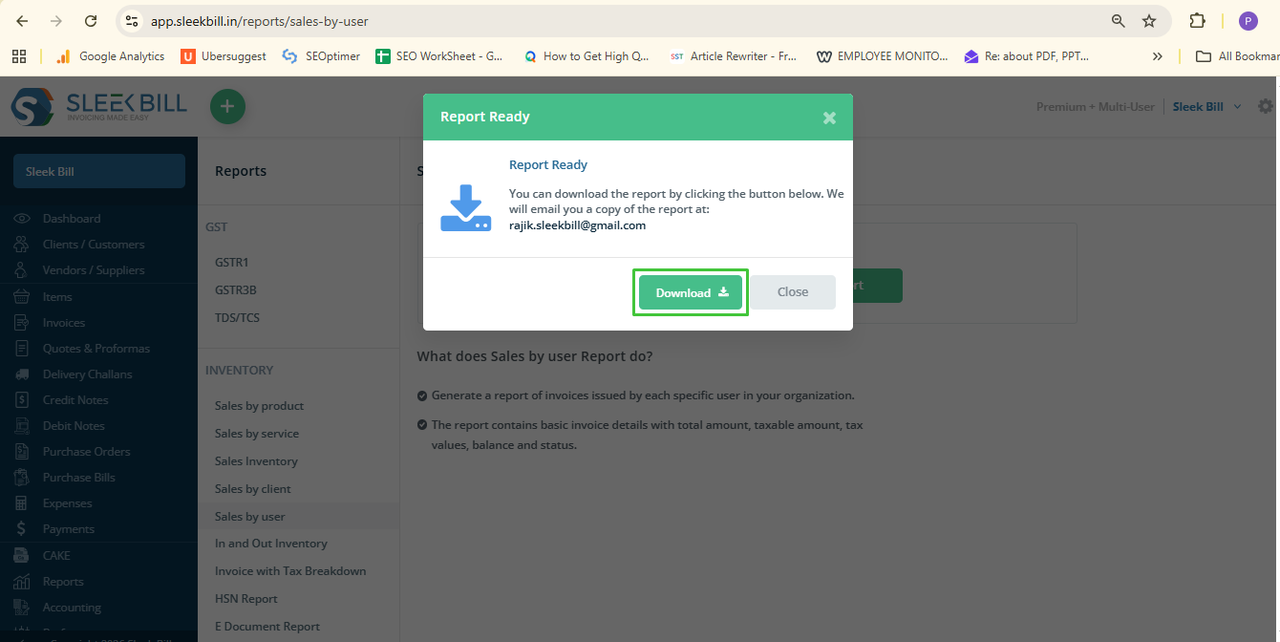
Step 7: Your Sales Person Report will be downloaded to your computer, where you can review, print, or share it with your team.
When Should You Use This Report?
You can use the Sales by User report to:
• Measure each salesperson's sales performance.
• Review monthly or yearly sales achievements.
• Prepare employee commission reports.
• Analyze sales before business meetings.
• Maintain accurate sales records for future reference.
Conclusion
Need to dig
deeper or keep the numbers handy? Just export the report and go from there.
It’s simple but gets the job done—shows you how your team is performing, lets
you spot your top sellers, and helps you make smarter decisions. Check in with
this report regularly, and you’ll catch problems sooner, help your team work
better, and give your business a real push forward.
Was this article helpful?