How to Add Users and Assign Roles in Sleek Bill?
Hello Sleek
Bill users, welcome to the Sleek Bill Knowledge Hub!
In this guide,
I will demonstrate how to create multiple users and allocate roles in Sleek
Bill. User Roles lets you specify what aspects of each person‘s work they can
see, create, edit or delete in your account. It simplifies staff management and
also keeps your business data protected.
Why Is This
Important?
Managing users
and roles helps you:
- Control Access: Give employees access only to the features they need.
- Improve Security: Protect important business information from unauthorized changes.
- Manage Teams Efficiently: Assign different permissions to sales, purchase, and admin staff.
- Track Responsibility: Each user works with their own login credentials.
How to Add a New User in Sleek Bill
Follow these
simple steps:
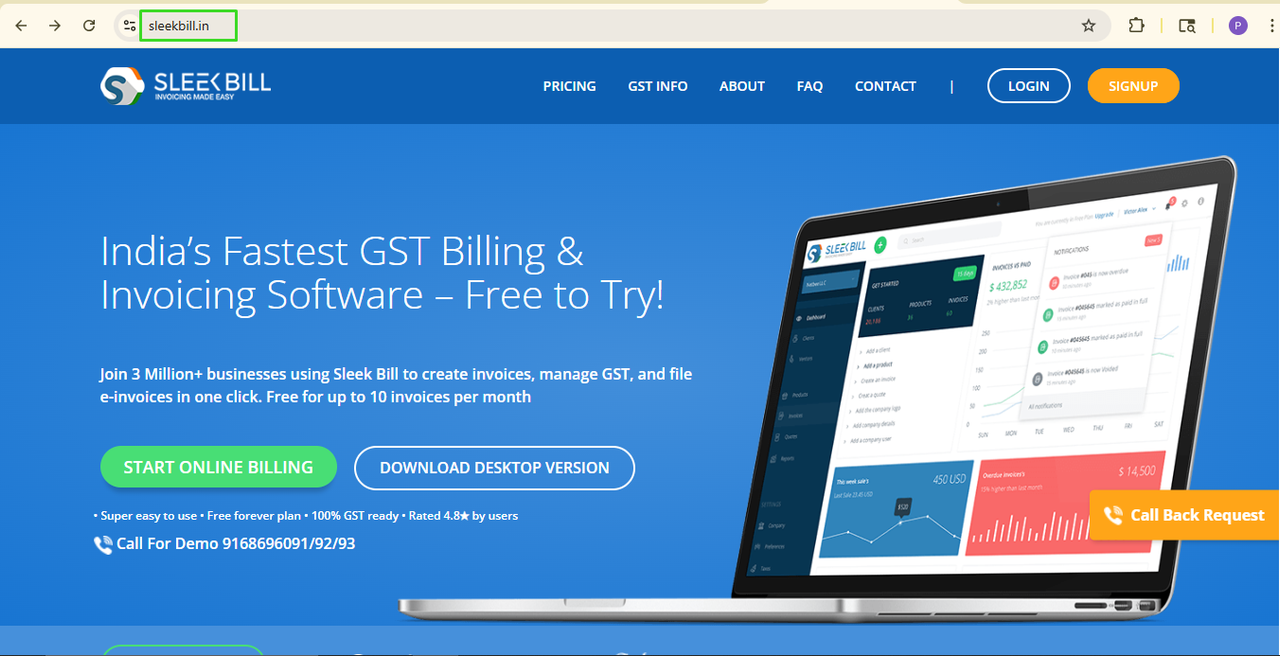
Step 1: Search https://sleekbill.in in your browser
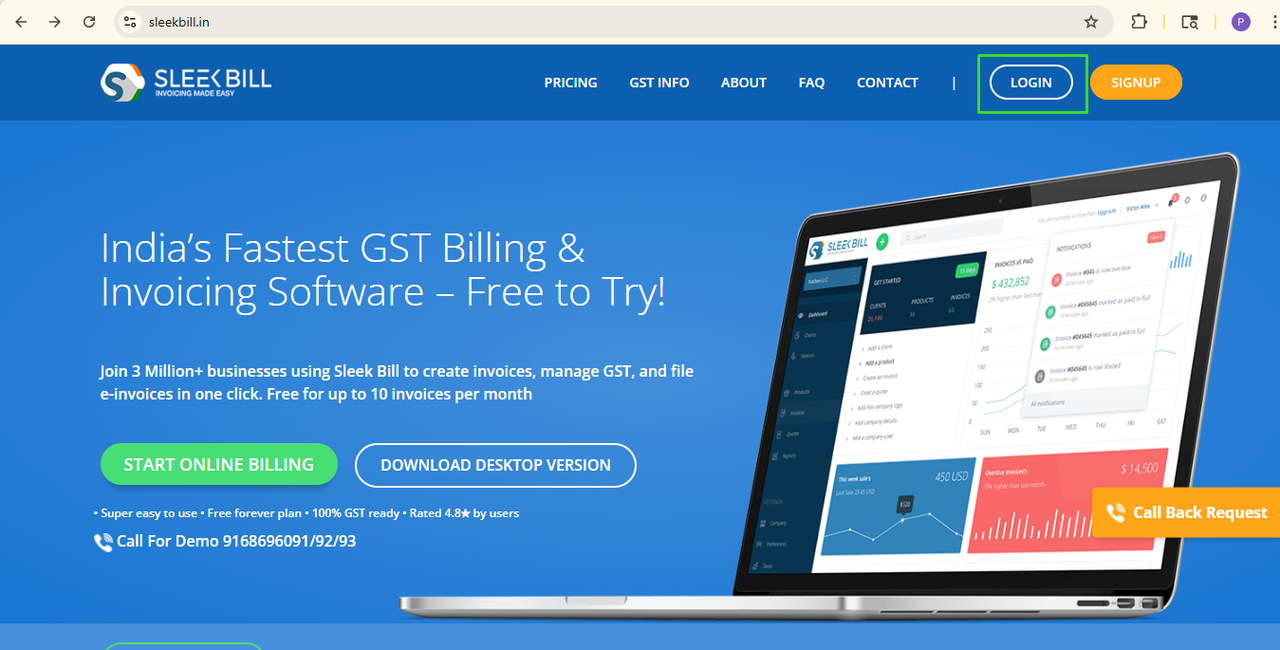
Step 2: Log in to your Sleek Bill account.
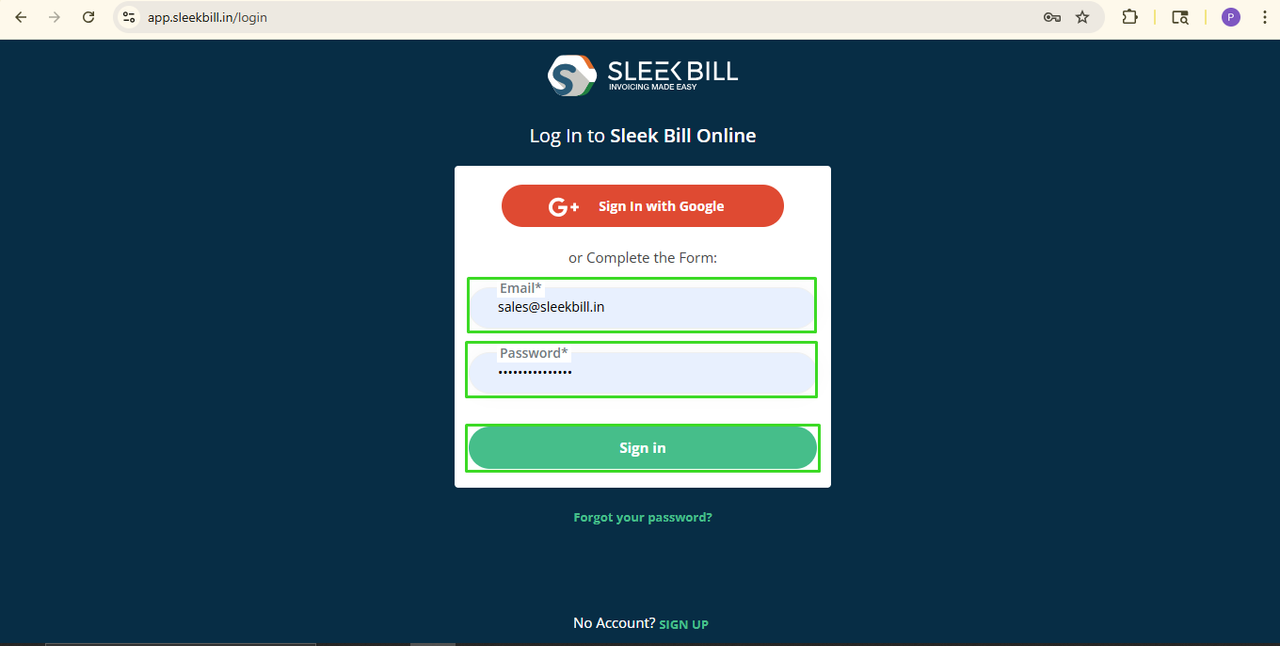
Step 3: Enter your Email ID and Password and click on the Sign In button.
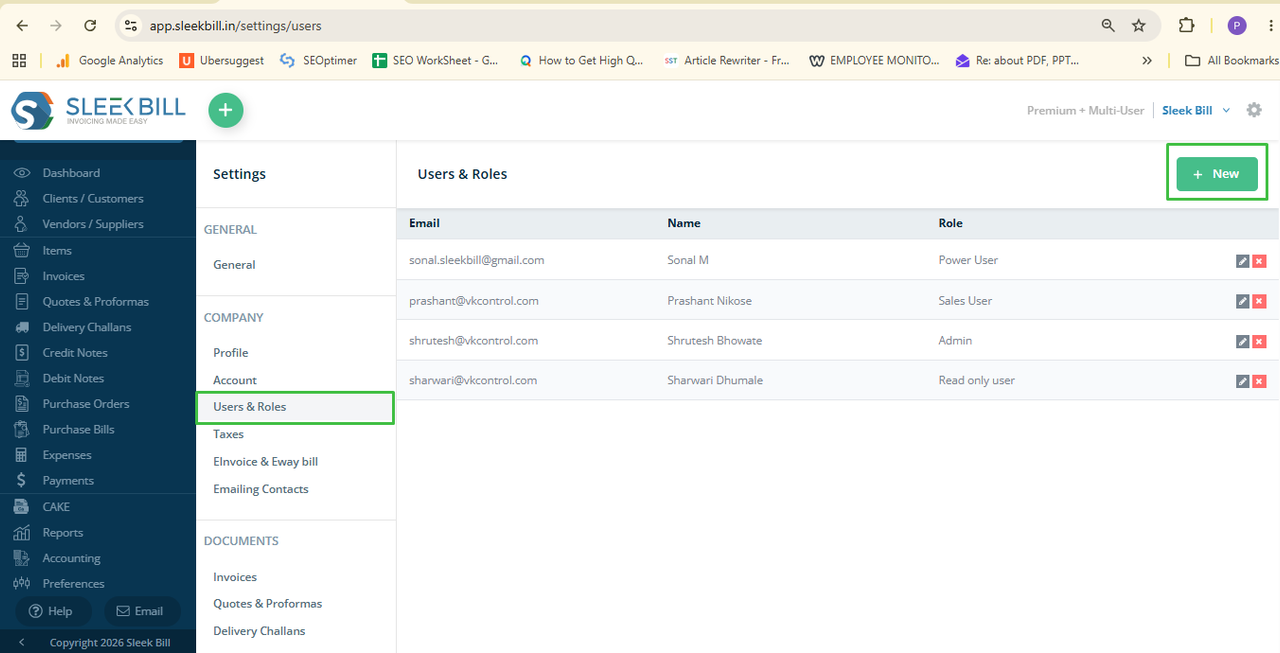
 Step 4: Click on the Preferences tab.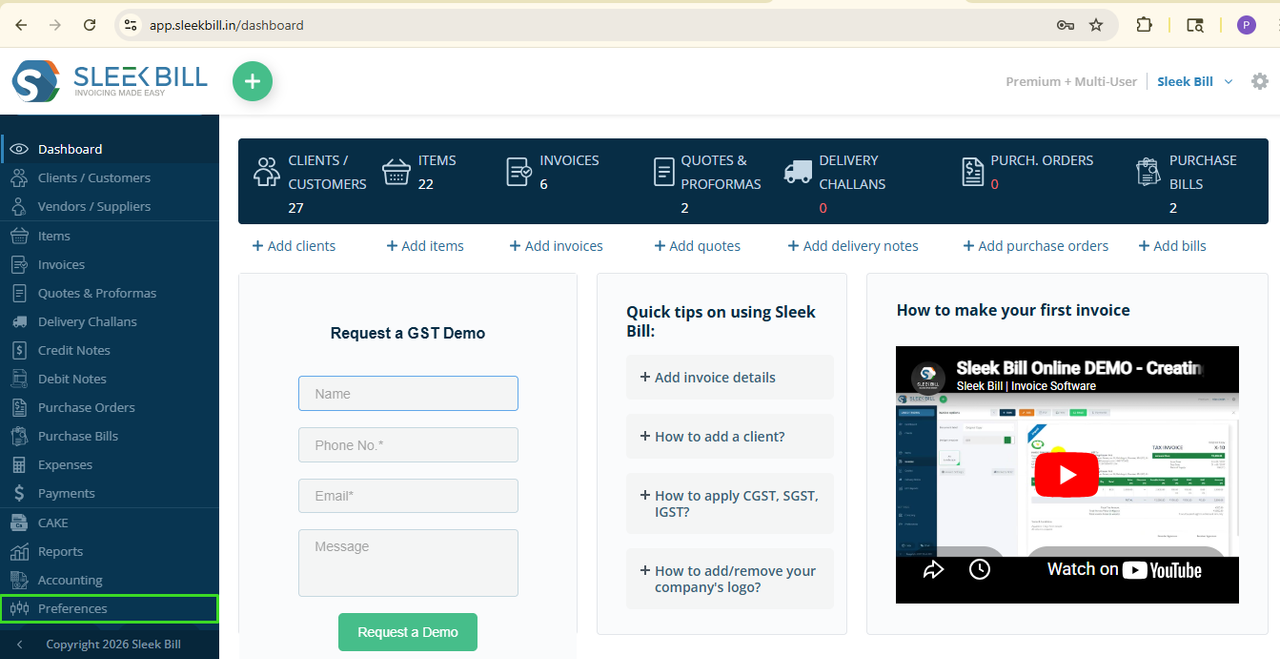
Step 5: Select the Users & Roles tab.
Step 6: Click on New Button.
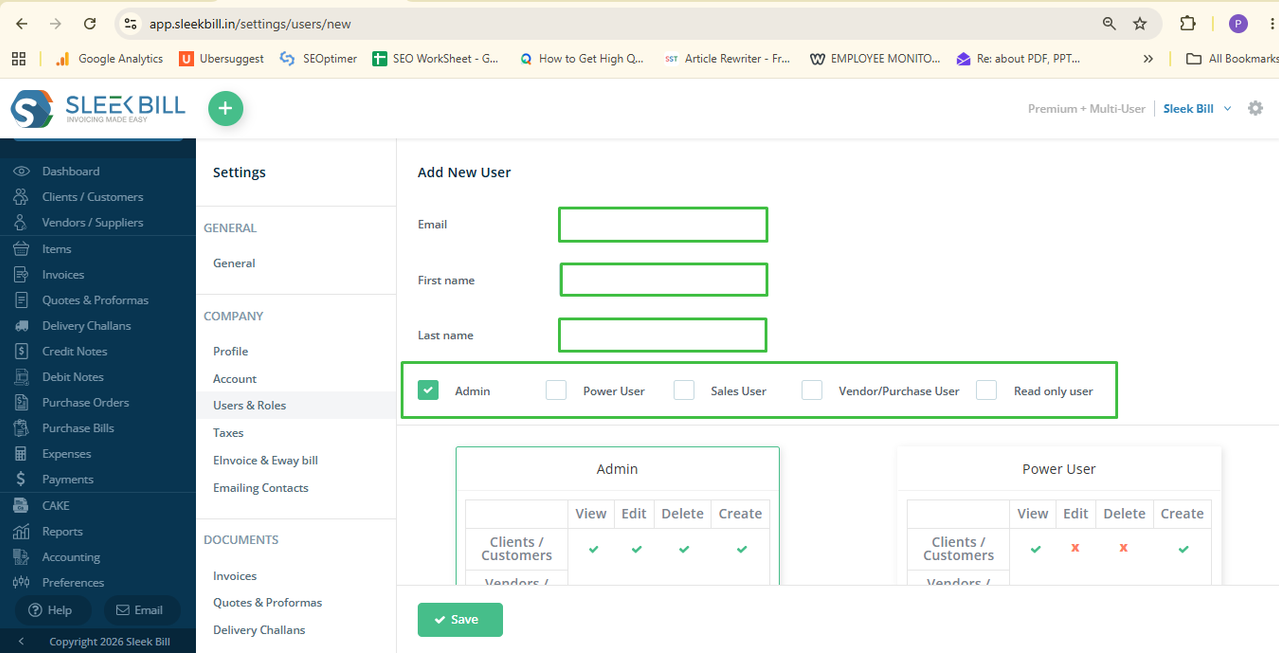
Step 7: Enter the following details:
• Email Address
• First Name
• Last Name
Select the appropriate User Role from the role list. Like Admin User, Power User, Read Only User, Sales User, Vendor / Purchase User, Read only user
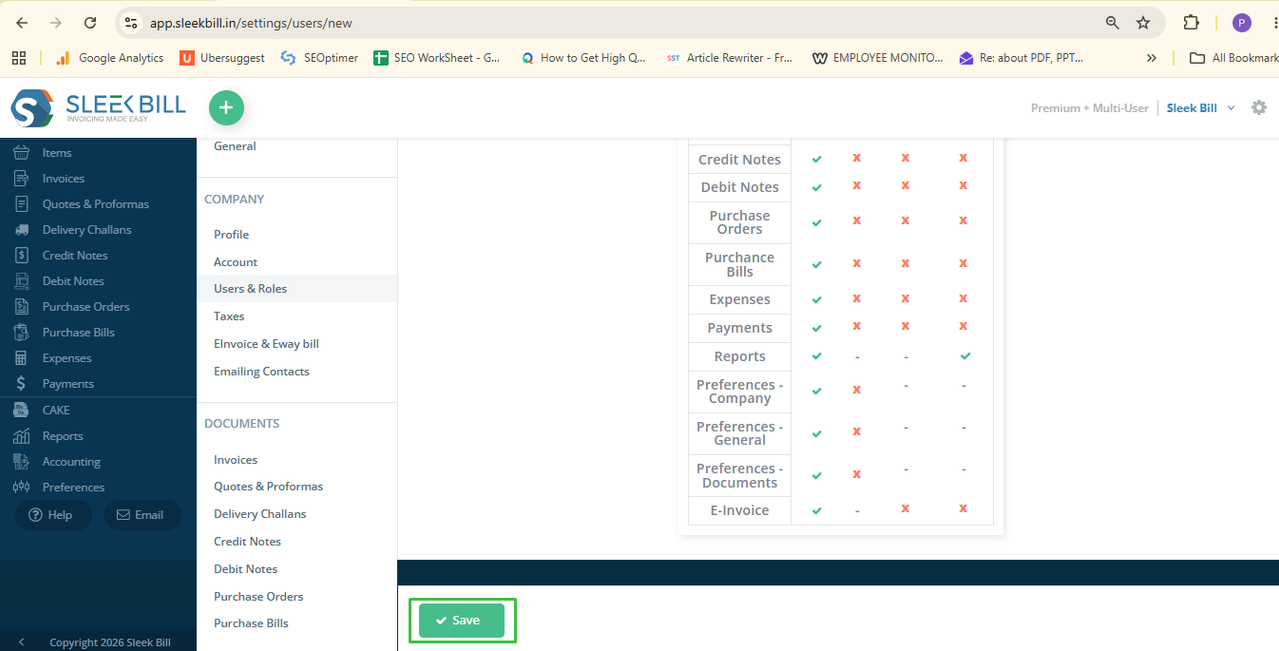
Step 7: Click Save to create the user. The user will now be added to your Sleek Bill account with the selected permissions.
Available User
Roles in Sleek Bill
Sleek Bill
provides different user roles to suit various business requirements.
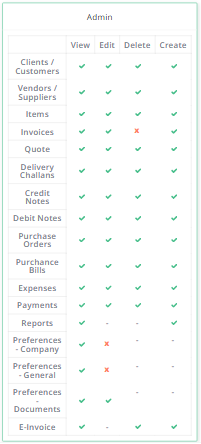
1. Admin
The admin role
has complete control over the account.
- Admin Can:
• View all modules
• Create, edit, view, invoices,
E-invoices, quotations, purchase bills, and other documents
• Can view, edit, delete, and add
client, vendor, and items.
• Edit records
• Delete records
• Manage users and permissions
• See company settings and preferences
• Generate reports
- Suitable For:
Business
owners, directors, and senior administrators.
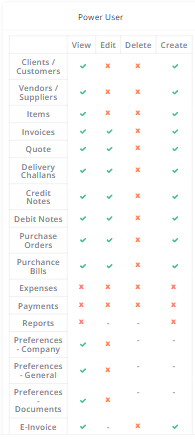
2. Power User
The Power User
has access to most business operations but with limited administrative control.
- Power User Can:
• View and create invoices, E-invoice,
quotations, purchase bills, and other documents except edit E-invoice
• View customers and suppliers
• Handle purchases and sales activities
- Suitable For:
Office managers
and senior staff members.
3. Sales User
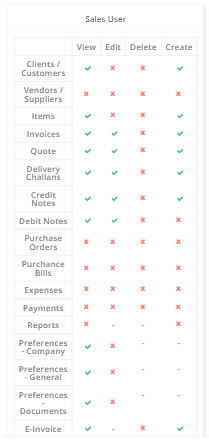
The Sales User
is focused on sales-related activities.
- Sales User Can:
• Create and view invoices, quotations,
Delivery Challans, Credit Notes
• Edit invoices, quotations, Delivery
Challans, Credit Notes
• Manage customer records
• View sales-related documents,
E-invoices,
• Manage document settings
- Sales User Cannot:
• Manage purchase transactions
• Access sensitive company settings
- Suitable For:
Sales
executives and sales managers.
4. Vendor /
Purchase User
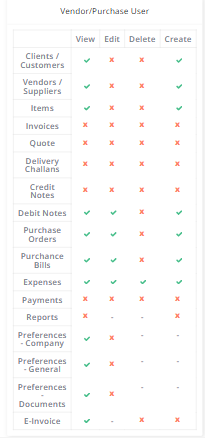
The
Vendor/Purchase User is responsible for procurement and supplier management.
- Vendor/Purchase User Can:
• Create and view suppliers , customers,
and items
• Create, edit, and view purchase orders
, purchase bills, and Debit Notes
• Record expenses
• Manage vendor-related activities
- Vendor/Purchase User Cannot:
• Access most sales operations
• Modify company settings
- Suitable For:
Purchase
managers, procurement teams, and inventory staff.
5. Read Only
User
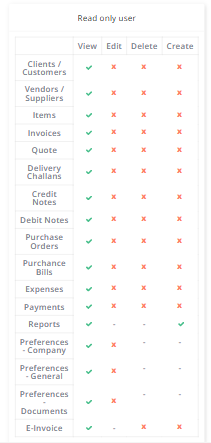
The Read Only
User can view information but cannot make changes.
- Read Only User Can:
• View customers and suppliers
• View invoices and business documents
• Access information without editing
• Can create and download reports
- Read Only User Cannot:
• Create records
• Edit records
• Delete records
- Suitable For:
Auditors,
accountants, consultants, and management staff who only need to review data.
Conclusion
Through ‘add
user’ and ‘assign to roles’ in Sleek Bill, you can efficiently
administrate your team members while protecting business information. Just add
the user information, assign to the proper roles, and Sleek Bill will deliver the right
access to the respective permissions automatically for every team member. You do not have enough Humanizer words left. Upgrade your Surfer plan.
Was this article helpful?