How to Change Decimal Places for Quantity in Sleek Bill?
Welcome to the Sleek Bill Knowledge Hub!
Do your invoices display quantities like 1 instead of 1.50? This usually happens due to default decimal settings. Fortunately, Sleek Bill allows you to customize quantity decimals effortlessly, ensuring accuracy and professionalism in every document.
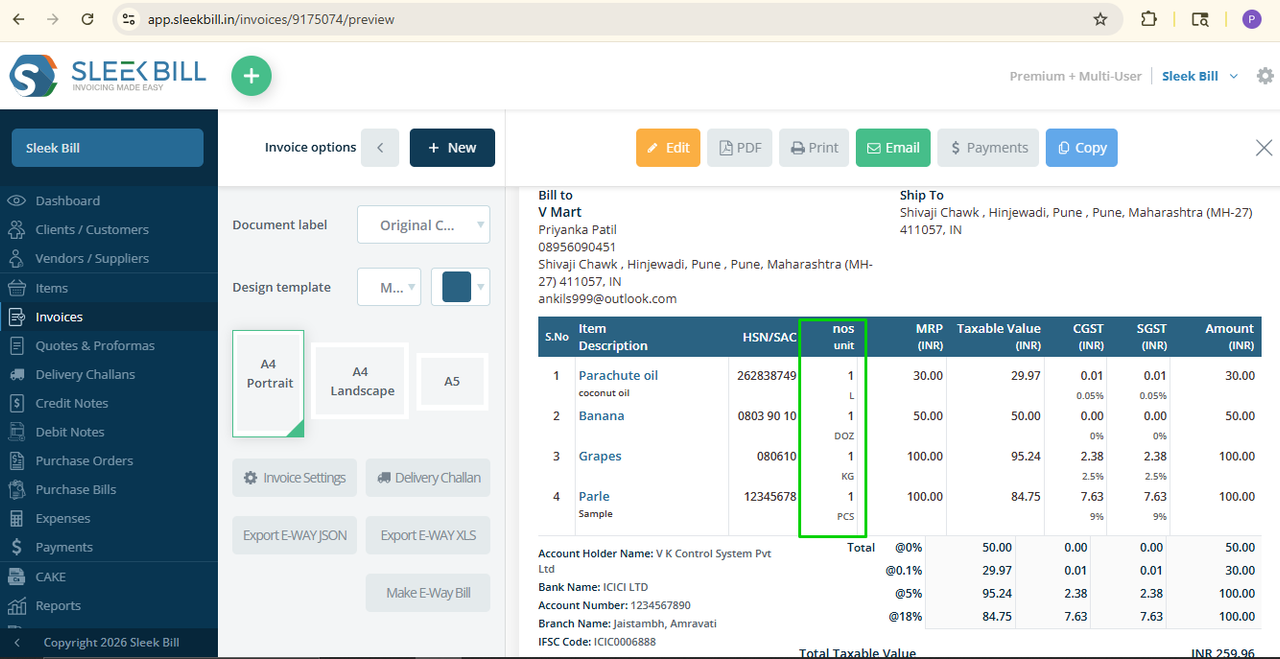
Why Should You Adjust Decimal Places for Quantity?
If your business deals with fractional measurements, updating decimal settings isn’t just a good idea—it’s essential. Here’s what you get out of it:
Accurate billing. This matters for industries like textiles, chemicals, hardware, and wholesale trading, where even tiny differences can add up.
- You look professional: Instead of showing vague numbers, you get clean totals like 1.25 or 2.50 on your invoices. Clients notice those little details.
- No more calculation errors: Clear values mean fewer mix-ups with customers or vendors.
- Custom flexibility: You get to choose how many decimal places fit your products and industry.
- Consistency everywhere: All your invoices and documents follow the same format, which makes things easier for everyone.
Ready to adjust the number of decimal places for quantities in Sleek Bill? Here’s how to do it, step by step.
Follow these simple instructions to update your settings:
Step 1: First, open Sleek Bill in your browser, type www.sleekbill.in


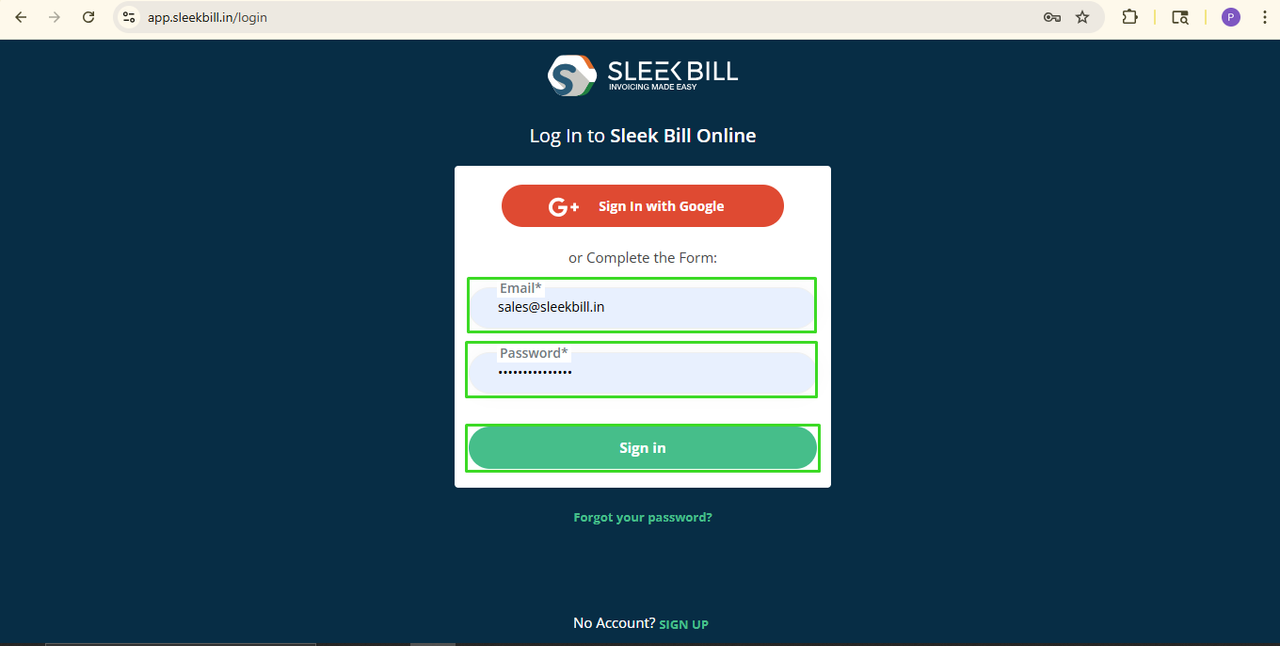 Step 4: Now you are on the Sleek Bill dashboard, simple! Now, scroll down and click on the Preferences tab.
 Step 5: By default, the general tab is open. Here, you can see the option called Decimal Places for Quantity. From the side dropdown option, set the number of decimal places you need — like 1,2,3 based on your business needs. Click on Save to apply the updated settings.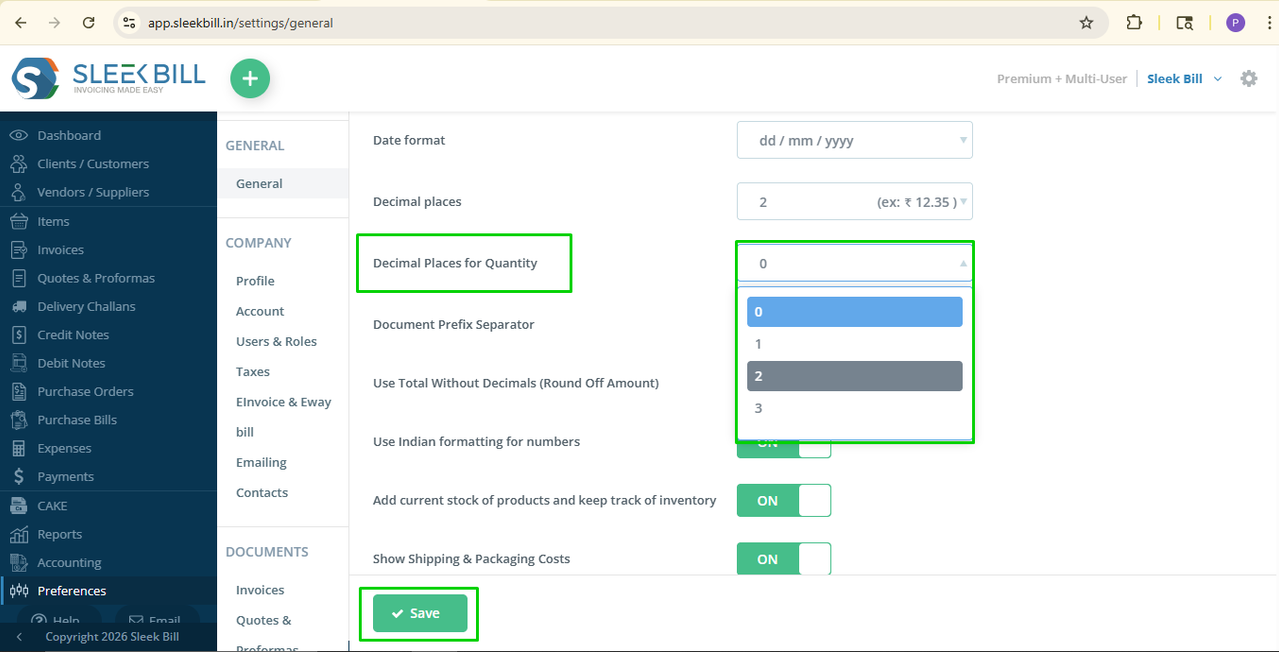
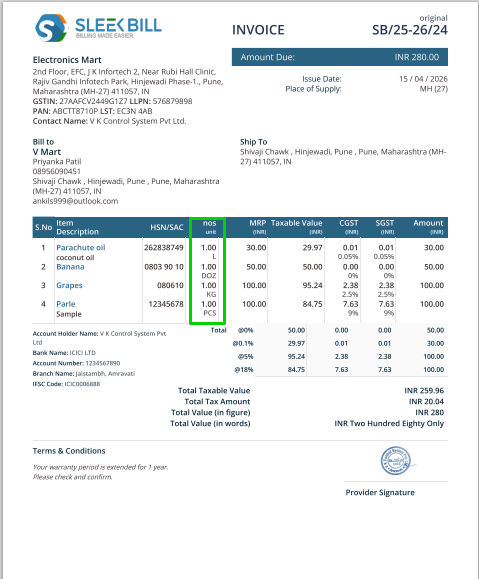
Conclusion
Adjusting decimal places in Sleek Bill takes just a minute, but it really sharpens up your billing. You’ll come across as more professional, and your invoices will stay clean and accurate from now on. Set it up once, then forget about it.
Was this article helpful?