How to Change Labels and Columns in Sleek Bill Invoice?
Hello Sleek
Bill users, welcome to the Sleek Bill Knowledge Hub.
You know, invoices are the most important documents for any business. A clean and
professional invoice helps customers understand billing details clearly.
Sometimes businesses want to change invoice labels like Invoice Title, Bill To,
Ship To, Quantity, Tax, Terms & Conditions, and many more according to
their business style, regional language, or any other reason.
With Sleek
Bill, you can easily customize invoice labels and column names. This
helps you create invoices that perfectly match your business needs.
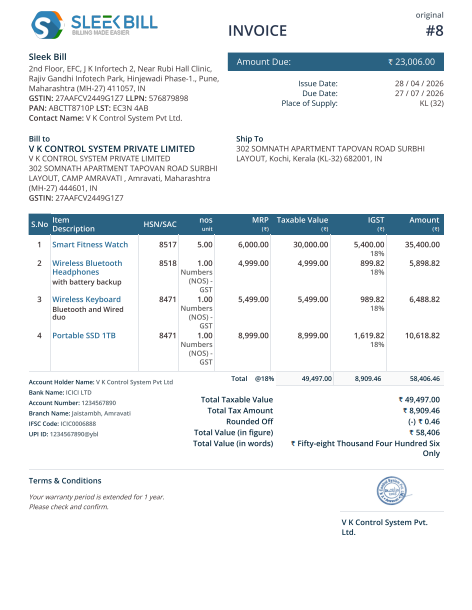
Why Is Changing Invoice Labels Important?
Changing
invoice labels as per business makes your invoices more professional and easier
to understand.
Benefits of
Custom Invoice Labels:
- Your invoices look more professional.
- Customers can easily understand invoice details.
- You can match invoice terms with your business type.
- Helpful for GST and non-GST businesses.
- Makes invoices clean and organized.
- Useful for accounting and official records.
How to Change
Labels and Columns in Sleek Bill Invoice?
Step 1: Open Sleek Bill Website www.sleekbill.in
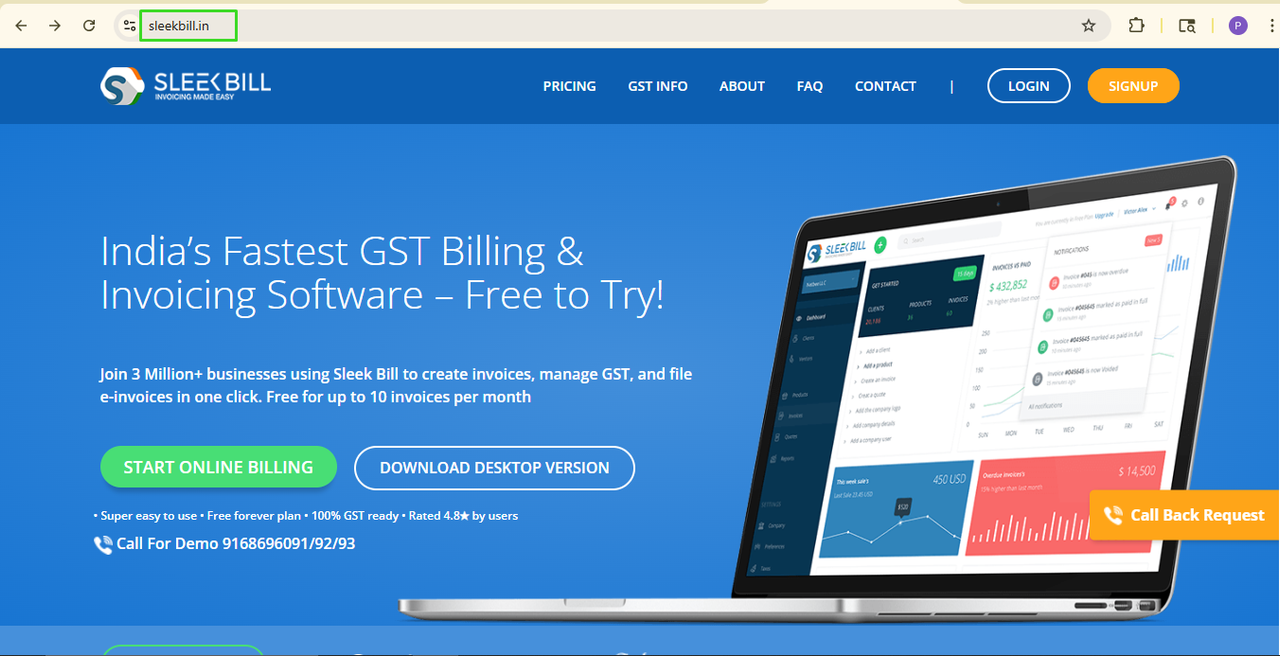
Step 2: Click
on the Login Button.

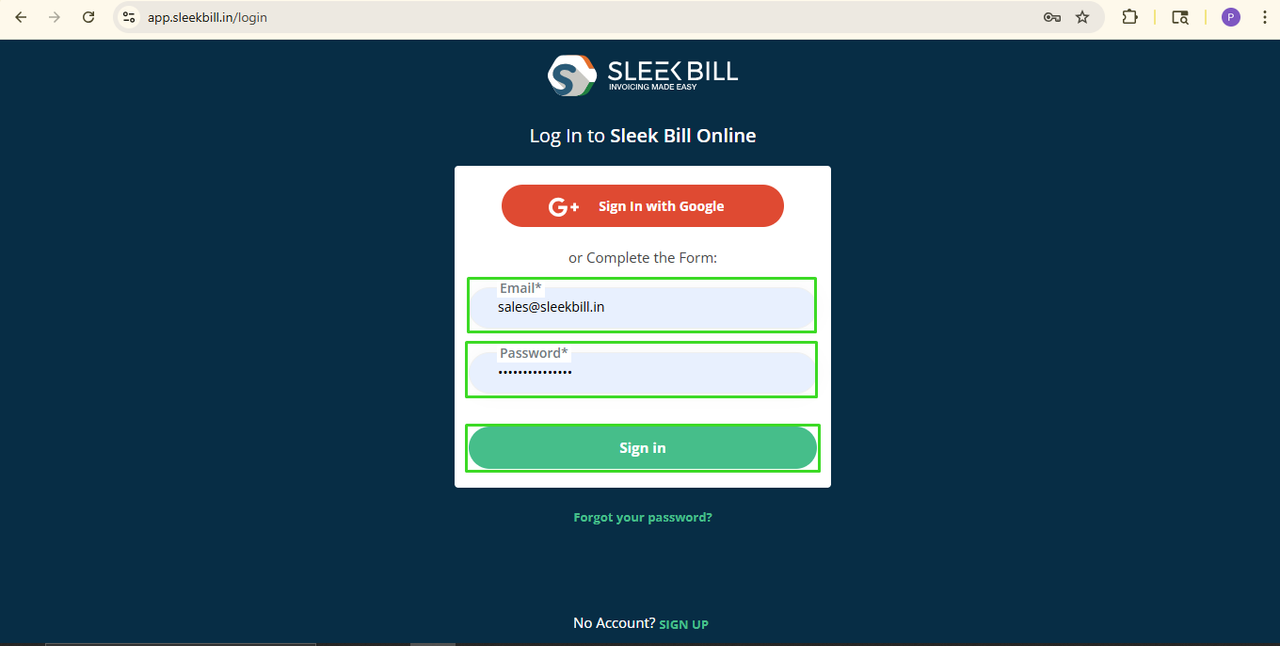
Step 3: Enter
your login credentials and click on the Sign In button.
Step 4: Now you will enter the Sleek Bill dashboard. Click on the Preferences tab at the bottom left.

Step 5: Now, click on the Invoices tab.
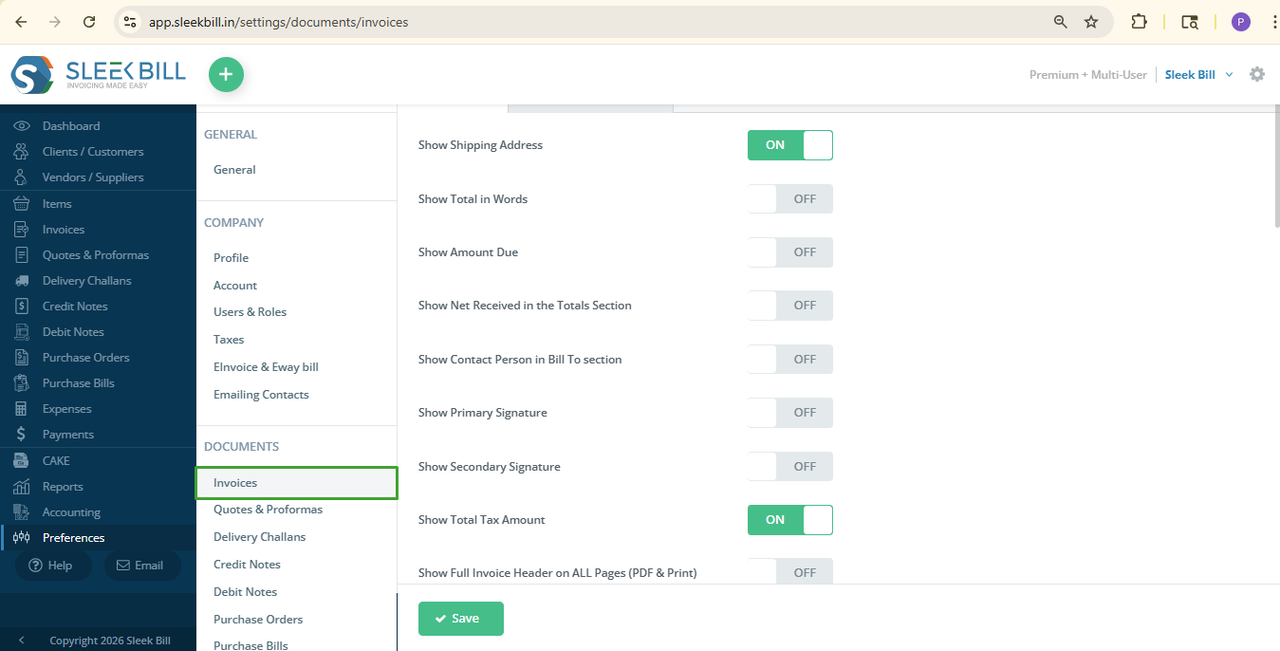
Step 6: Click
on the Labels and Columns Tab.
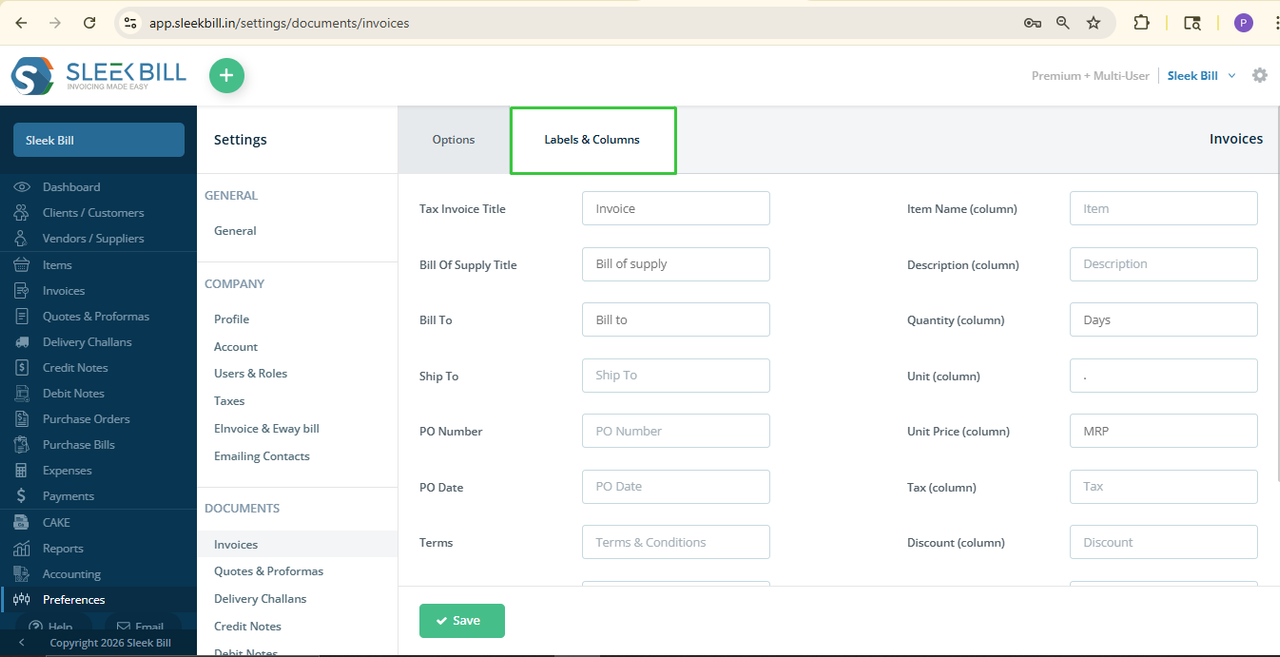
Now you can
customize different invoice labels and column names.
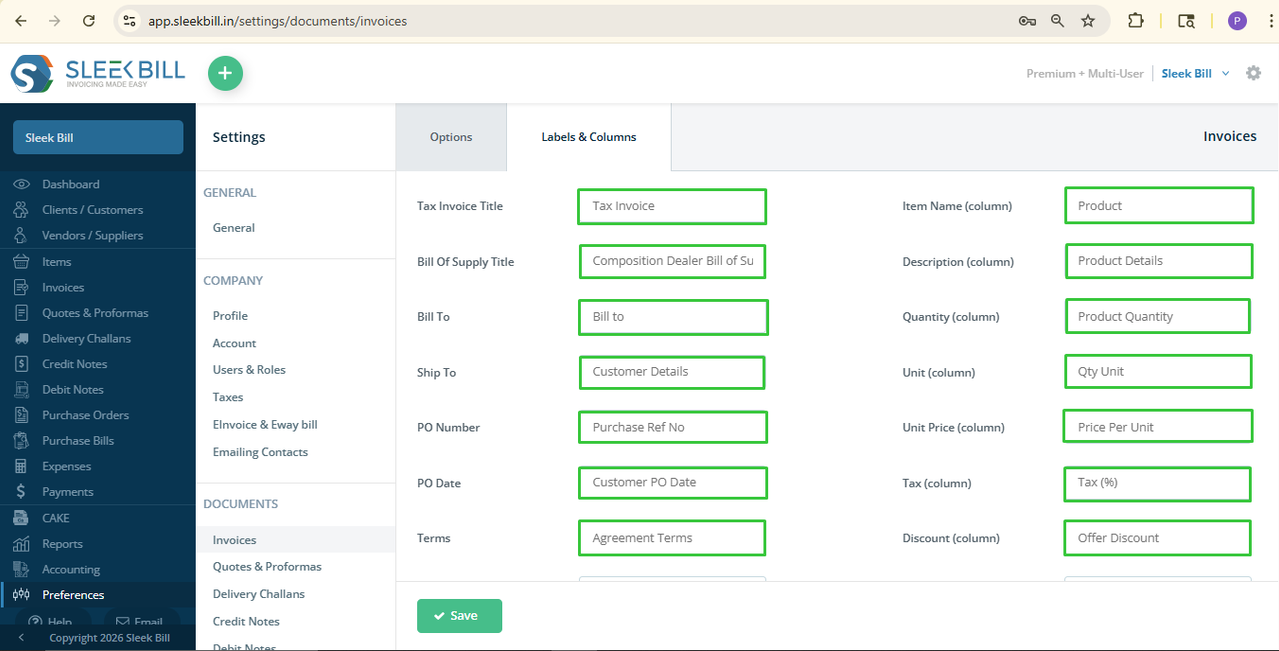
Tax Invoice Title:
Bill Of Supply Title: You can change labels like: Bill of Supply, GST Bill of Supply, Composition Dealer Bill of Supply, Service Bill of Supply, Retail Bill of Supply, etc.
Bill To:
Ship To:
PO Number:
PO Date:
Terms:
Item Name (Column):
Description (Column):
Quantity (Column):
Delivered Quantity
Units:
Unit Price (Column):
Tax (Column):
Discount (Column):
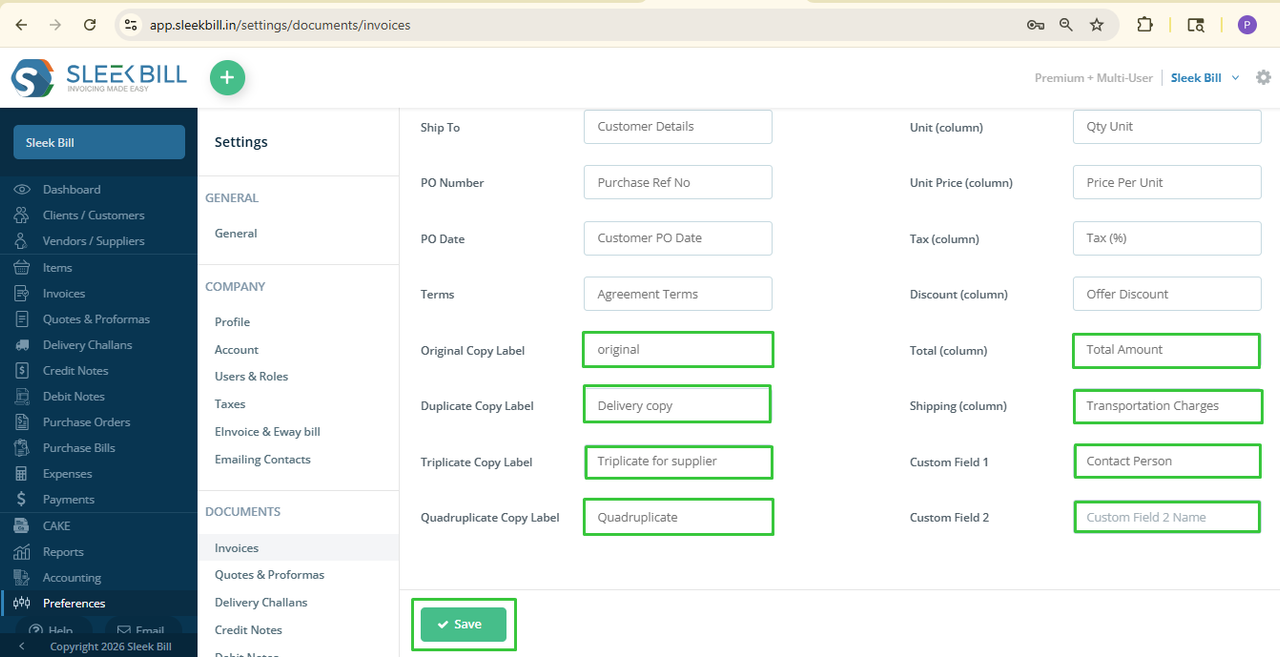
Duplicate Copy Label: You can change labels to: Original, True copy, etc.
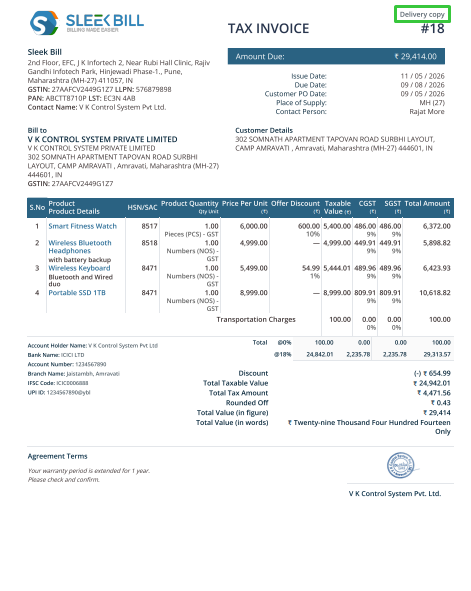
Duplicate Copy Label: You can change labels to: Duplicate for Supplier, Duplicate for Transporter, Delivery Copy, Duplicate Invoice Copy, Dispatch Copy, etc.
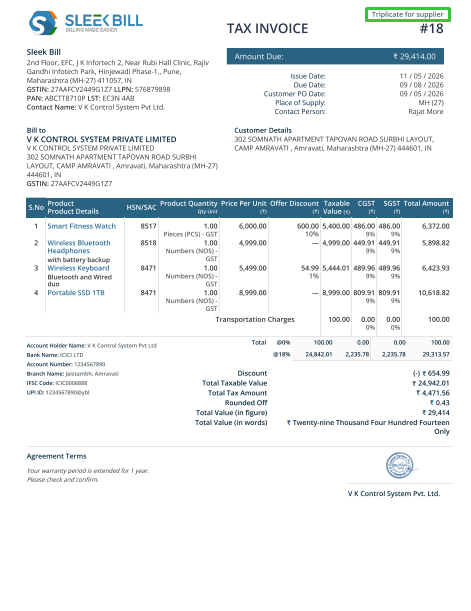
Triplicate Copy Label: You can change labels to: Triplicate for Supplier, Triplicate for Transporter, Triplicate for Office Use, etc.
Quadruplicate Copy Label: You can change labels to: Quadruplicate for Accounts, Quadruplicate for Office Use, Quadruplicate for Supplier, Quadruplicate for Records, etc.
Total (Column): You can change Total labels to: Amount, Grand Total, Net Total, Final Total, Invoice Total, Total Amount, Amount Payable, Total Payable, etc.
Shipping (Column):
Custom Field 1 and Custom Field 2: You can customize these fields for: Contact Person, Remarks, Notes, Warranty Details, Service Period, Subscription ID, and Save the Changes, etc.
Step 7: After making
all changes, click on the Save button.
What Happens
Next?
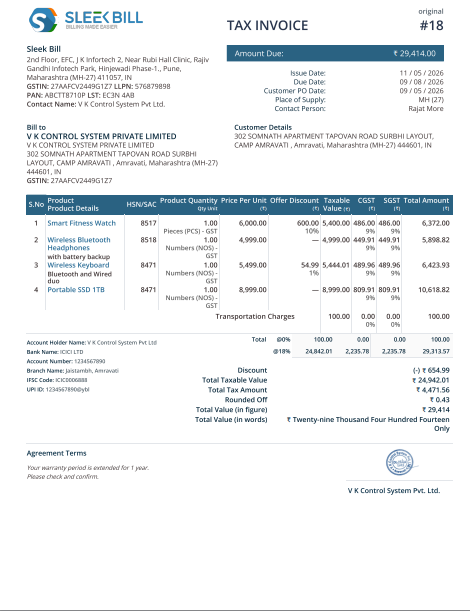
Next time you create a new invoice, your updated labels and column names will automatically appear on the invoice.
Here you can check that the Labels and columns have been changed, as the Contact Person has been added, and the label has also been changed to Customer Details, Product, Product Details, Qty Unit Price Per Unit, Offer Discount, Taxable Value, Total Amount, and Agreement Terms
Conclusion:
Changing
invoice labels and column names in Sleek Bill
is very simple and useful for every business. It helps you create professional invoices that match your business style and customer understanding.
Whether you want to change Invoice Title, Bill To, Quantity, Tax, Shipping, or Custom Fields, with Sleek Bill, customize the invoice label.
Using proper
invoice labels improves readability, reduces confusion, and creates a better
impression on customers.
Was this article helpful?