How to Show Shipping Address on Purchase Order in Sleek Bill?
Hello Sleek
Bill users, welcome to the Sleek Bill Knowledge Hub.
In this
tutorial, we will learn how to show the Shipping Address on a Purchase Order in
Sleek Bill.
Will allow for
a more comprehensive and professional purchase order, and present the delivery
address on the order. If the business
requires an order to be shipped to another address other than the billing
address, revealing the shipping address will give the relevant details.
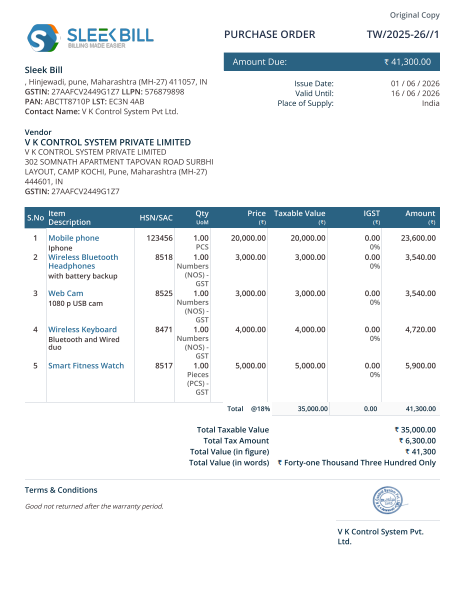
The “Show
Shipping Address” checkbox automatically adds the Address you select to all
Purchase Orders.
What is the reason to show the
shipping address on a purchase order?
Adding the
shipping address to a purchase order offers several benefits:
- · Clearly lays out where it is to be delivered for suppliers.
- Helps prevent shipping errors and delays.
- No visual would enable the communication between a buyer and the owner to be improved.
- Makes purchase orders more professional and organized.
- Applicable to firms running many warehouses/branches/delivery points.
Steps to Enable
Shipping Address on Purchase Order
Step 1: Open your web browser and load the Sleek Bill site.
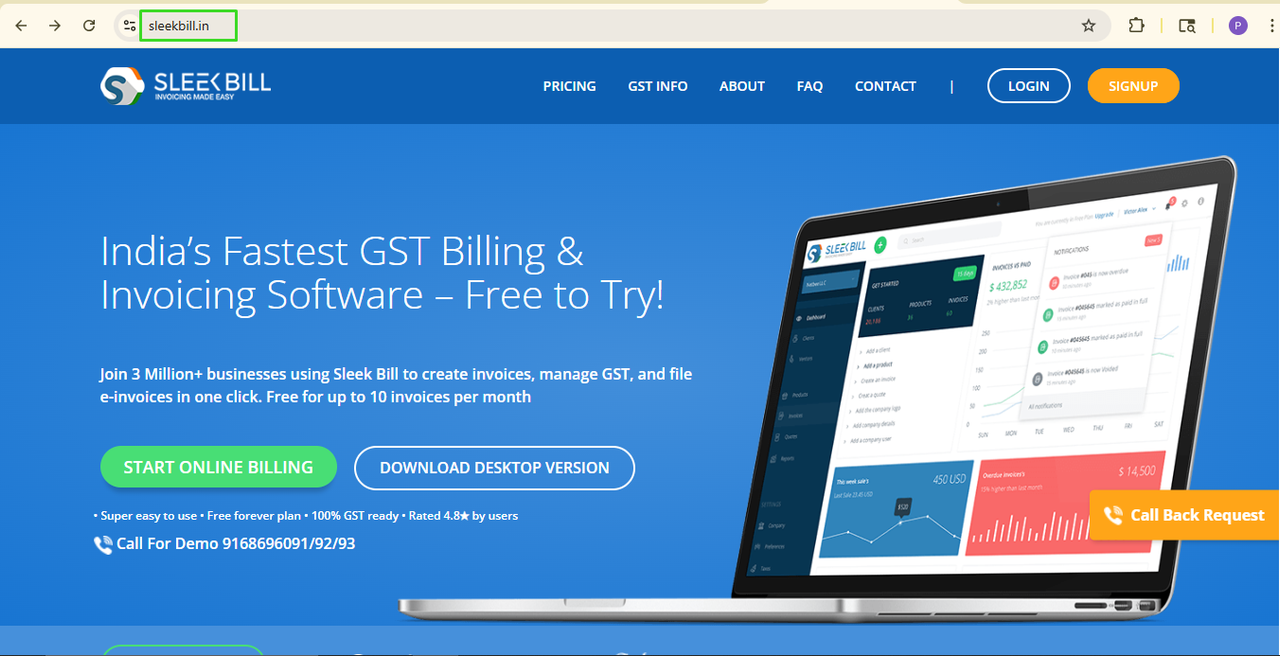
Step 2: Click on the Login button.

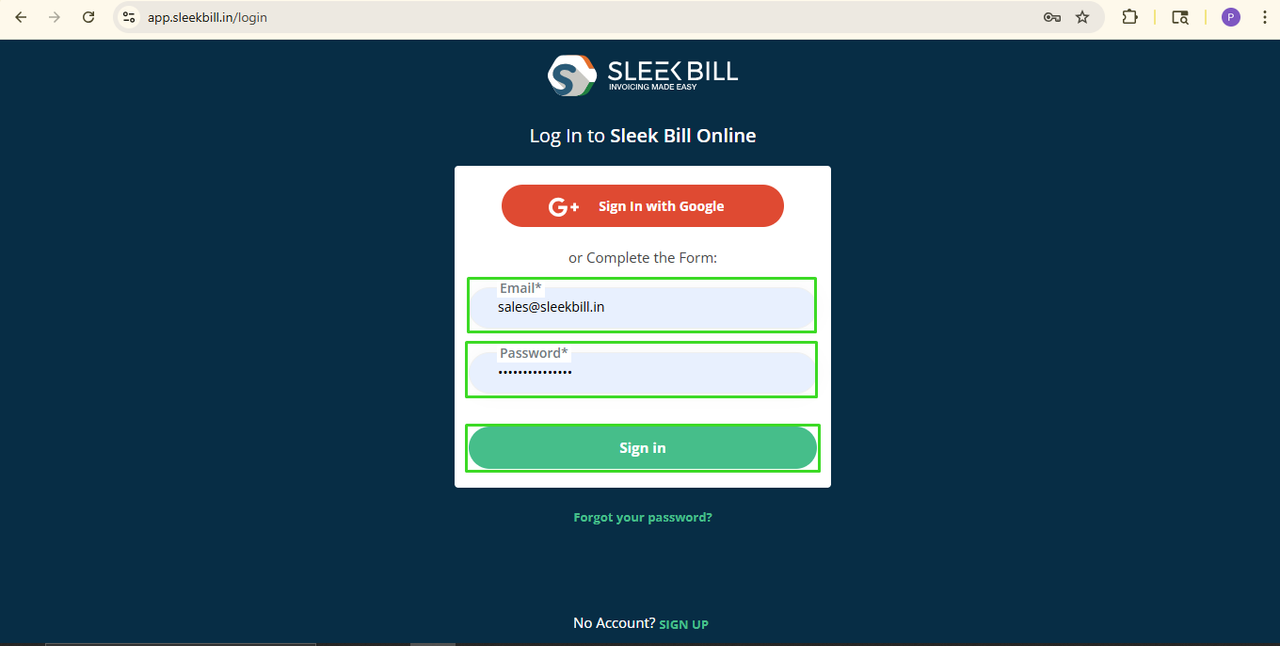
Step 3: Input your logged in the registered Email ID and its Password. Just click Sign In.
Step 4: From there, go to the Preferences.

Step 5: Click on the Purchase Order Tab
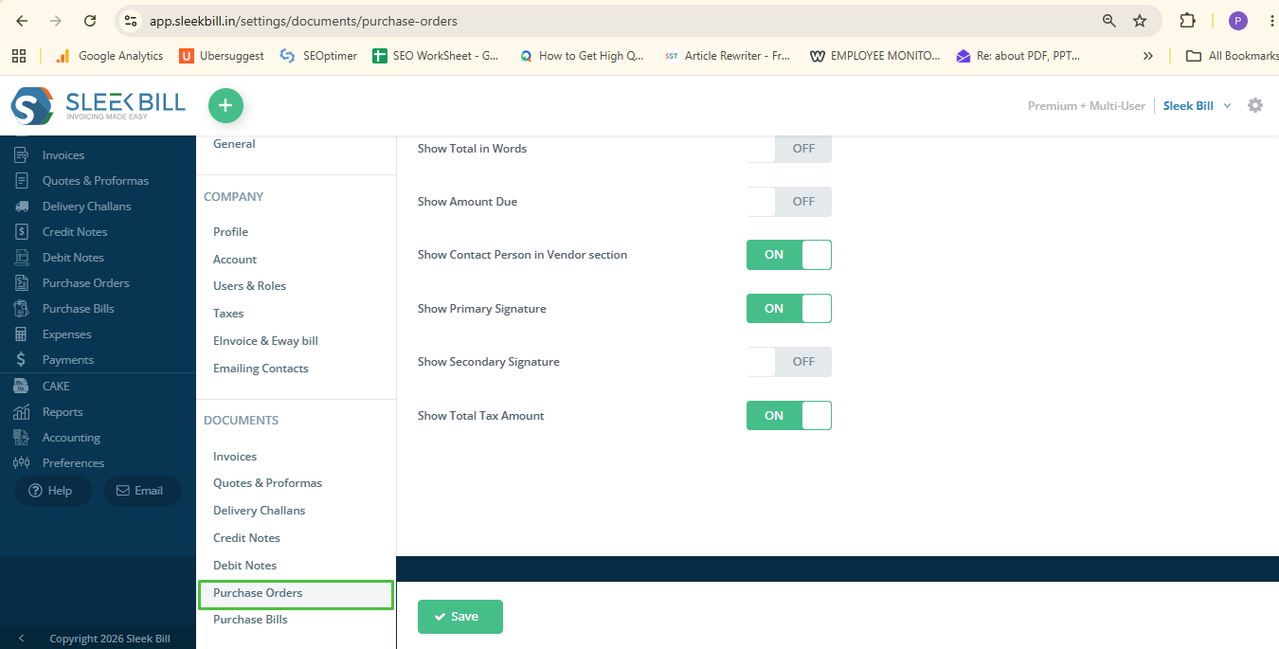
Step 6: Find the “Show Shipping Address” option and check it.
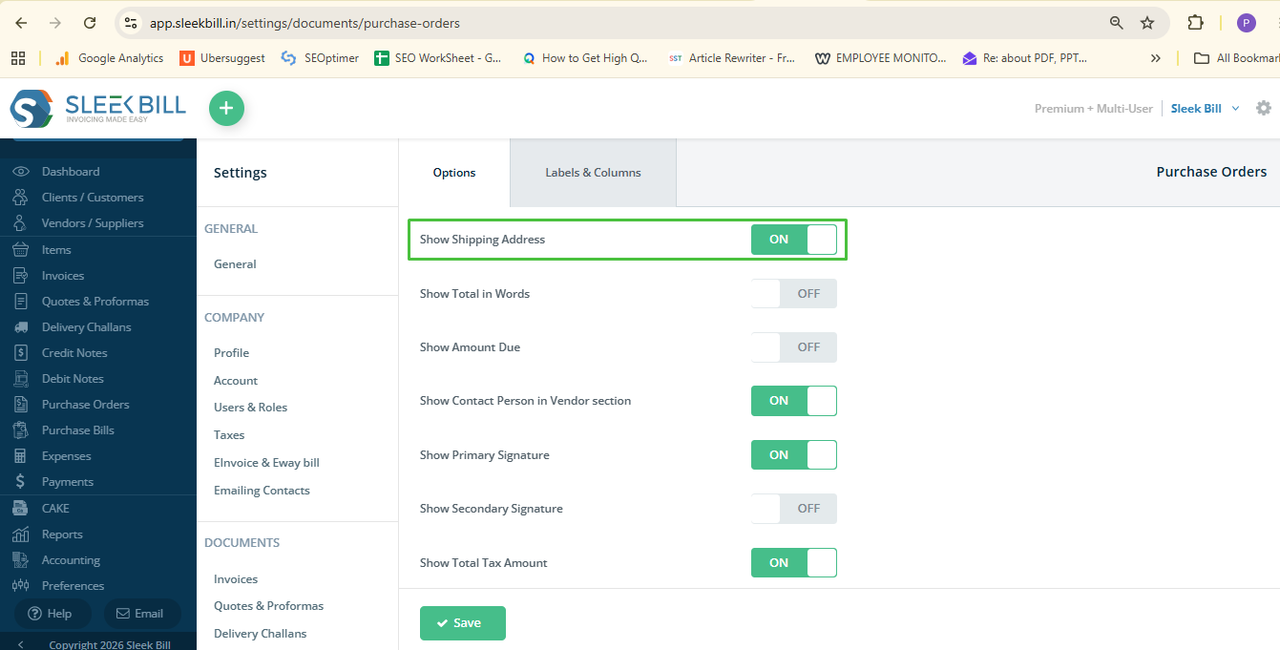
Step 7: Click on the Save button.
That‘s it!
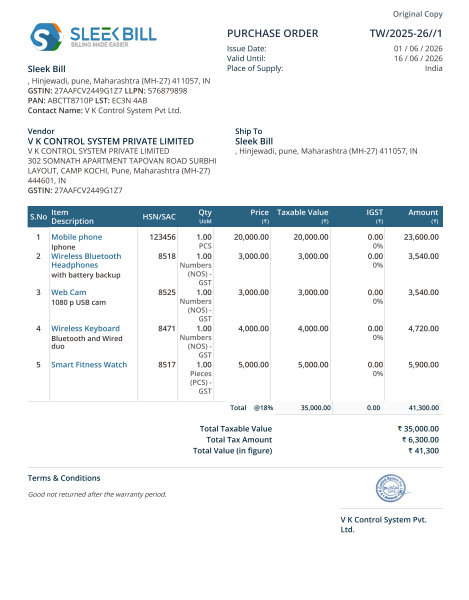
Each time you generate a new Purchase Order, the shipping address will
be displayed.
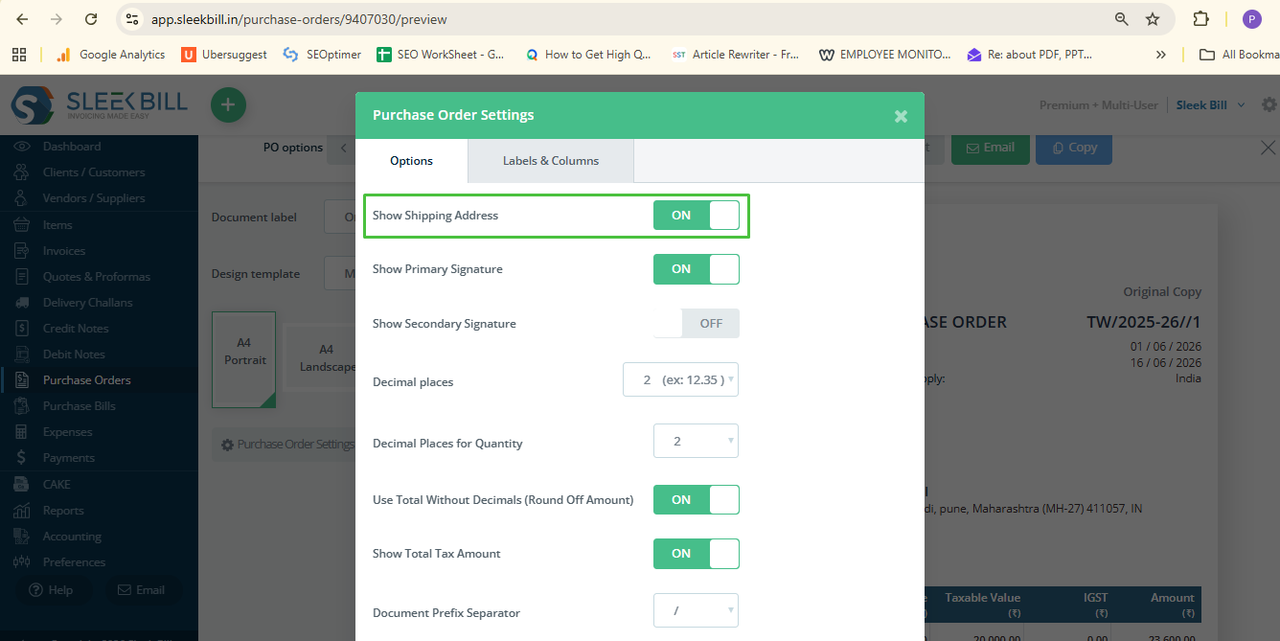
You can show the shipping address on Old Purchase orders also
Step 1: Go to the Purchase Order Tabà Click on the particular tab.
Step 2: Click on the Edit Button at the top.
Step 3: Now just click on the preview and save button.
Step 4: In the Preview window, click on the Purchase Order Setting button on the left side area
How It Helps
Your Business
If the
suppliers have a purchase order with an explicitly specified delivery address,
they do not need further confirmations that the goods are going somewhere else. This
prevents misunderstandings and saves time, and reduces delivery errors.
This feature
will greatly help companies that are into manufacturing, distribution,
wholesale trade, retail, and warehouse management.
Conclusion
Show Shipping
Address is a very simple yet valuable option that helps to complete the
Purchase Orders on your end, so that your Purchase Orders appear more
perfect. Showing the correct shipping
address on the PO template improves communication with suppliers, reduces
mistakes in shipping, and simplifies the purchasing process.
Was this article helpful?