How Show Quantity Columns for Services in Sleek Bill?
Hello Sleek
Bill users, welcome to the Sleek Bill Knowledge Hub! In this guide, we’ll
understand how to show quantity columns for Services in Sleek Bill
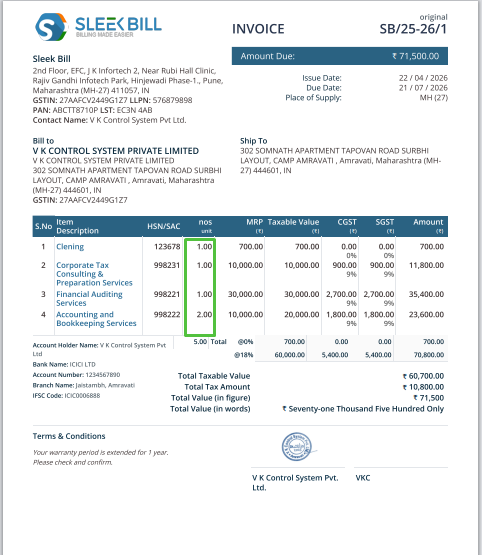
Sometimes, while
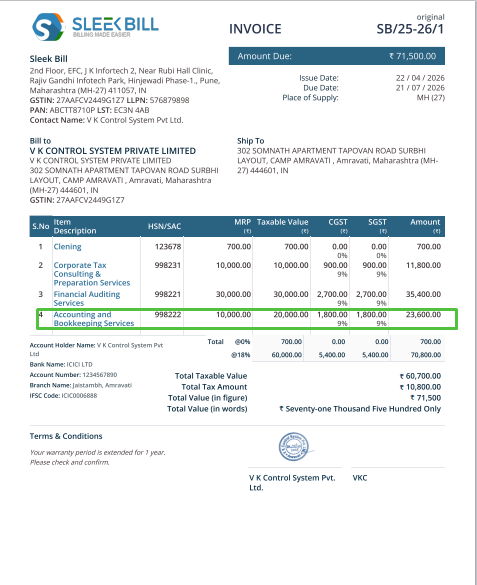
creating a service invoice, you may add the same service multiple times, but
it’s not clearly visible because the quantity column is missing. This
can confuse both you and your client.
See below.
That’s where
the “Show Quantity Columns for Services” feature becomes very useful.
Why should you use this feature?
- It helps you clearly show how many times a service is provided.
- Makes your invoice more transparent and easier to understand.
- Avoids confusion in pricing and total amount.
- Gives your invoice a more professional look.
For example, if you provided a service 2 times, you can directly show Quantity 2 in the quantity column.
Steps to
Enable Quantity Column for Services
Follow these simple steps:
Step 1: Go to the Sleek Bill website https://sleekbill.in
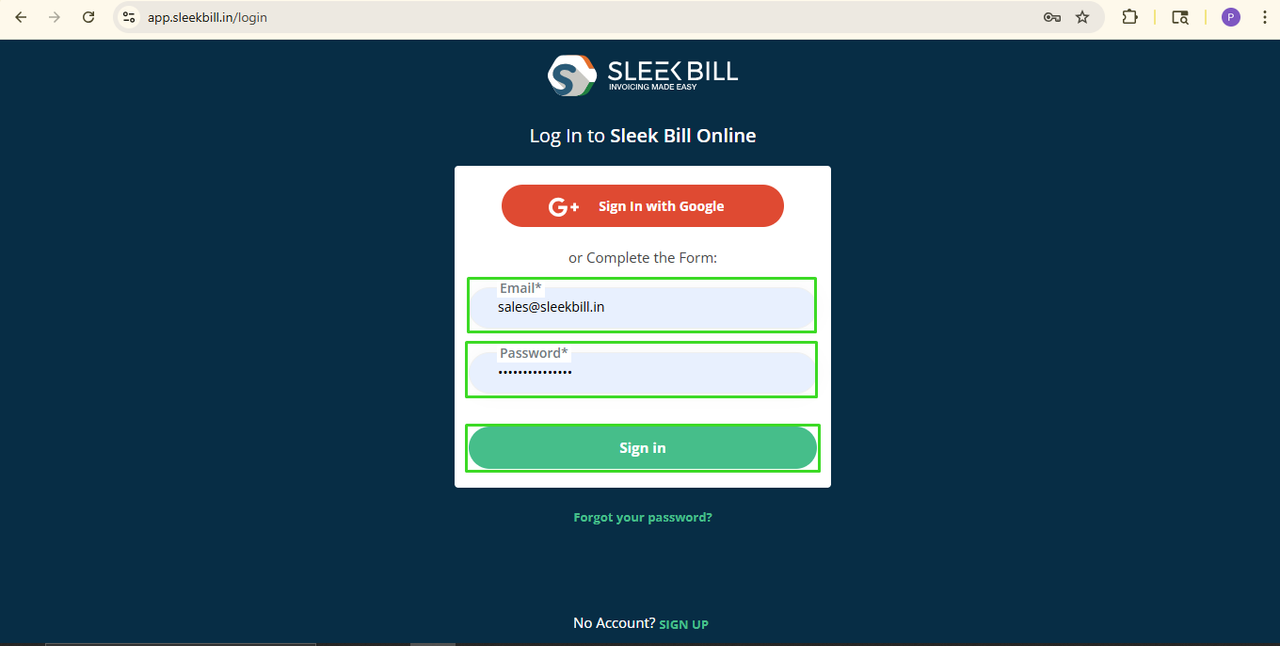
 Step 2: Click on the Login Button
 Step 3: Enter your User ID, login, and password, and click on the Sign in button.
 Step 4: Now, you enter the Sleek Bill dashboard, click on Preferences.
 Step 5: Go to the General tab and
scroll down, and you will find the option “Show
Quantity Columns for Services” and turn it.
Step 5: Go to the General tab and
scroll down, and you will find the option “Show
Quantity Columns for Services” and turn it.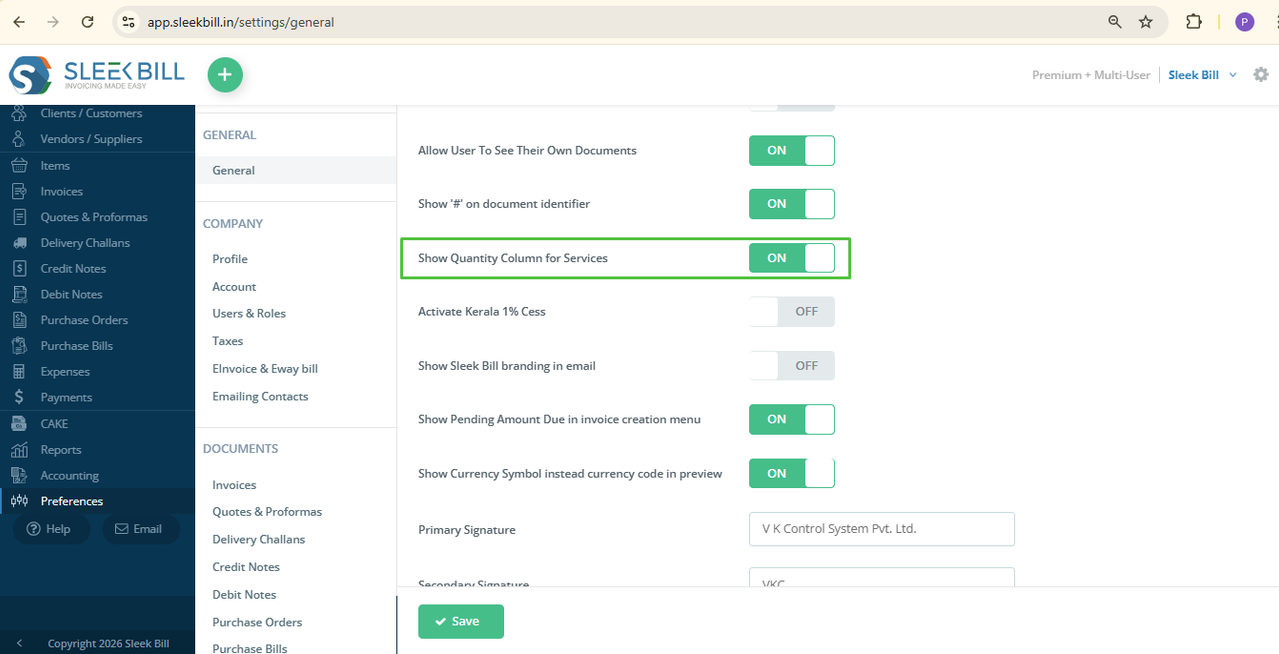 Step 6: Click on Save.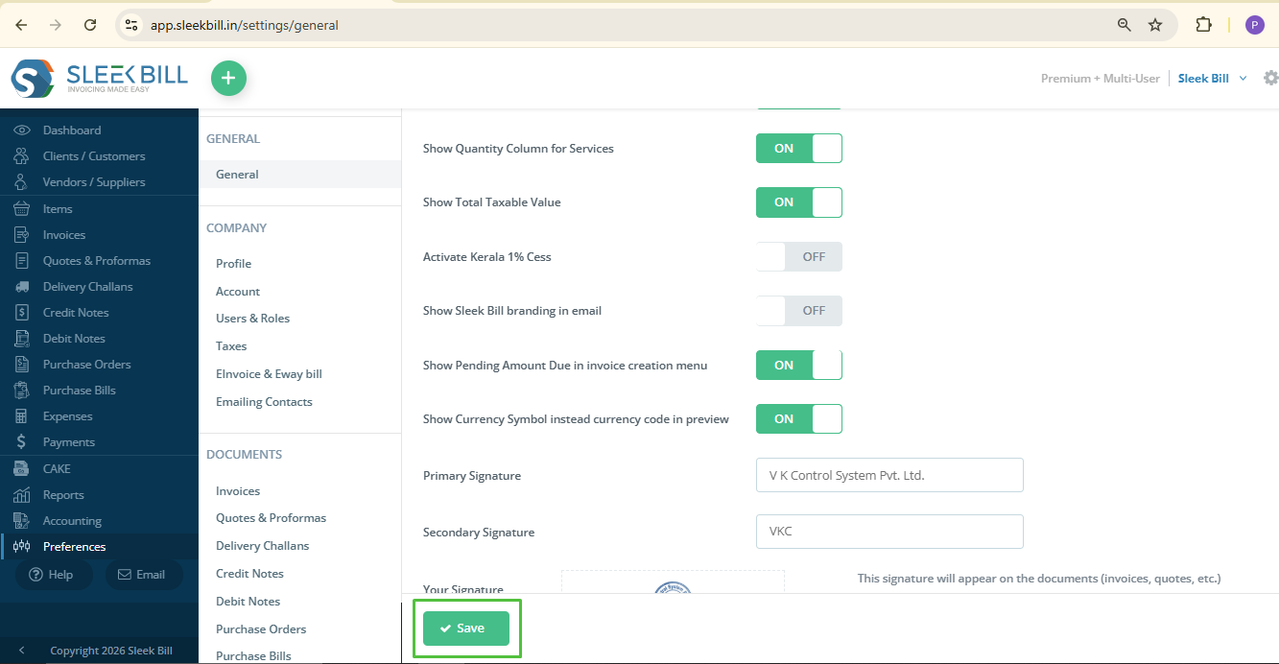
That’s it! Your
setting is now enabled.
What happens
next?
Now, when you create a new invoice, you will see the quantity column in service invoices.
You can simply enter the quantity and make your invoice clean and clear.
Conclusion
This is a small
setting, but it makes a big difference.
It improves clarity, saves time, and makes your invoices look more
professional.
So, enable this
feature today and create smarter service invoices with Sleek Bill!
Was this article helpful?