How to Allow Duplicate Item Names in Sleek Bill
Hello Sleek Bill users, welcome to the Sleek Bill Knowledge Hub!
If you’ve ever tried adding an item and got stuck because the name already exists, you’re not alone. This happens a lot, especially when businesses deal with similar products, variations, or repeated entries.
The good news? Sleek Bill gives you a simple way to allow duplicate item names. Let’s walk through it and understand why this feature can be surprisingly important.
Follow these steps to turn on this option:
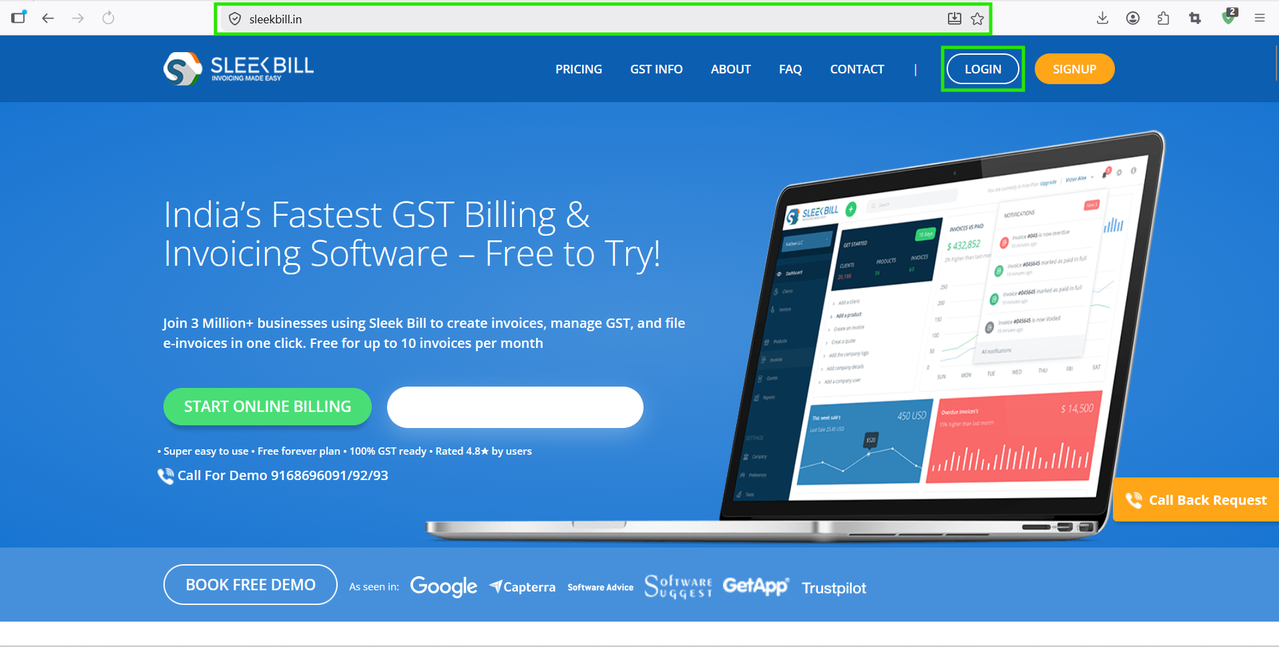
Step 1 : Open your browser and go to www.sleekbill.in. You’ll find the Login button in the top-right corner.
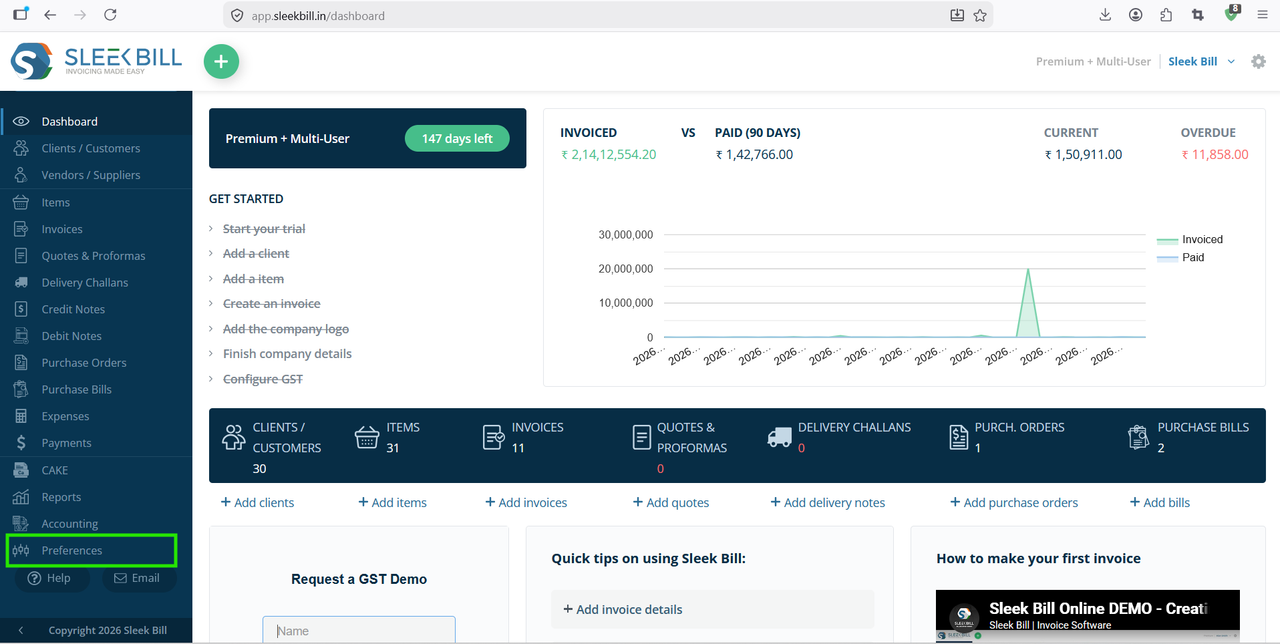
Step 2 : Enter your credentials and access your dashboard. Once you’re inside, navigate to the Preferences section.
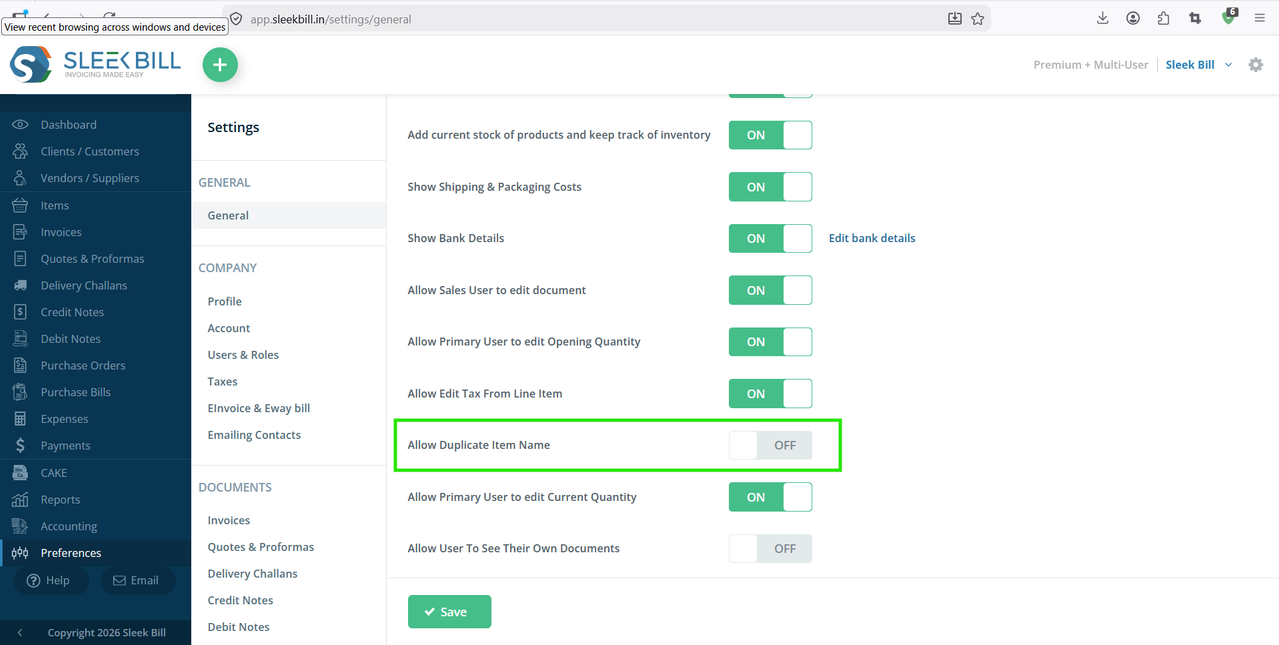
Step 3 : The General tab will open by default. Scroll down through the options. Find the setting: “Allow Duplicate Item Name” Turn this option ON.
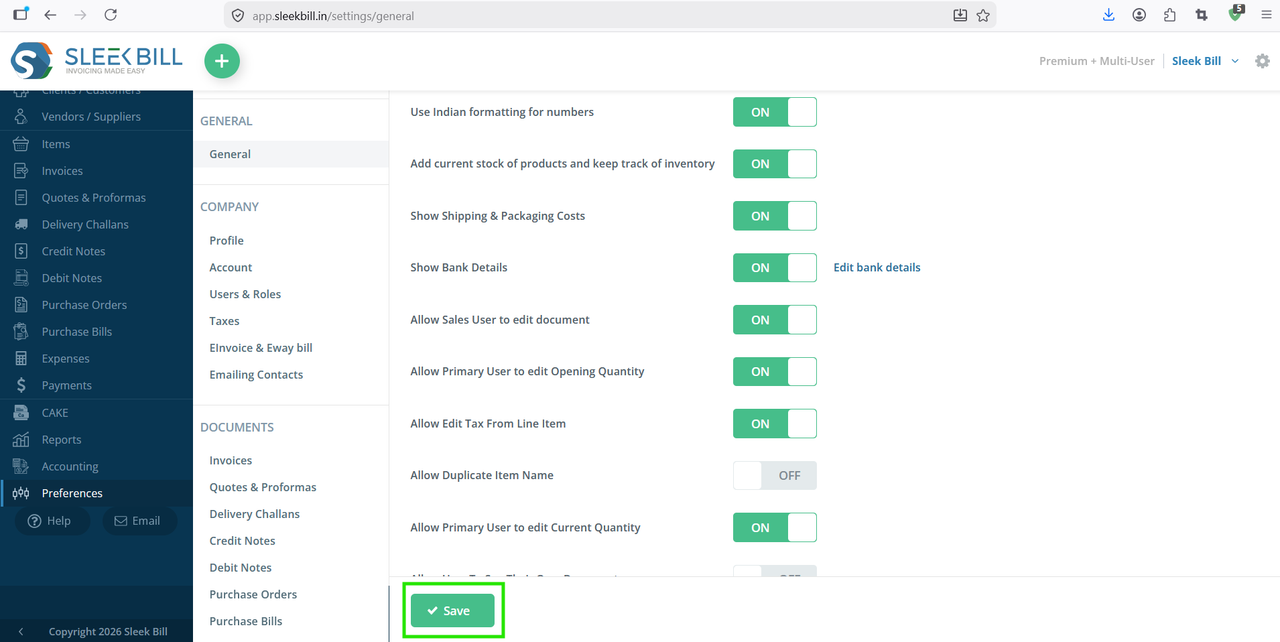
Step 4 : Click the Save button to apply the update.
Done. That’s all it takes.
Final Thoughts
At first glance, “Allow Duplicate Item Name” might seem like a small toggle. But in practice, it makes your billing smoother, faster, and more practical, especially if you deal with a large or dynamic inventory.
If your workflow ever felt restricted by item naming rules, this one setting can fix that instantly.
Was this article helpful?