How To Allow Edit Tax In Line Item
Managing taxes correctly is essential for accurate invoicing. In Sleek Bill, you might notice that the tax field in line items is not editable by default. Don’t worry—you can easily enable this feature in just a few steps.
In this guide, we’ll show you how to allow editing tax in line items so you can customize your invoices more efficiently.
Why Enable Edit Tax in Line Items?
Enabling this feature helps you:
- Customize tax rates for individual products/services
- Handle different GST rates in a single invoice
- Improve billing accuracy
- Save time while creating invoices
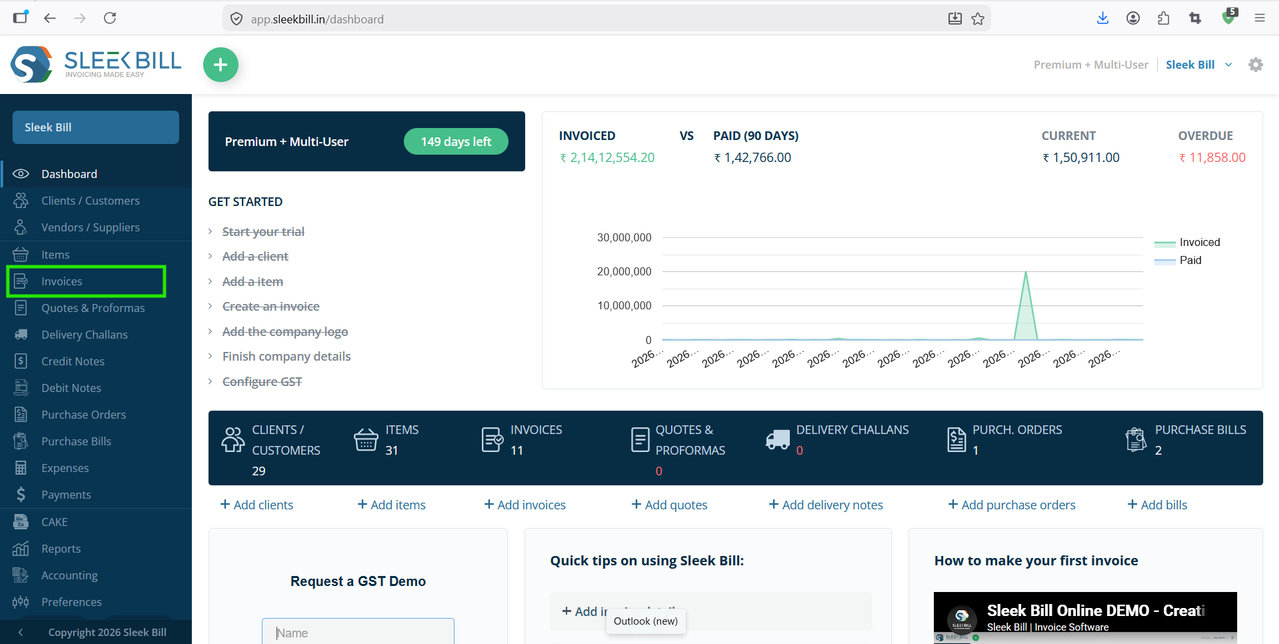
Step 2 : After login, you will land on the dashboard. Click on Invoices
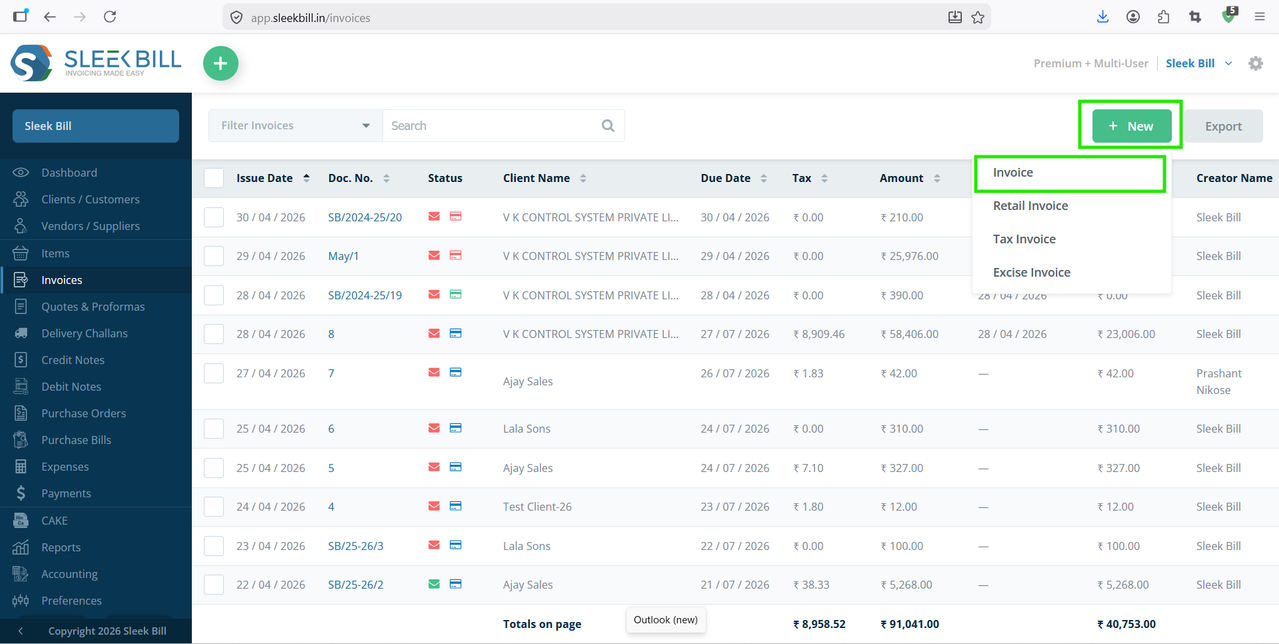
Step 3 : Click on New → Select Tax Invoice
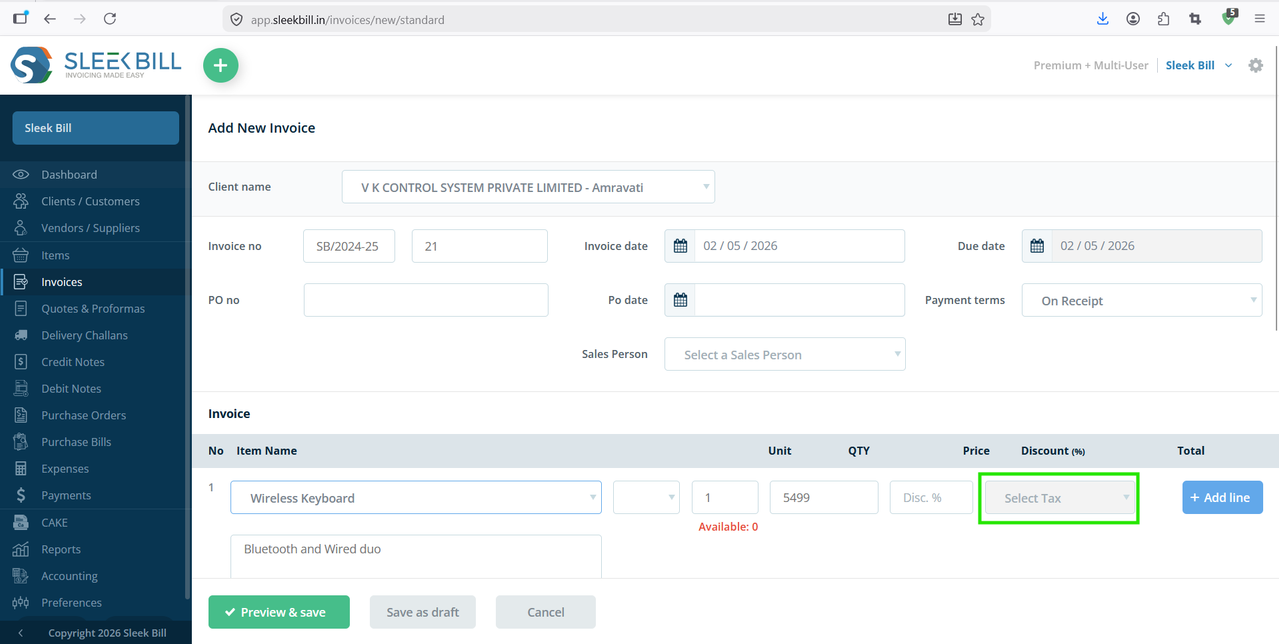
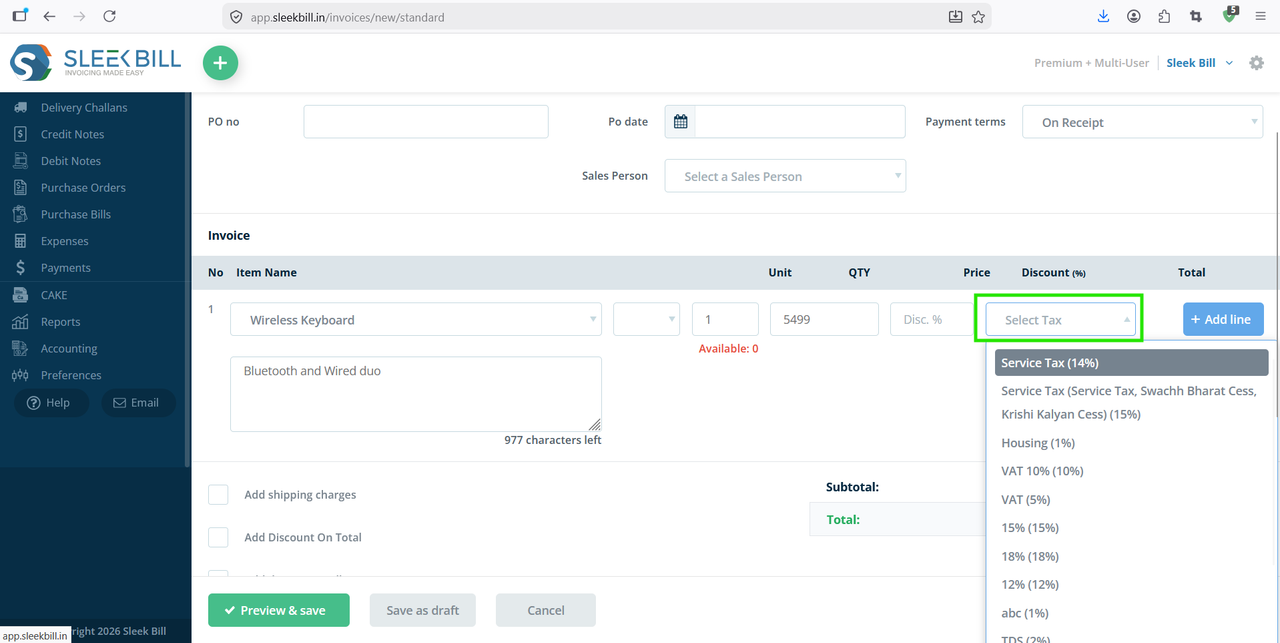
Step 4 : You will be redirected to the invoice creation page. You will see that tax field is not editable.
Step 5 : Go to Preferences
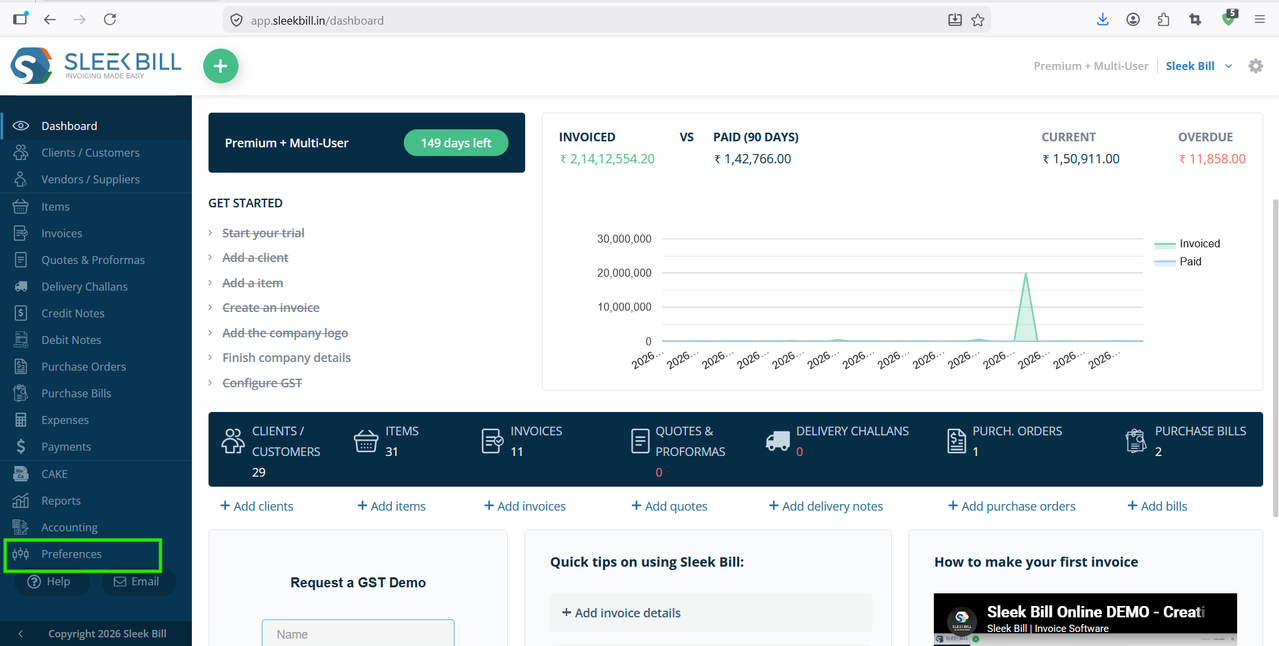
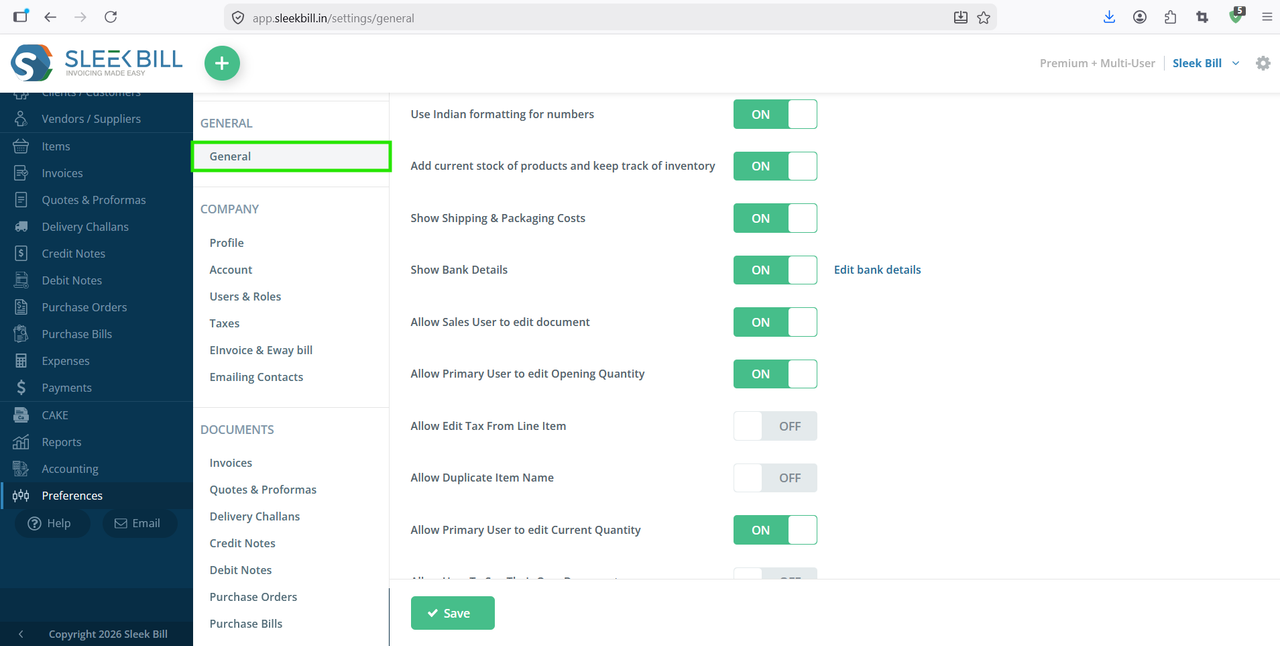
Step 6 : Navigate to the Generals section
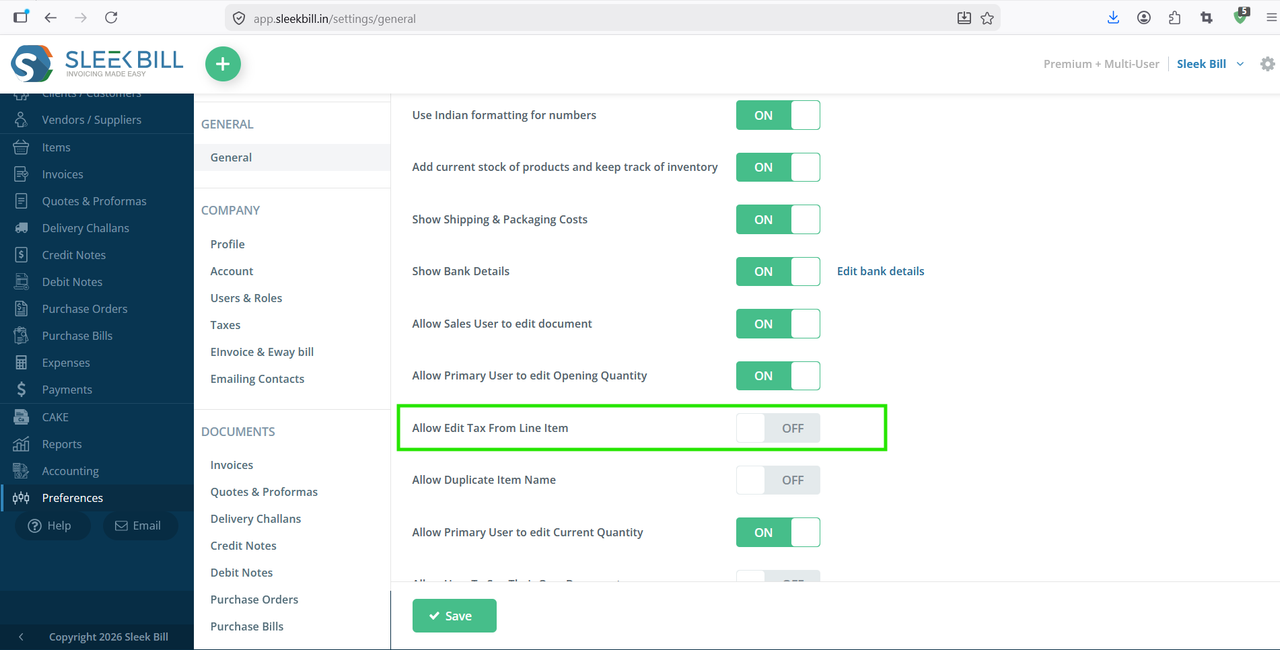
Step 7 : Find the option: “Allow Edit Tax in Line Item”. Toggle the setting ON.
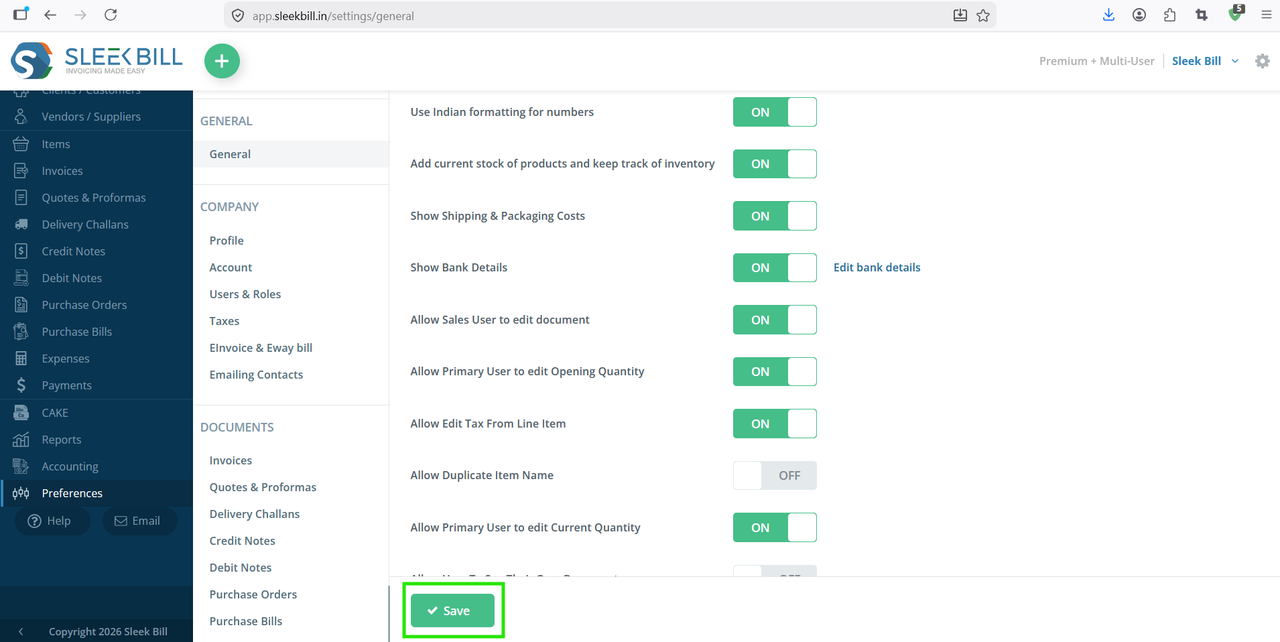
Step 8 : Scroll down and click on the Save button
Conclusion
Enabling Edit Tax in Line Item in Sleek Bill is a simple but powerful setting that gives you full control over your invoicing. With just a few clicks, you can handle complex tax scenarios efficiently.
For more helpful tutorials, stay connected with the Sleek Bill Knowledge Hub
Was this article helpful?