How To Allow Users To See Their Own Document
Managing invoices in a multi-user system can get messy fast. You log in expecting to see your work… and suddenly you’re staring at invoices created by everyone else.
Here’s the fix. It takes barely a couple of minutes.
Step 1 : Start by heading over to the Sleek Bill website. Open your browser and go to www.sleekbill.in.
Once the page loads, hit the Login button in the top-right corner.
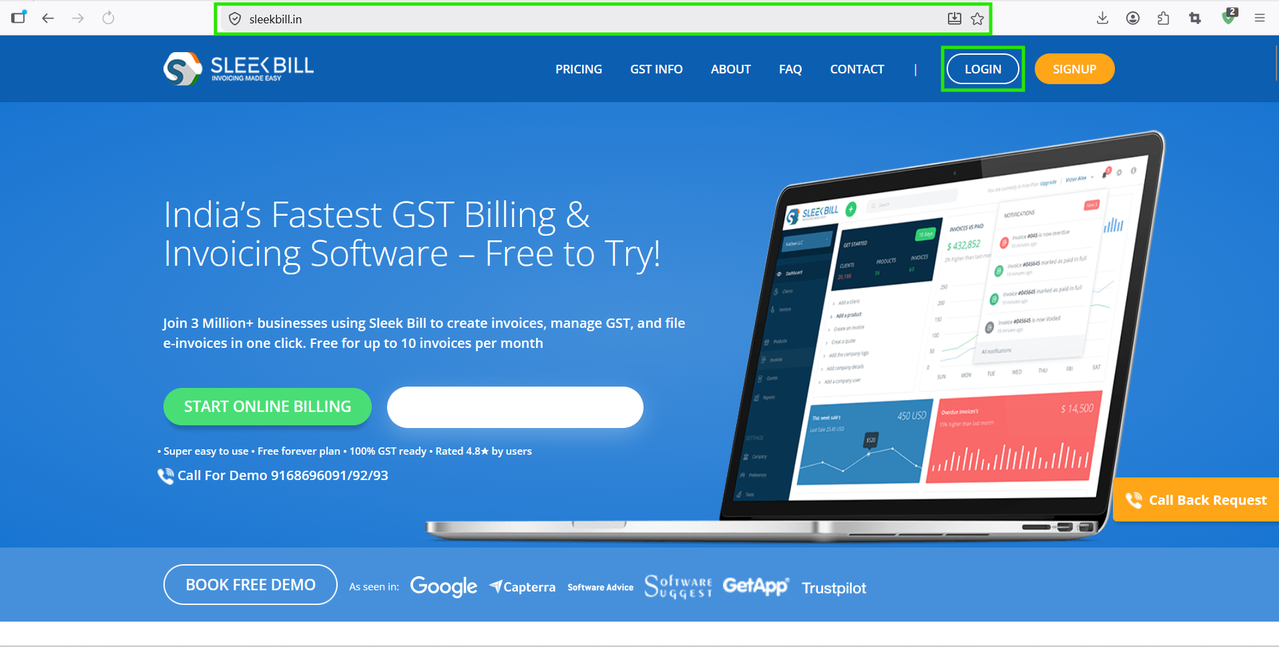
Step 2 : In login page, Enter your credentials and sign in. You’ll land on your dashboard.
.png)
Step 3 : From the dashboard, click on Invoices in the main menu. Now here’s where most users get confused…
You might see invoices created by other users instead of your own. That’s because of a default setting in the system.
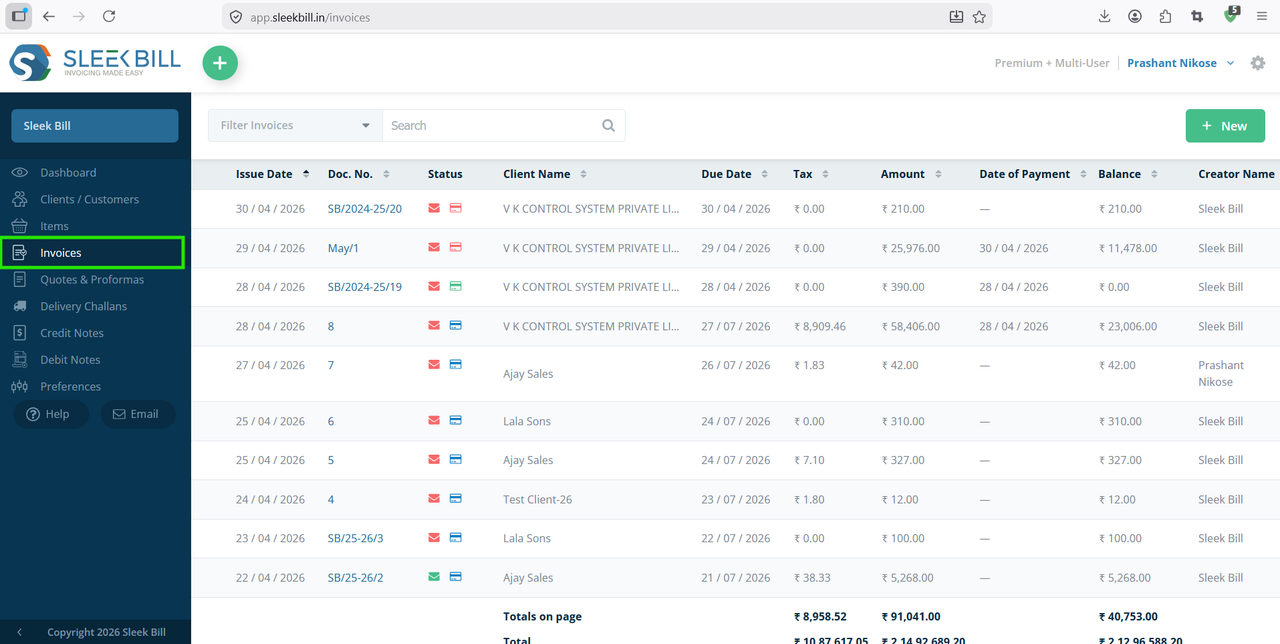
Step 4 : Log out from your current account.
Now log in again, but this time using the master account credentials.
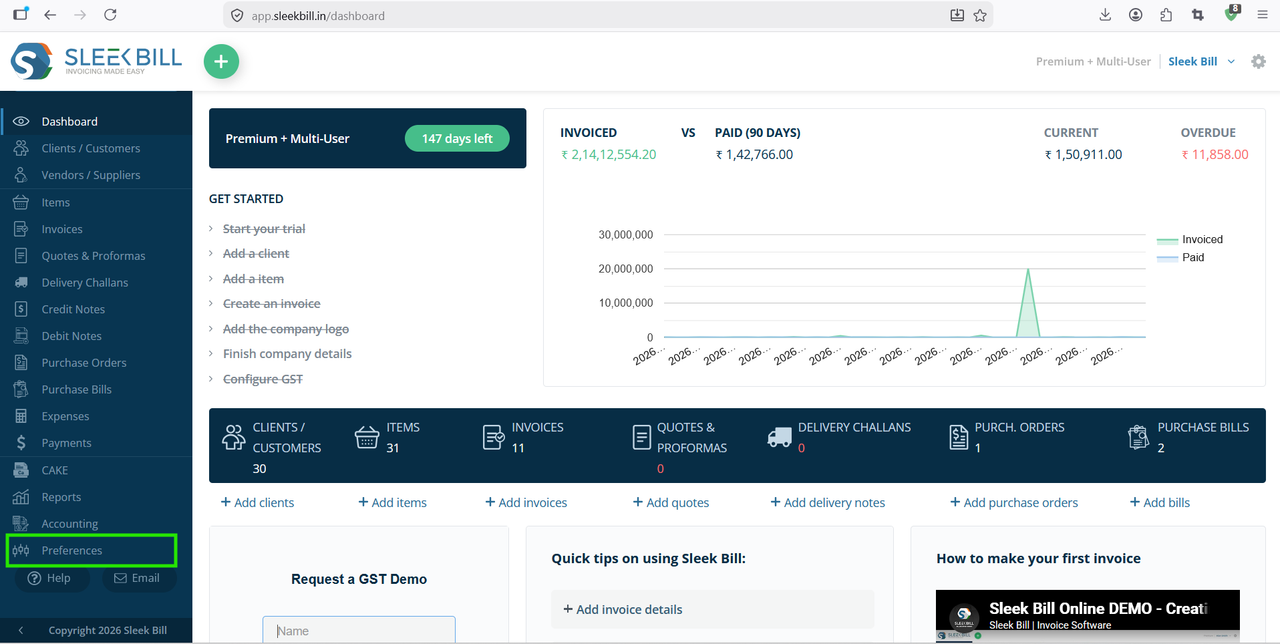
Step 5 : Once you're in, you’ll be back on the dashboard. From the dashboard, navigate to Preferences. This is where all the important system-level settings live.
Step 6 : Inside Preferences, go to the General section. You’ll find various configuration options here.
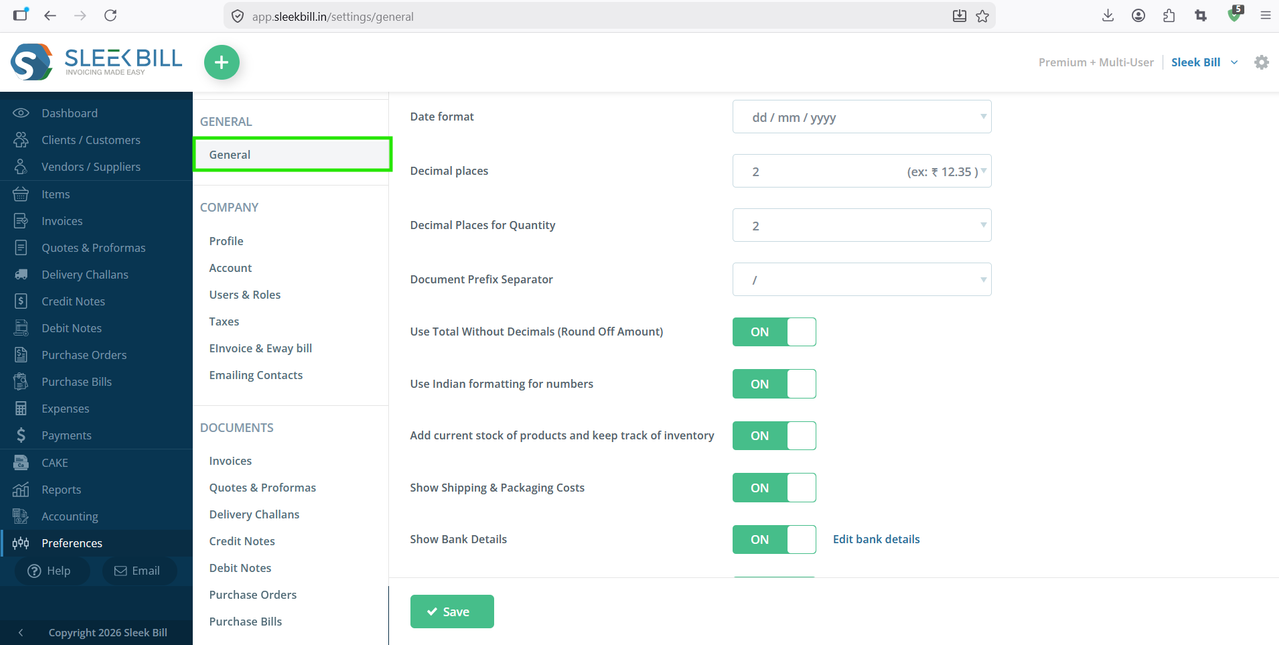
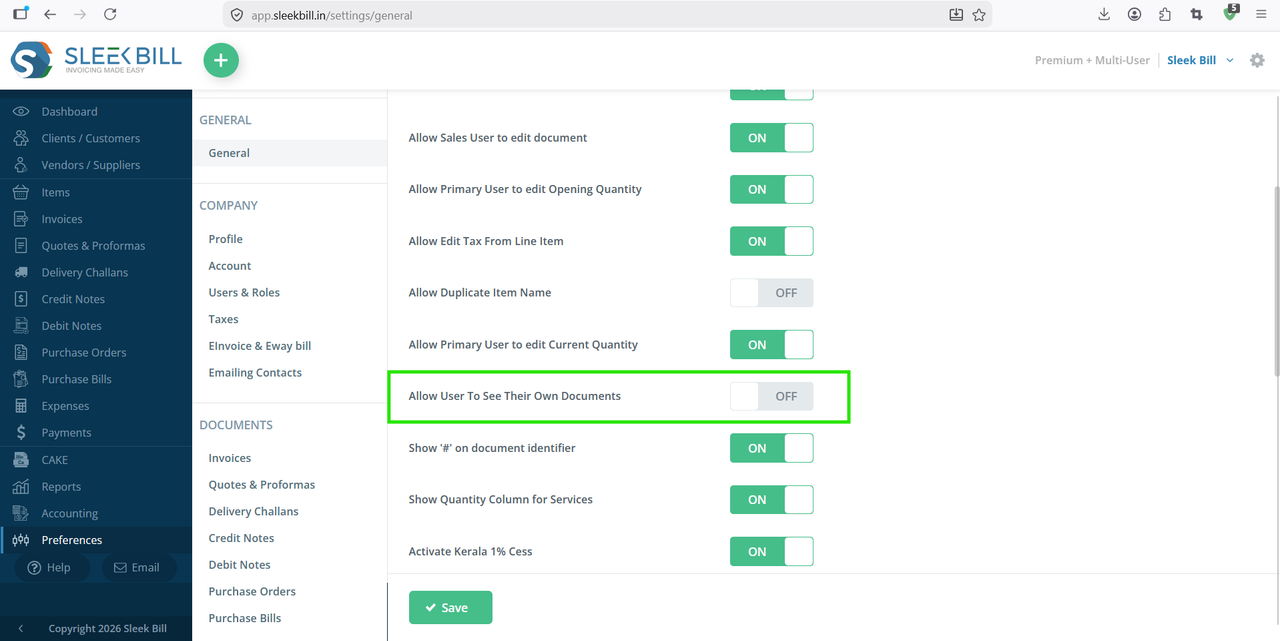
Step 7 : Look for the setting: “Allow User to see Their Own Documents” Turn this option ON. This is the key step. Once enabled, users will only be able to see invoices they created.
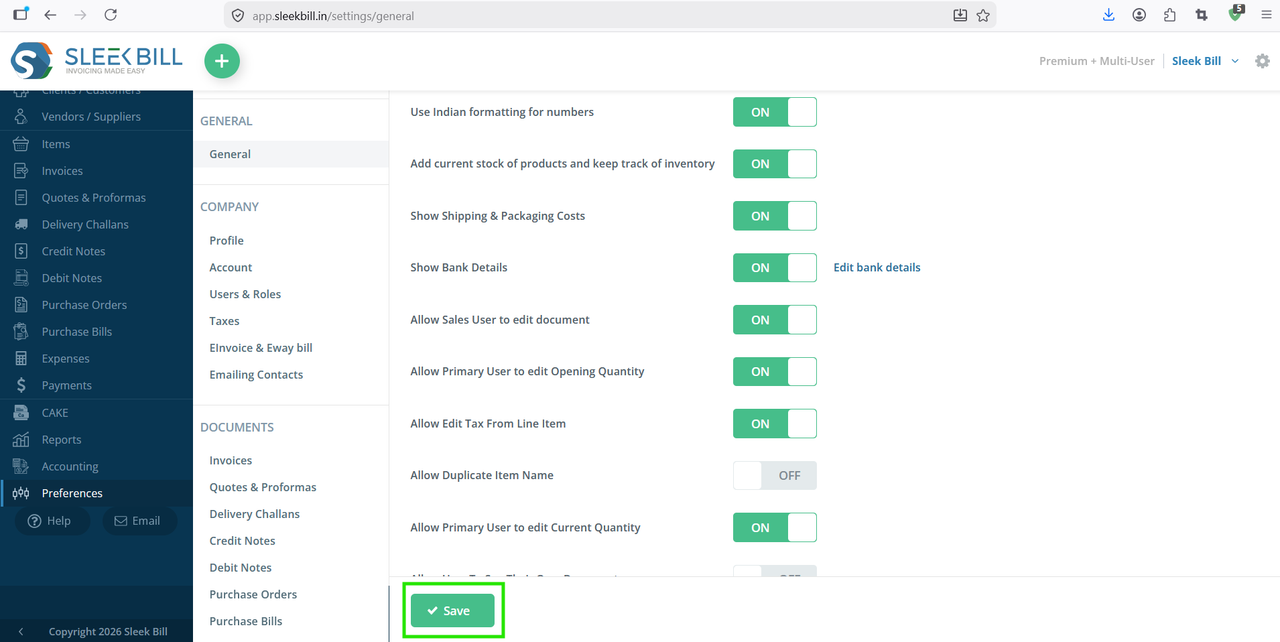
Step 8 : Scroll down and click the Save button. Don’t skip this, or the changes won’t apply.
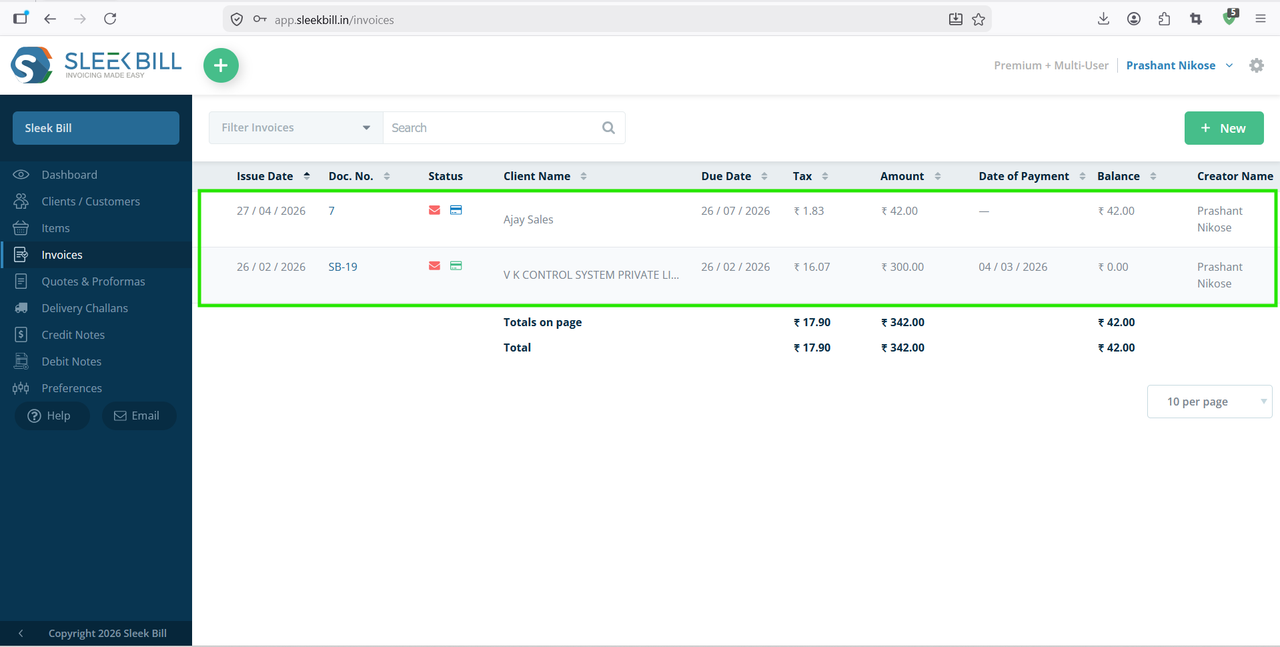
Step 9 : Now log out again. Log back in using a regular user account. Go to the Invoices section.
You’ll notice the difference immediately. Only invoices created by that user will be visible.
Conclusion
This small setting can make a big difference, especially if you’re working with multiple users. It keeps things clean, avoids confusion, and gives each user a more focused workspace.
And the best part? You only have to set it up once.
Was this article helpful?