How to Change Labels and Columns in Sleek Bill Delivery Challan?
Hello Sleek Bill users, welcome to the Sleek Bill Knowledge Hub.
Delivery Challans are important documents when goods are being transported from one place to another. They help businesses keep proper delivery records and make it easy for customers to check product details clearly.
Different businesses often use different terms and formats in their Delivery Challans. That’s why many businesses prefer to customize labels such as Delivery Challan Title, PO Number, Item Name, Quantity, Units, and Custom Fields to suit their business style or local language.
With Sleek
Bill, you can easily change these labels and column names to create Delivery
Challans that perfectly match your business requirements.
It’s about
fitting that document to your workflow, your industry, or the way your team
talks.
With Sleek Bill, you can quickly adjust labels and column names to match your business. It’s fast and simple, and the end result looks professional—great for clients, easy for your team.
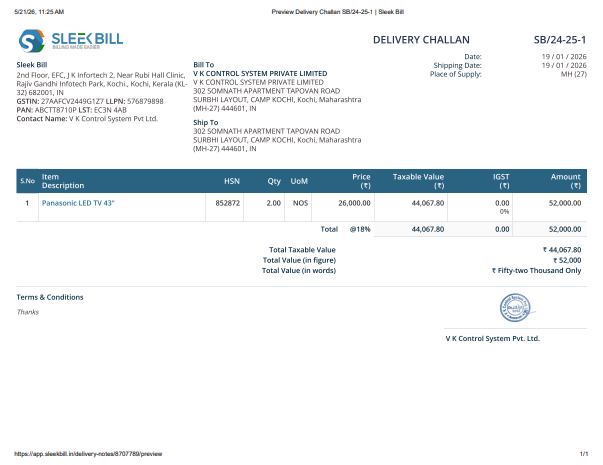
Below is the Delivery Challan with the default labels.
Why Is Changing Delivery Challan Labels Important?
Customizing Delivery Challan labels helps businesses create more professional and easy-to-understand delivery documents.
Benefits of
Custom Delivery Challan Labels
- Makes delivery challans look more professional
- Improves clarity for customers and transporters
- Helps match labels according to business type
- Useful for stock transfer and goods delivery records
- Makes documents clean and organized
- Helps maintain proper transportation documentation
Step 1: Open Sleek Bill Website
Open the official website: www.sleekbill.in
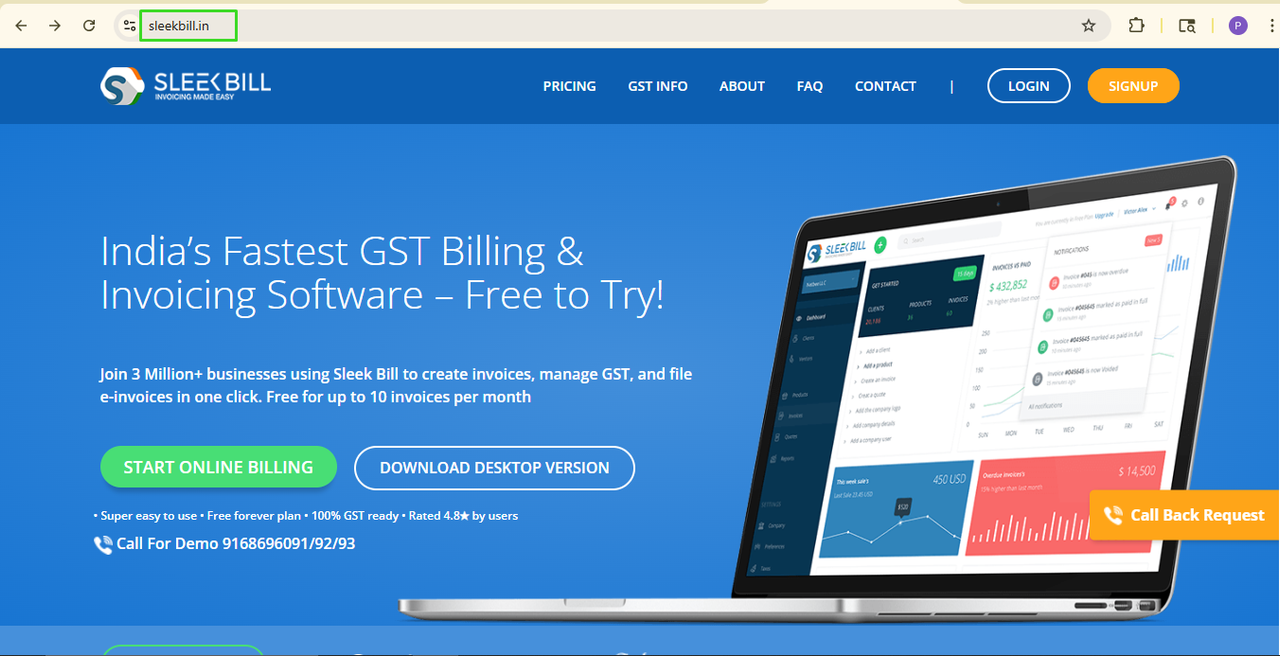
Step 2: Click on the Login Button
Now click on the Login button available at the top left corner.

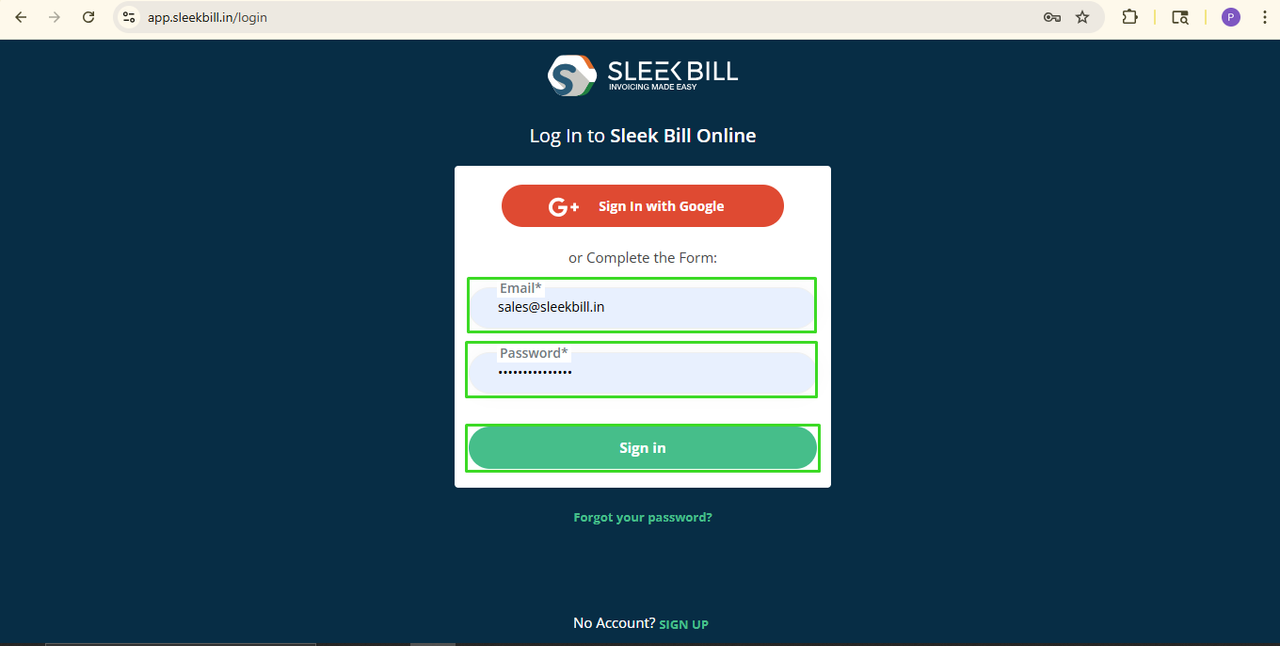
Step 3: Enter Login Details
Enter your
login credentials and click on the Sign In button.
Step 4: Open Preferences Tab
After logging in, you will enter the Sleek Bill dashboard. Now scroll down and click on the Preferences tab available at the bottom left.

Step 5: Click on the Delivery Challan Tab
Now, click on
the Delivery Challan tab.
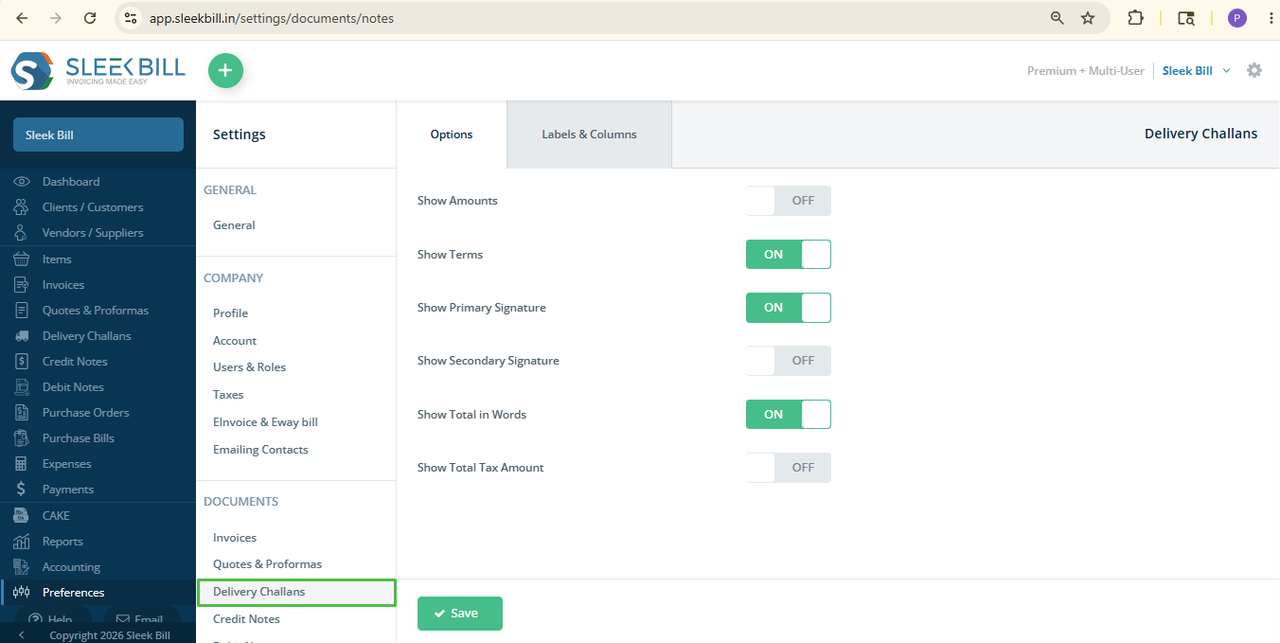
Step 6: Click on the Labels and Columns Tab
Now, you can change labels in this tab
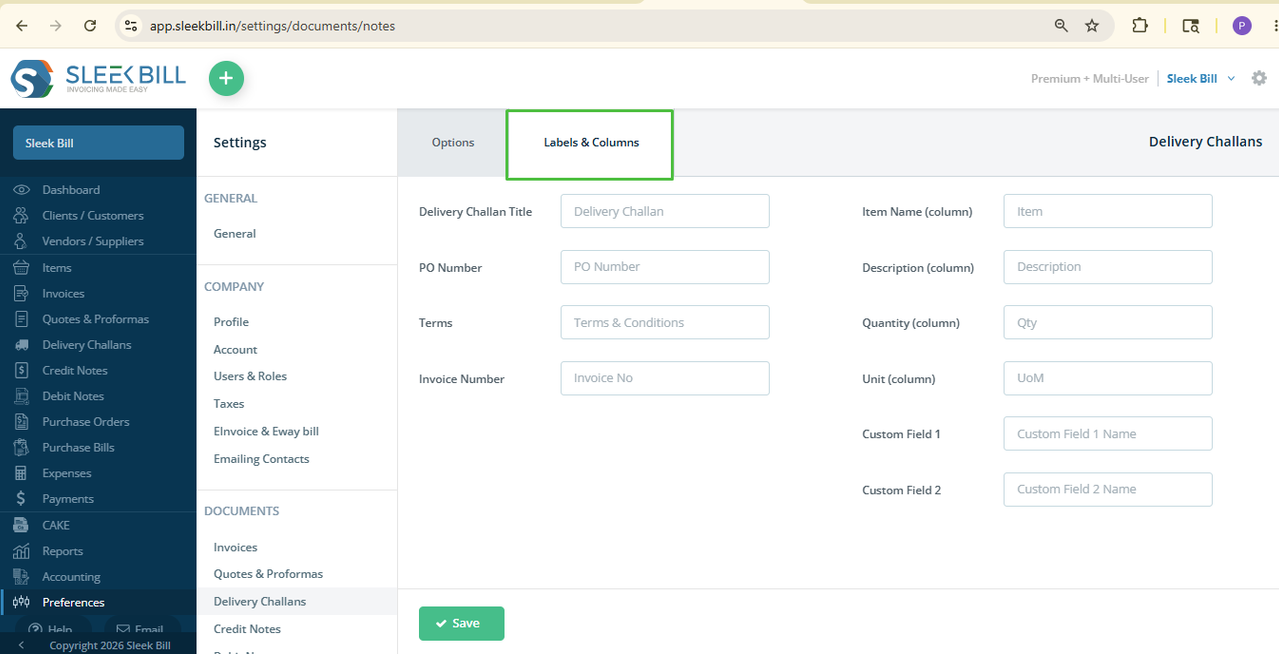
Step 7: Customize Labels and Columns
Now you can
customize different Delivery Challan labels and column names as per your
business requirements.
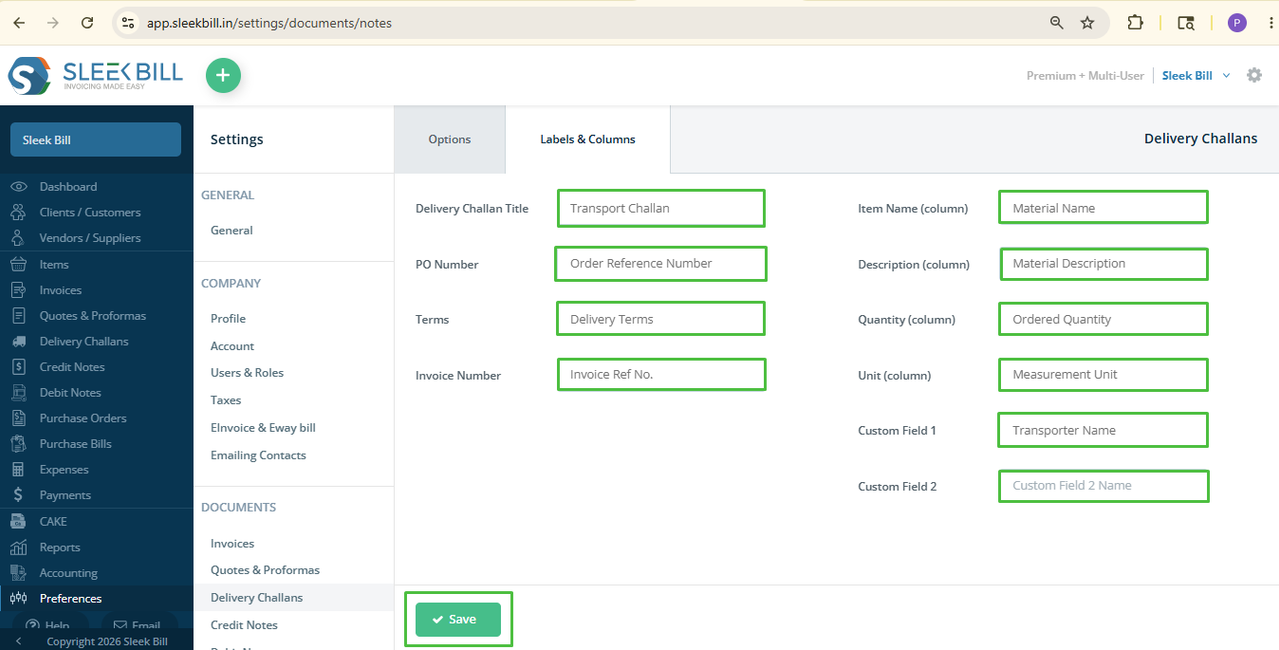
- Delivery Challan Title:You can change the Delivery Challan Title labels like Delivery Challan, Delivery Note, Goods Dispatch Note, Dispatch Challan, Delivery Slip, Transport Challan, Material Delivery Challan, Goods Transfer Challan
- PO Number: You can customize PO Number labels like Purchase Order Number, Buyer PO Number, Customer PO Number, Order Reference Number, Purchase Reference, Buyer Order No.
- Terms: You can change Terms labels to Terms & Conditions, Delivery Terms, Dispatch Terms, Trade Terms, Commercial Terms, Important Notes, Transport Instructions, Delivery Policies
- Invoice Number: You can customize Invoice Number labels like Invoice Ref No., Invoice Reference, Related Invoice Number, Sales Invoice No., Billing Reference Number
- Item Name: You can change Item Name labels to
- Description: You can change Description labels like Product, Goods, Material Name, Product Name, Item Description
- Quantity: You can customize Quantity labels like Qty, Ordered Quantity, Delivered Quantity, Product Quantity, Dispatch Quantity, Unit Quantity, No. of Units.
- Unit: You can change Unit labels like UOM, Unit Type, Measurement Unit, Product Unit, Item Unit, Qty Unit.
- Custom Field 1 and Custom Field 2: You can use Custom Fields for Remarks, Vehicle Number, Transporter Name, Delivery Instructions, Di
What Happens
Next?
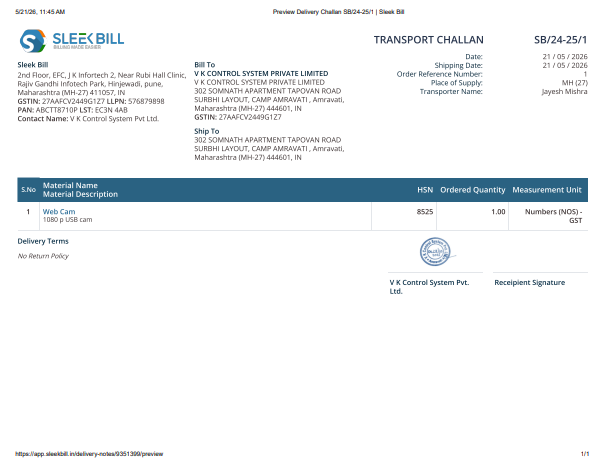
Once the settings are done, from now on, your updated labels and column names will automatically appear in every new Delivery Challan you create.
This helps you
generate delivery documents that perfectly match your business style and
operational requirements.
Conclusion:
Changing labels and column names in Sleek Bill Delivery Challan is simple and very useful for businesses. It helps create professional delivery documents that are easy to understand and properly organized.
Was this article helpful?