How to Convert a Purchase Order into a Bill in Sleek Bill?
Welcome to the
Sleek Bill Knowledge Hub!
In this article
we will learn how to turn a Purchase Order (PO) into a Purchase Bill within a
few easy steps using Sleek Bill. As
opposed to creating bill from very beginning, you simply convert a purchase
order that you‘ve already made into a bill. The process helps you save time and
makes purchase entry quick and error free.
A purchase
order is created in order to purchase from your vendor. When the vendor ships the item and sends you
an invoice, you do not need to create a bill for it manually. Sleek Bill allows
you to convert purchase orders into purchase bills quickly and easily.
Why turn purchase order to Bill?
Turning an
existing purchase order into a bill makes it simple for you to keep your
purchase process organized and ensures your records are precise. In addition it allows you to:
- Save time by avoiding duplicate data entry.
- Eliminate manual typing errors.
- Automatically carry forward supplier and product details.
- Maintain accurate purchase records.
- Speed up bill creation after receiving goods from your supplier.
- Improve inventory and expense tracking.
Steps to
Convert a Purchase Order into a Bill
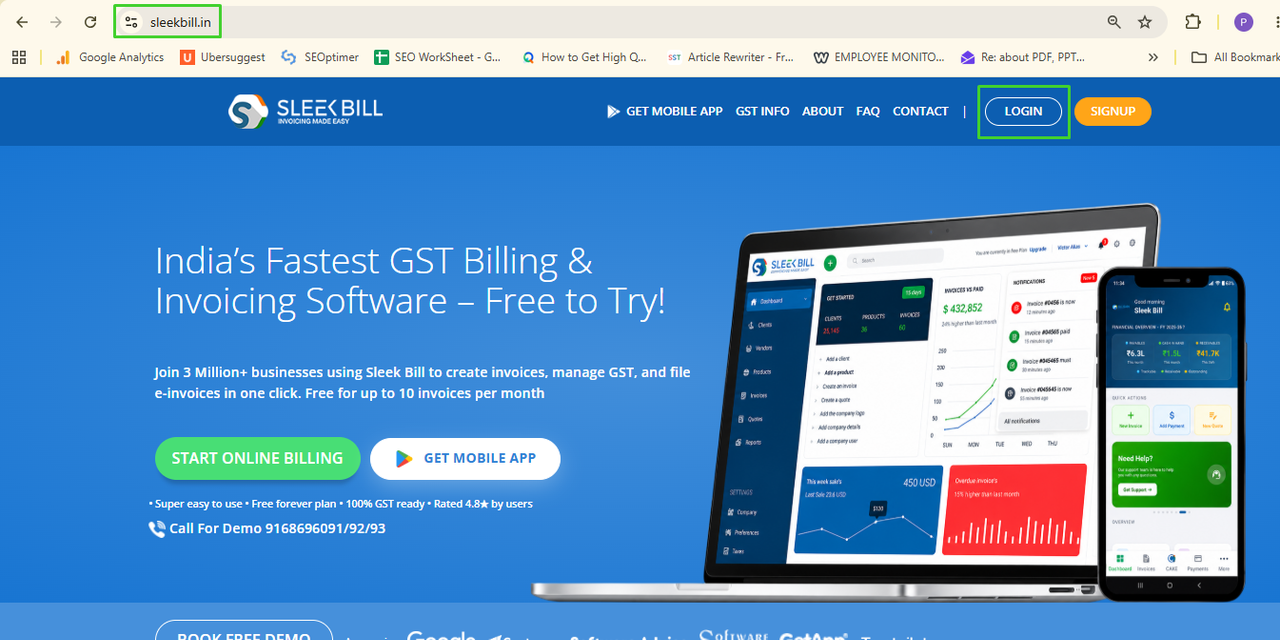
1. Visit
SleekBill.in and click Login.
 2. Enter your User
ID and Password, then click Sign In.
2. Enter your User
ID and Password, then click Sign In.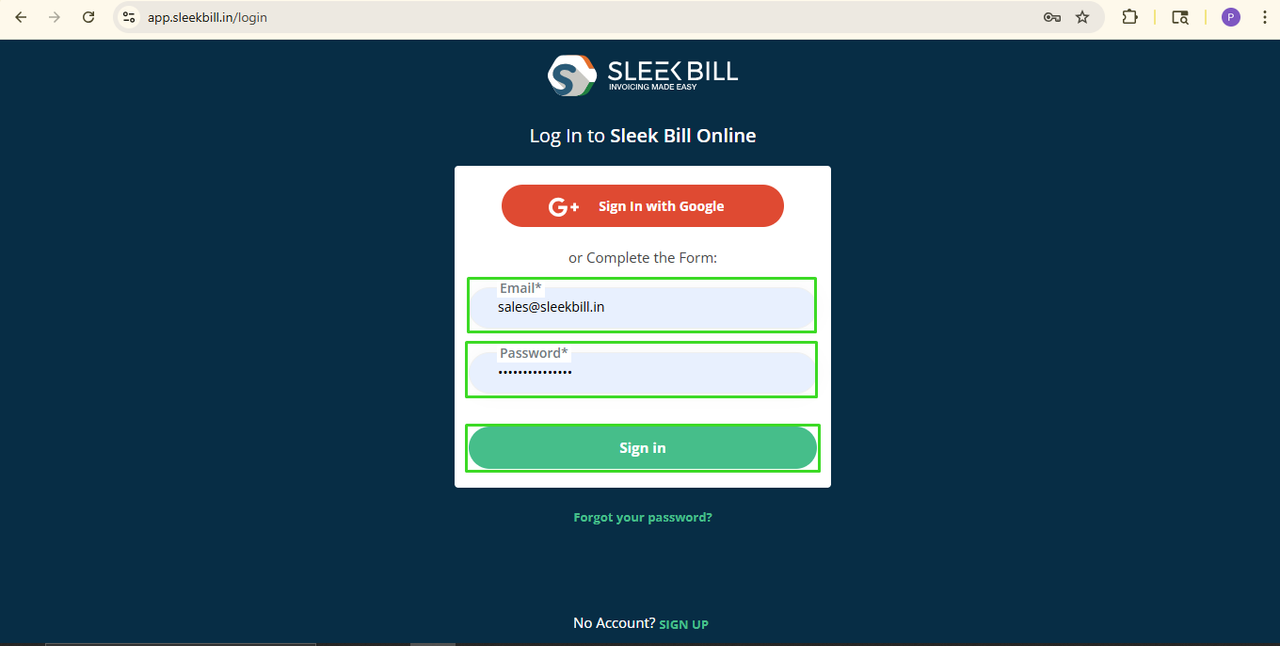 3. Open the
Purchase Order tab.
3. Open the
Purchase Order tab.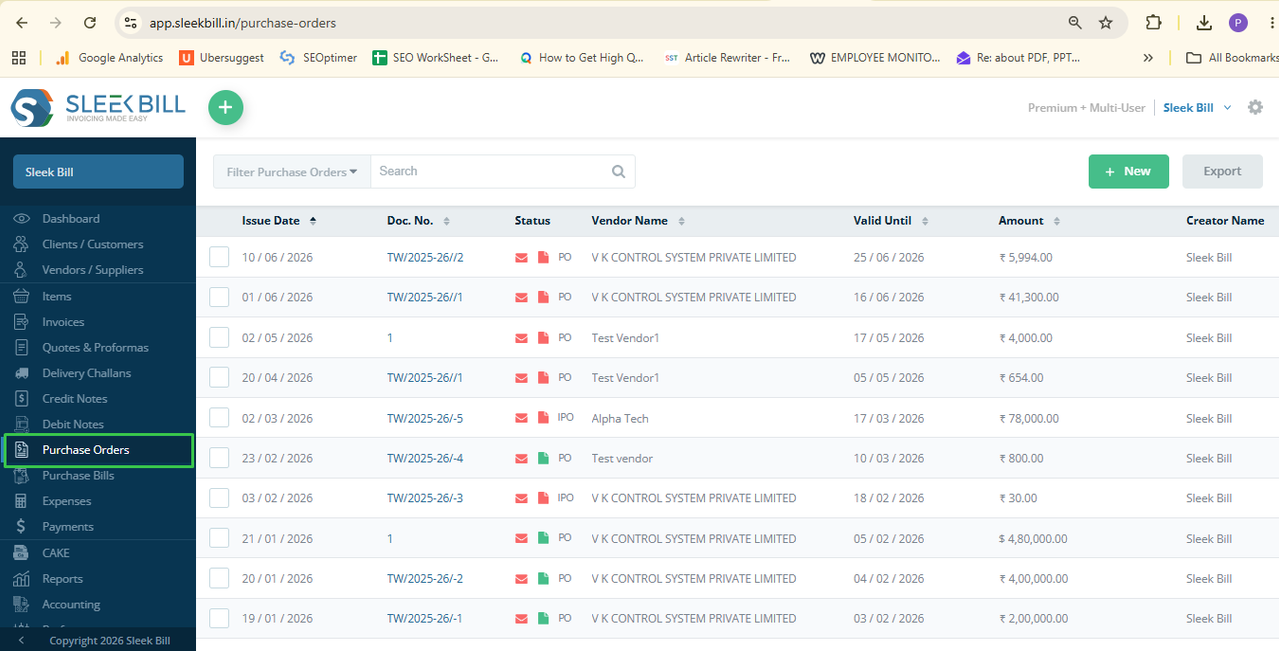 4. Create a new
Purchase Order or open an existing saved Purchase Order. Verify the
supplier details, products, quantities, taxes, and other purchase information. Click Preview
& Save.
4. Create a new
Purchase Order or open an existing saved Purchase Order. Verify the
supplier details, products, quantities, taxes, and other purchase information. Click Preview
& Save.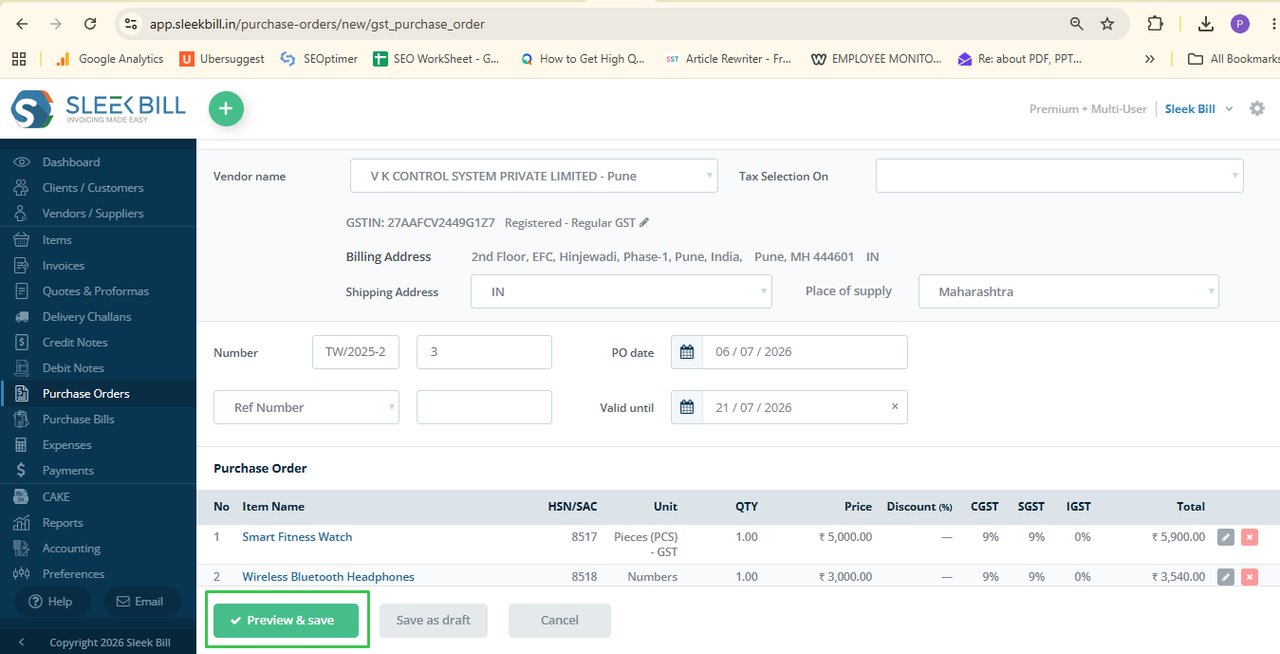 5. Click the
Convert To button at the top of the screen.
5. Click the
Convert To button at the top of the screen.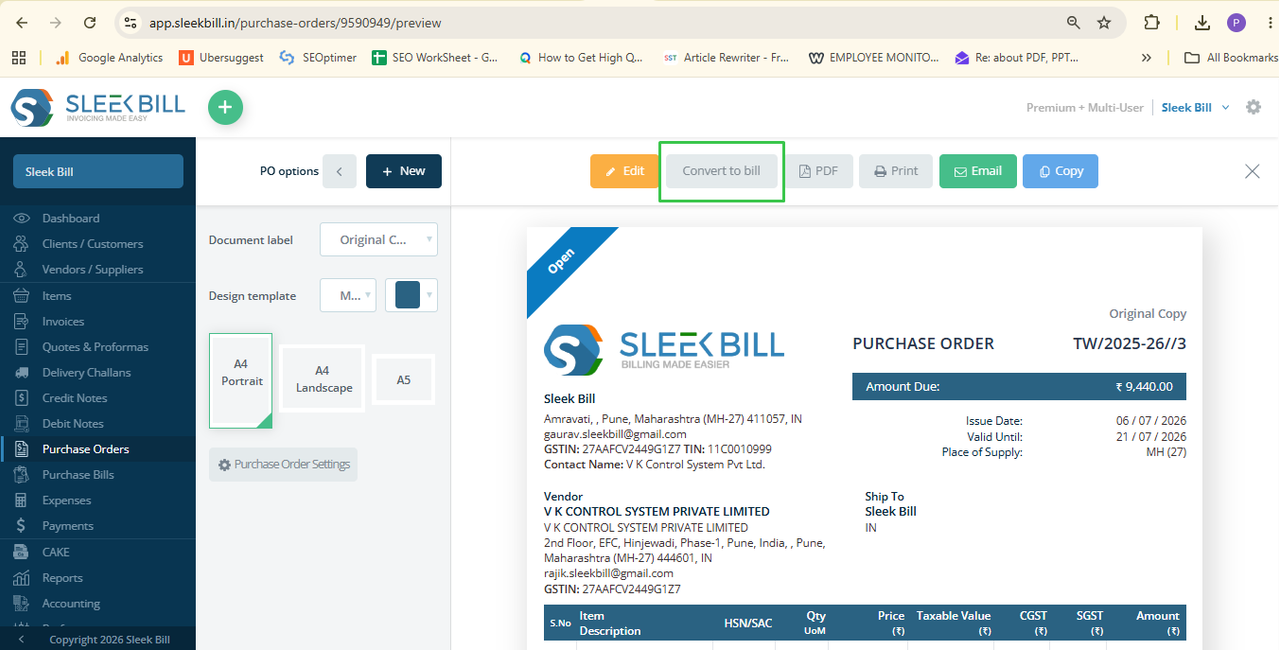 6. Review the bill
details and click Save.
6. Review the bill
details and click Save.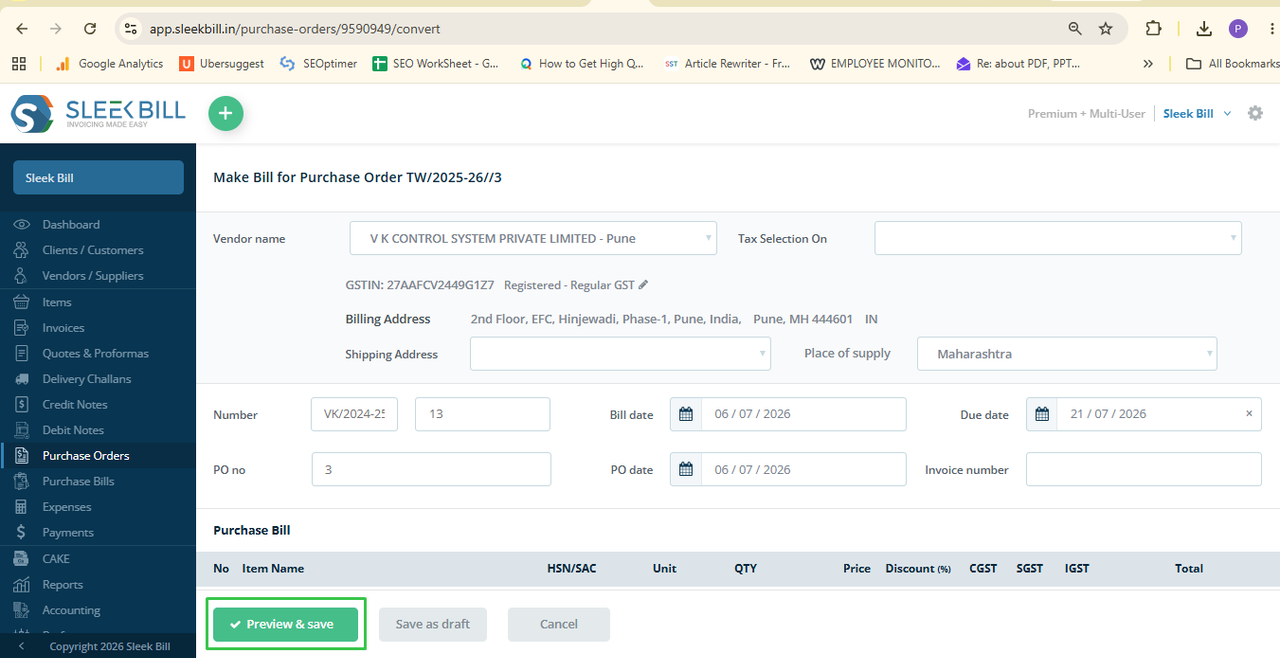 7. Download, copy,
print, or share the purchase bill as a PDF if required.
7. Download, copy,
print, or share the purchase bill as a PDF if required.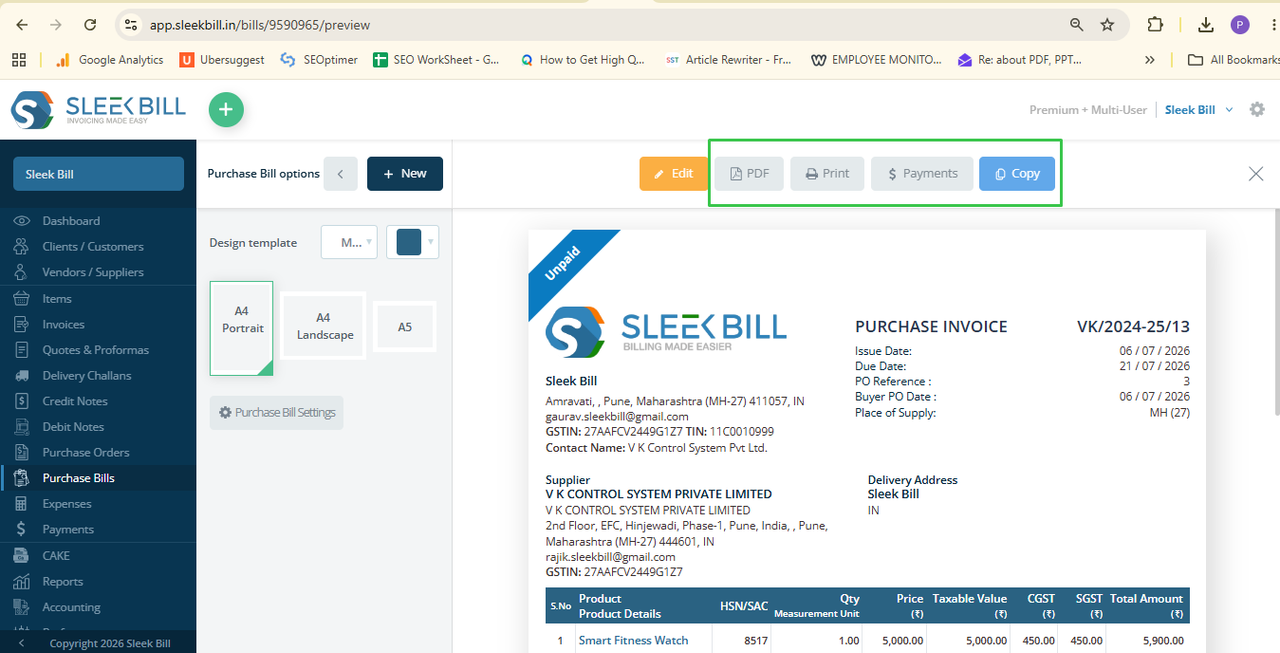
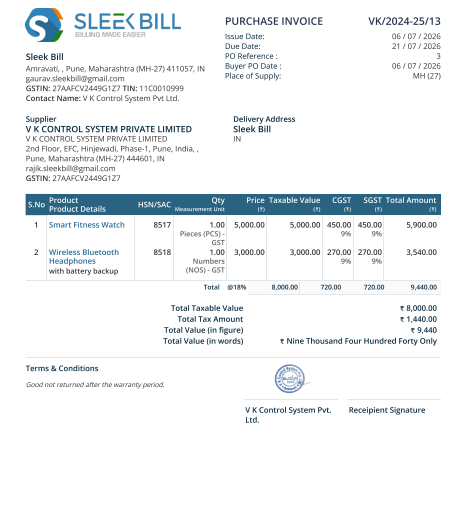
Your purchase
bill is now ready and recorded in your purchase history.
Conclusion
Its easy and
fast to convert a Purchase Order to a Bill in Sleek Bill. It is a great
time-saving feature that reduces data entry errors also ensure you keep
up-to-date purchase records. Convert
your purchase order to a bill instead of creating a bill each time manually.
Was this article helpful?