How to Enable Digital Signature Generated by Sleek Bill
Adding a digital signature to your invoices helps make your documents look more professional while assuring customers that they have been approved by your business. With Sleek Bill, you can upload your signature once and automatically display it on invoices, quotations, and other business documents.
This guide explains how to upload and enable your digital signature in just a few minutes.
Why Use a Digital Signature?
A digital signature offers several advantages:
- Creates a professional appearance for invoices.
- Confirms that the invoice has been approved by your business.
- Builds trust with customers and clients.
- Reduces the need to manually sign printed invoices.
- Saves time when generating multiple invoices.
How to Enable Digital Signature Generated by Sleek Bill
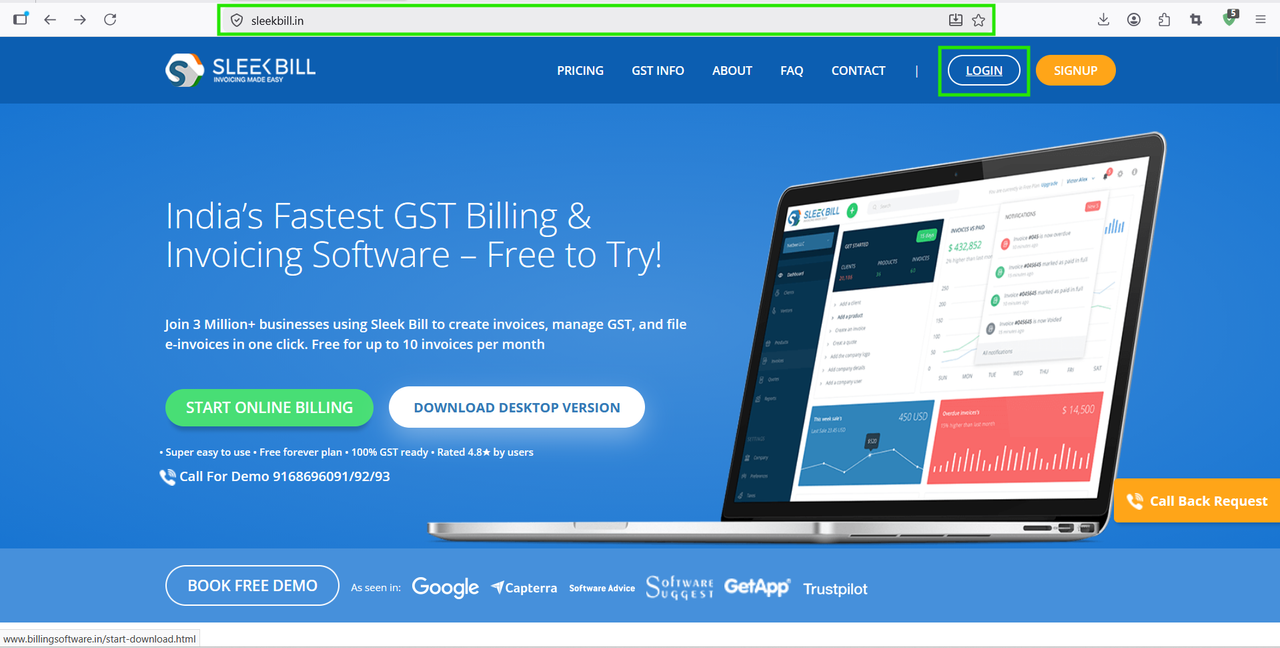
.png)
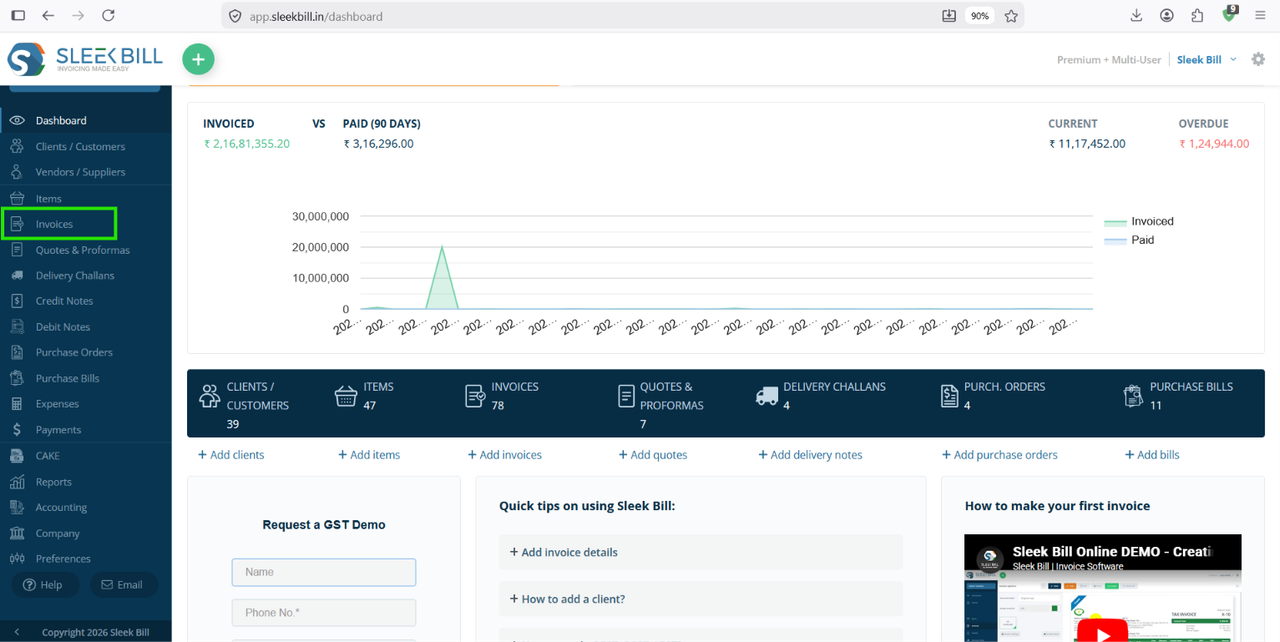 Step 3 : Select Tax Invoice create a new invoice.
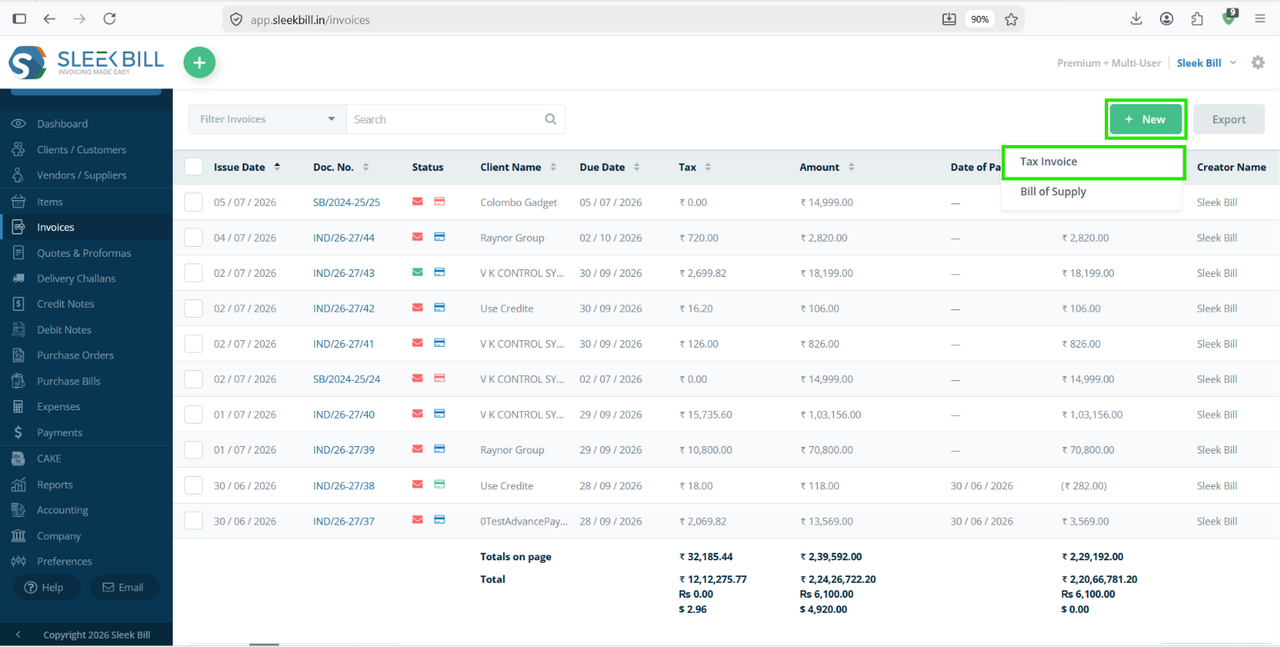 Step 4 : After selecting the client, complete the invoice by adding the required products or services.
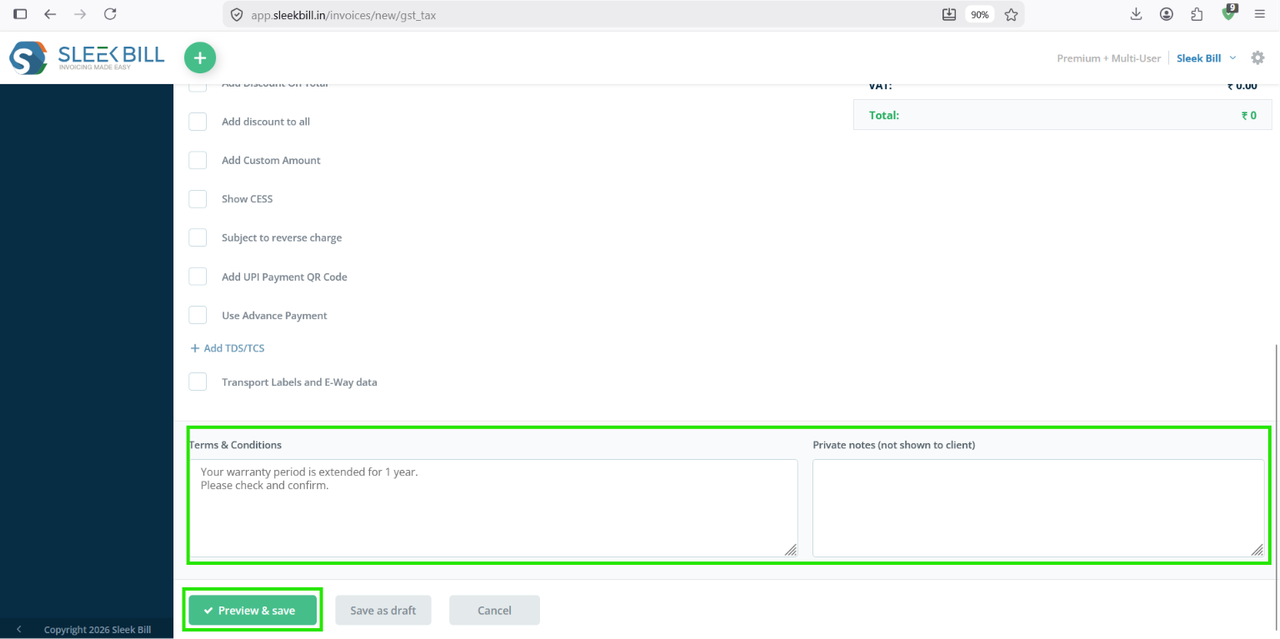
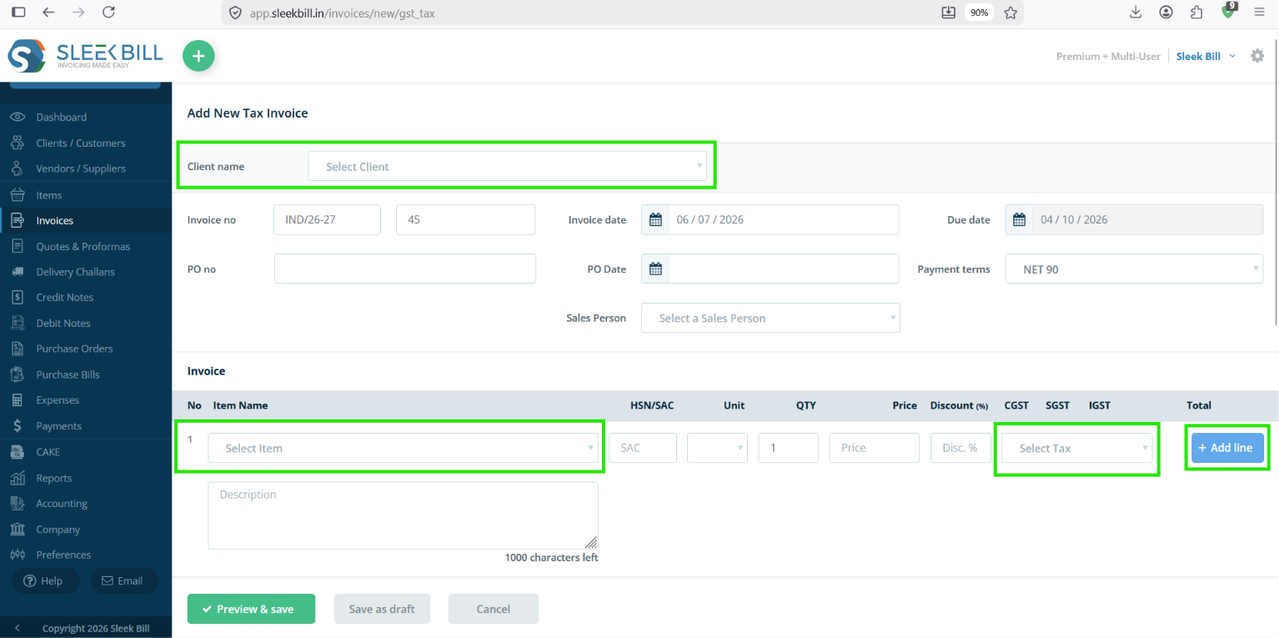 Step 5 : After add all details and add product then click on Preview & Save button at the bottom of software.
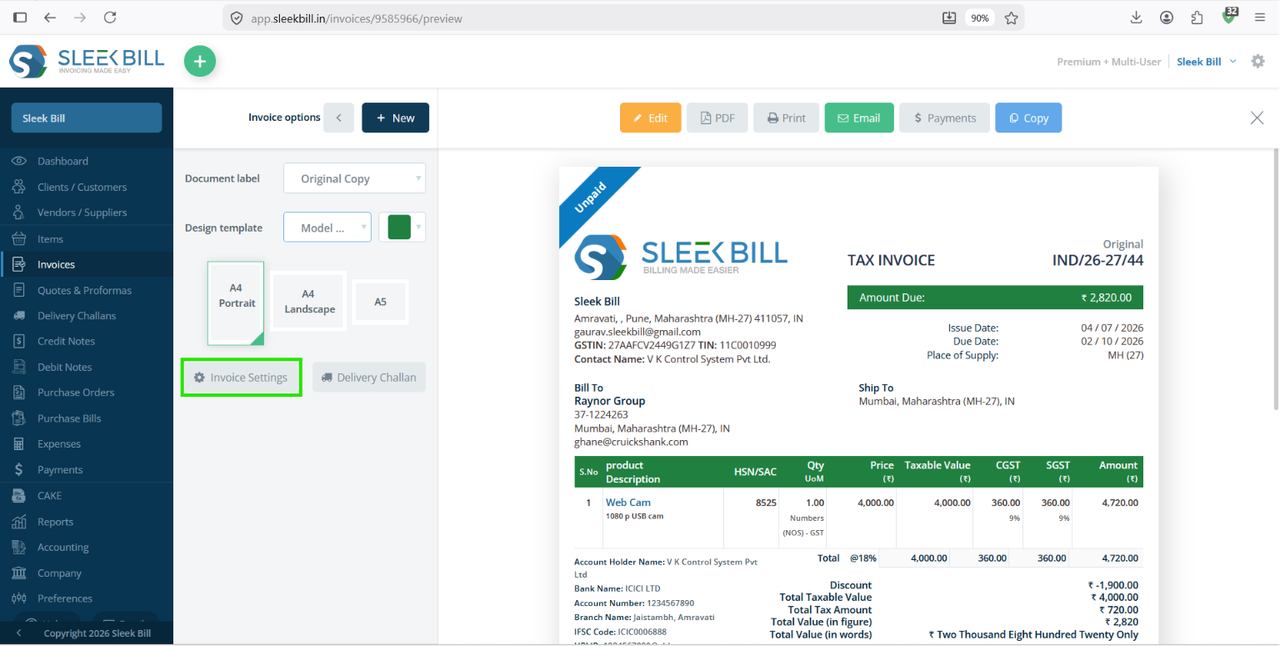
 Step 6 : After clicking you will go to preview page then click on invoice setting button on left hand side.
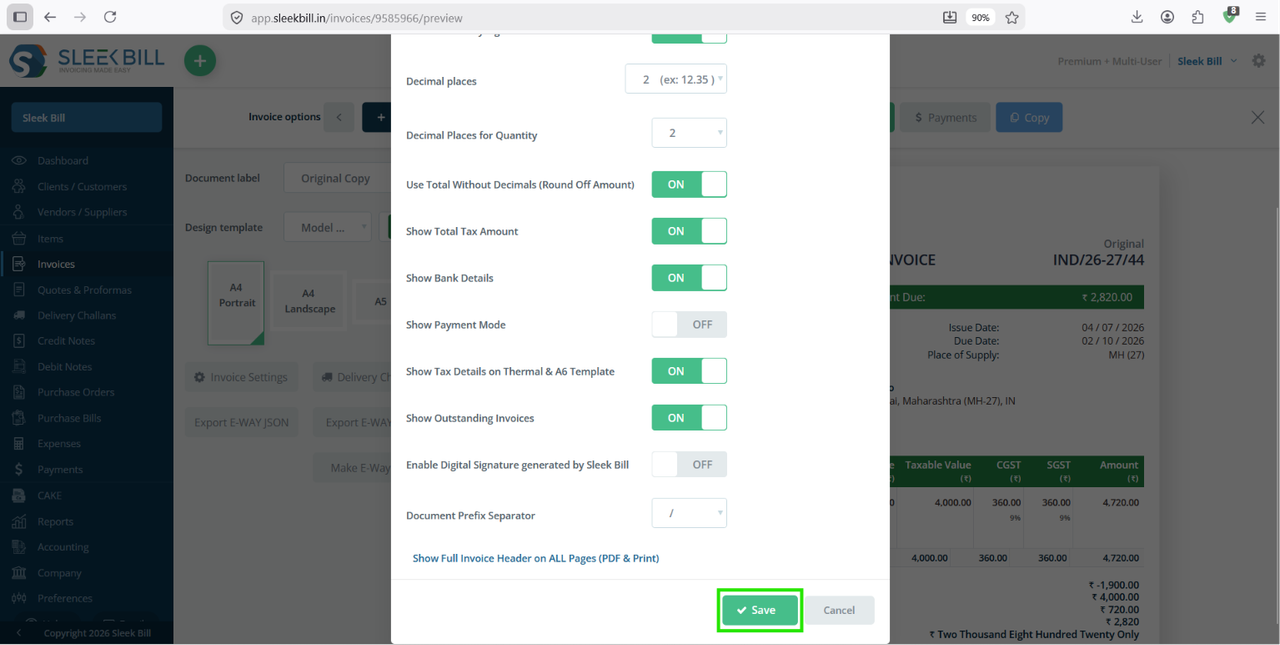
 Step 7 : After clicking on invoice setting then popup window appears and "Enable digital signature by Sleek Bill" will toggle it ON.
 Step 8 : Now click on save.
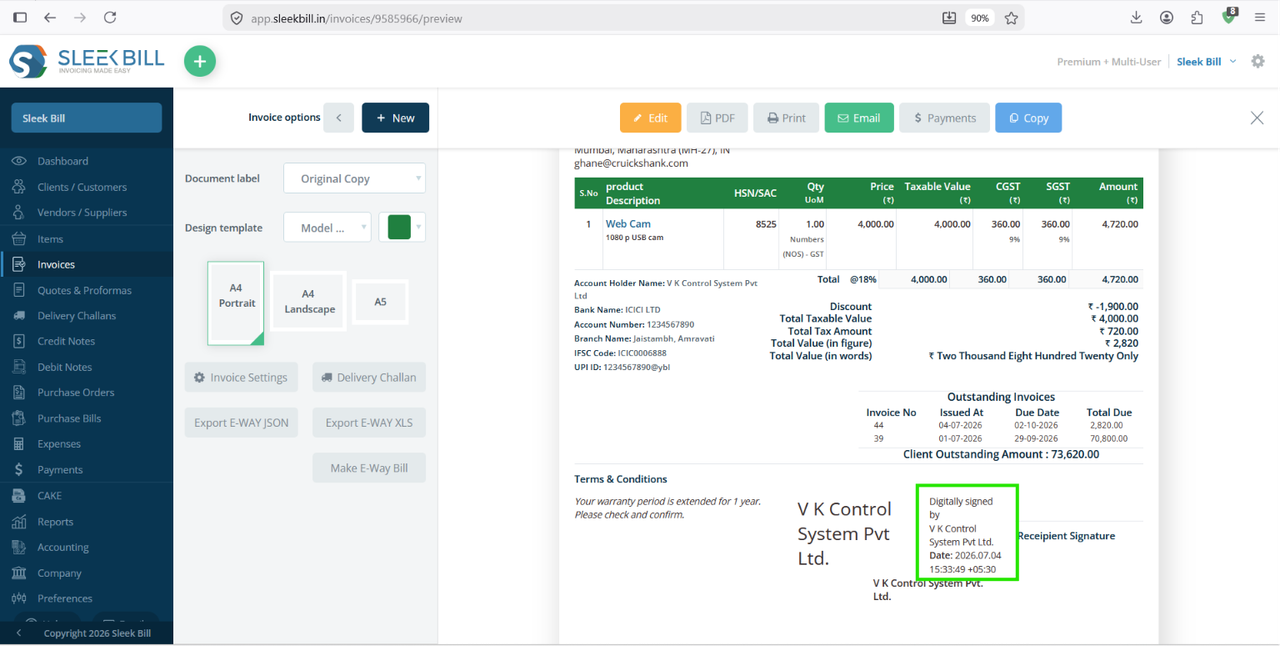
 Now You see digital signature by Sleek Bill on invoice.
Benefits of Enabling Digital Signatures
Using digital signatures in Sleek Bill helps you:
- Create professional invoices instantly.
- Maintain a consistent business identity.
- Eliminate manual signing for every invoice.
- Improve customer confidence.
- Speed up your billing workflow.
Conclusion
Enabling a digital signature in Sleek Bill is a quick and effective way to make your invoices look more professional while reducing manual work. Simply upload your signature, enable it in your document settings, and every invoice you generate will include your authorized signature automatically.
Whether you're a freelancer, small business owner, or growing enterprise, using digital signatures helps streamline your billing process and presents a polished image to your customers.
Frequently Asked Questions
Can I upload more than one signature?
Yes. Sleek Bill supports both Primary and Secondary signatures, allowing multiple authorized signatories.
Which file formats are supported?
PNG and JPG image files are supported.
Will the signature appear on every invoice?
Yes. Once enabled in the document settings, the selected signature automatically appears on new invoices.
Can I change my signature later?
Yes. Simply upload a new signature image in the Preferences section and save the changes.
Does Sleek Bill store my signature?
Yes. After uploading and saving, your signature is stored in your account and can be reused across supported documents.
Was this article helpful?