How Show Net Received in the Total Section In Invoice
Hello Sleek Bill users, welcome to the Sleek Bill Knowledge Hub.
In this article, we will see how to enable the “Show Net Received in the Total Section” option in the invoice. Sometimes customers make partial payments or advance payments, and it becomes difficult to clearly understand how much amount has actually been received. By enabling the “Show Net Received in the Total Section” option, you can display the received payment amount directly in the invoice total section. This makes your billing more understandable, transparent, professional, and easier for customers. With Sleek Bill, you can enable this option quickly in just a few simple steps.
See the invoice below, "Net Received" amount missing in the payment section.
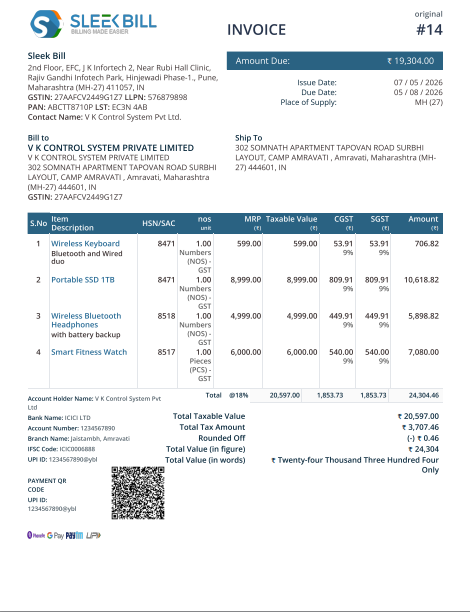
Why Should You Use “Show Net Received in the Total Section”?
- Helps customers clearly see the received payment amount
- Makes invoices more professional and easier to understand
- Improves payment transparency in billing
- Reduces confusion in partial payment invoices
- Helps businesses maintain accurate payment records
- Makes payment tracking and follow-up easier
- Adds better clarity to invoice totals
How to Enable “Show Net Received in the Total Section” in Sleek Bill?
Step 1: Open Sleek Bill Website
Open the Sleek Bill website: https://sleekbill.in/
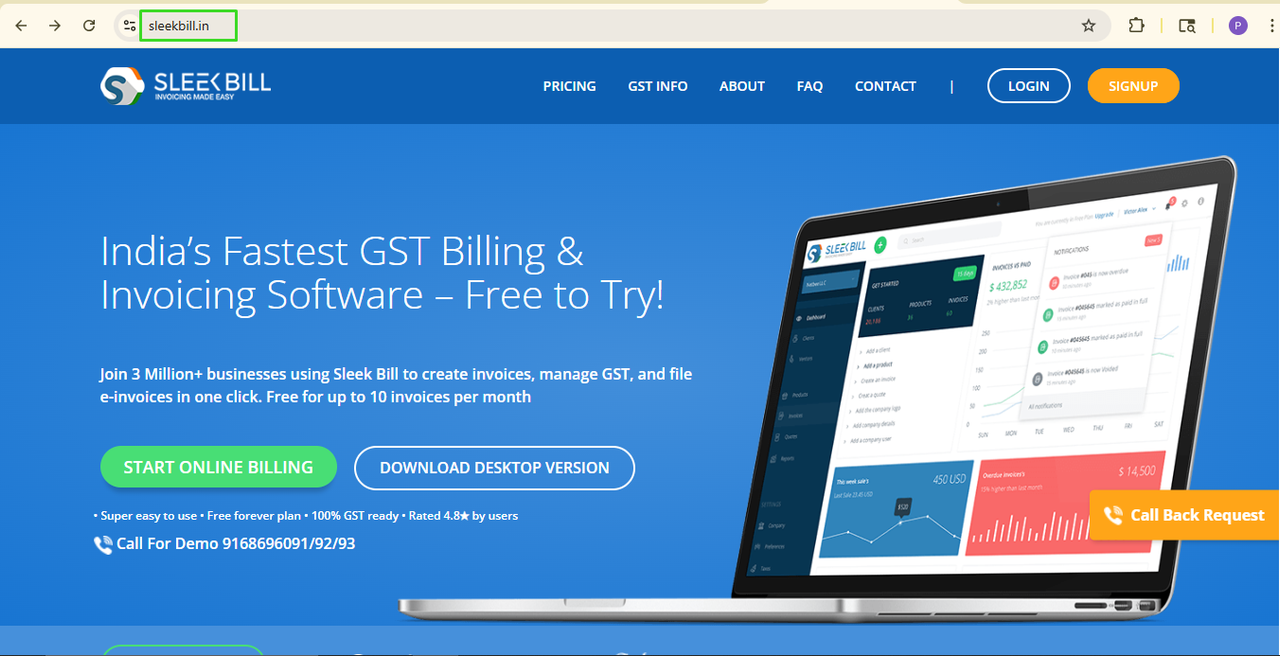
Step 2: Click on the Login Button
Now, click on the Login button available at the top left corner of the website.

Step 3: Enter Login Details
Enter your login credentials and click on the Sign In button.
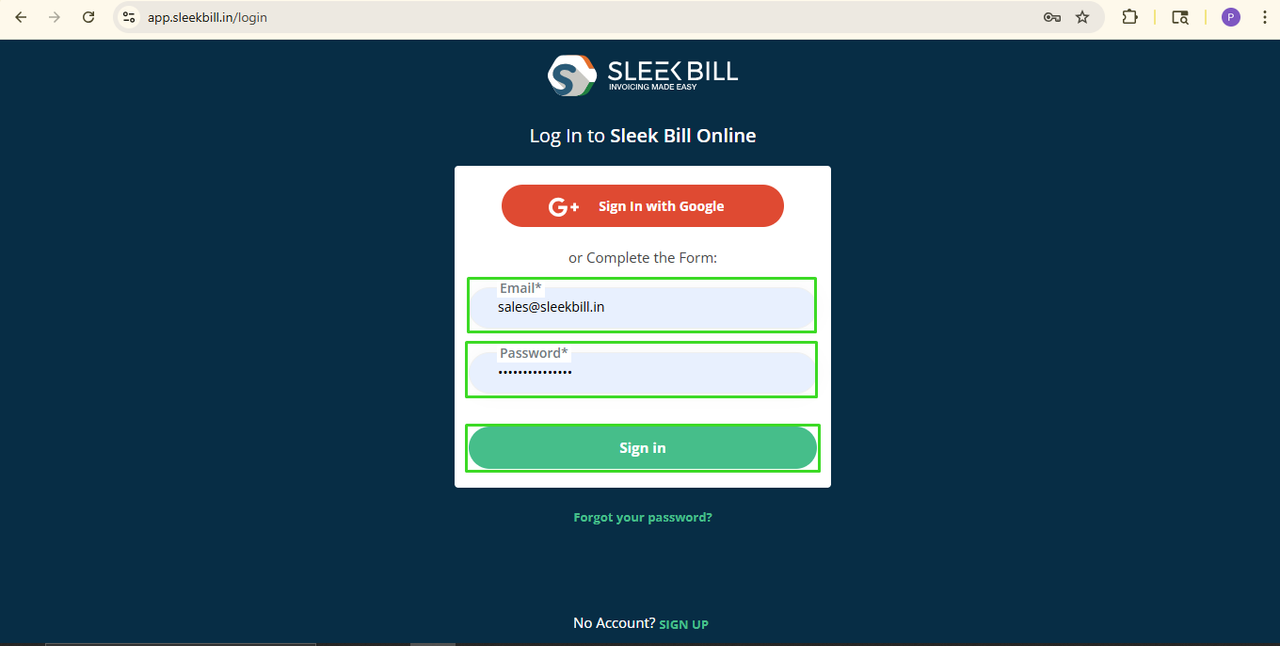
Step 4: Open Preferences Tab
After logging in, you will enter the Sleek Bill dashboard. Click on the Preferences tab.

Step 5: Click on the Invoice Tab
Now, click on the Invoice tab.
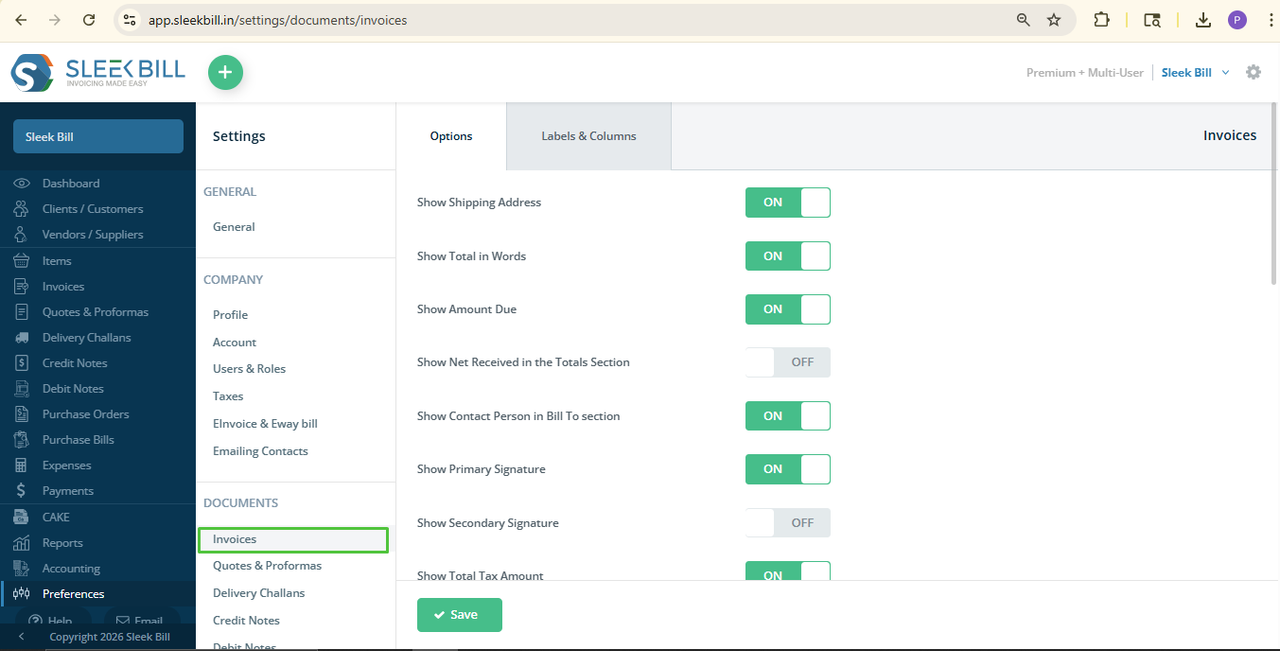
Step 6: Enable “Show Net Received in the Total Section” Option
Find the option called Show Net Received in the Total Section and turn it ON.
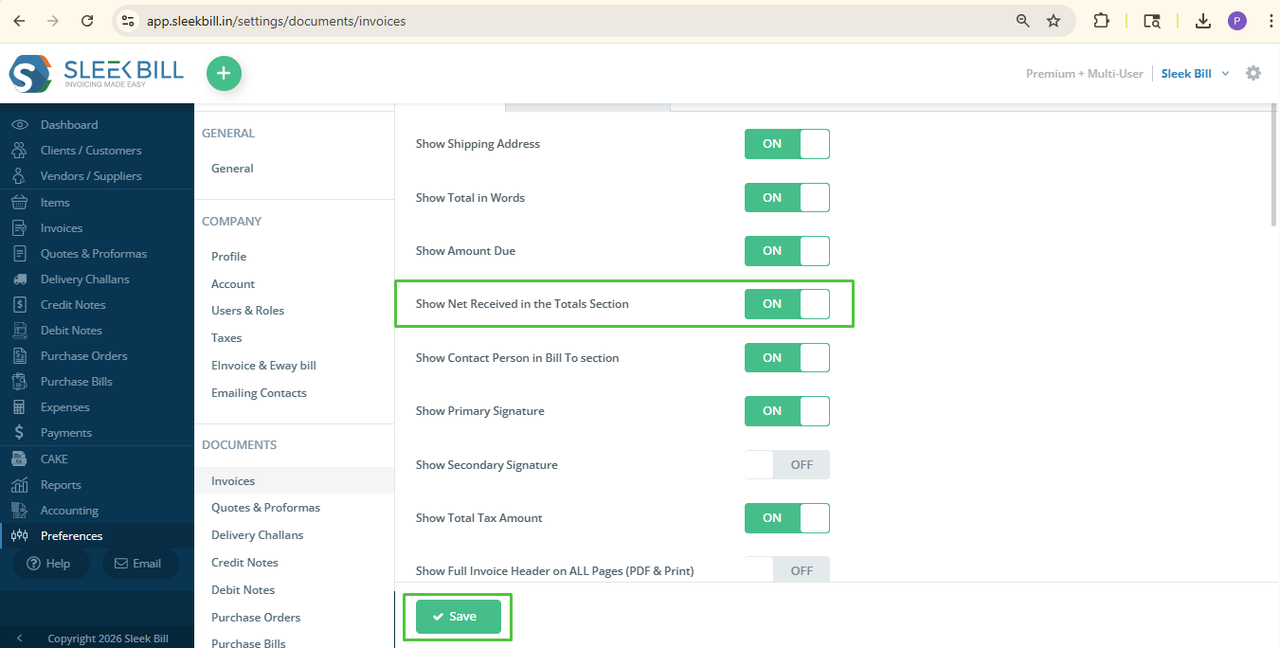
Step 7: Save the Settings
Finally, click on the Save button to apply the changes.
What Happens After Enabling This Option?
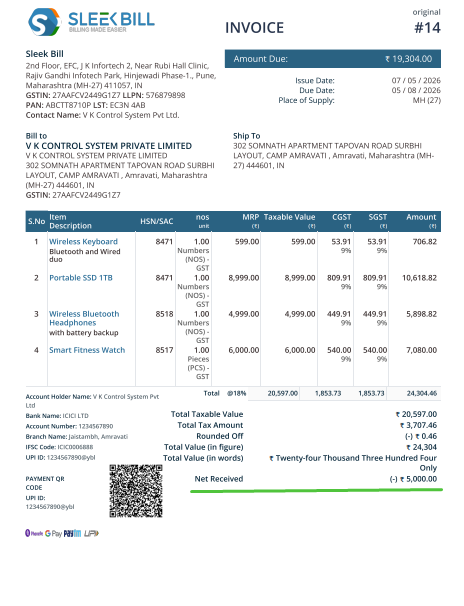
This helps both the supplier and customers maintain clear payment records and improves transparency in billing. It also makes invoice tracking and payment management easier.
Conclusion
The “Show Net Received in the Total Section” option is small, but it
has a very powerful impact in Sleek Bill. Showing the received payment amount directly
in the invoice helps businesses get an idea of paid payments details, transparency
and customers get a clear understanding of payment details. By enabling this
option, you can create more accurate and transparent invoices in just a few
clicks.
Was this article helpful?