How to Show Payment Mode in Invoice Using Sleek Bill
Every invoice should clearly communicate how a payment was made. Whether your customer pays by Cash, UPI, Credit Card, Debit Card, Bank Transfer, Cheque, or Digital Wallet, displaying the payment mode on the invoice improves transparency and makes record-keeping much easier.
Sleek Bill allows you to show the payment mode directly on your invoices, giving your customers complete payment information while maintaining professional and GST billing.
Why Show Payment Mode on an Invoice?
Including the payment mode offers several benefits:
- Makes invoices more professional
- Helps customers verify payment details
- Reduces confusion during payment reconciliation
- Simplifies accounting and bookkeeping
- Improves audit and tax record management
- Keeps payment history organized
- Useful for businesses accepting multiple payment methods
How to Show Payment Mode in Invoice
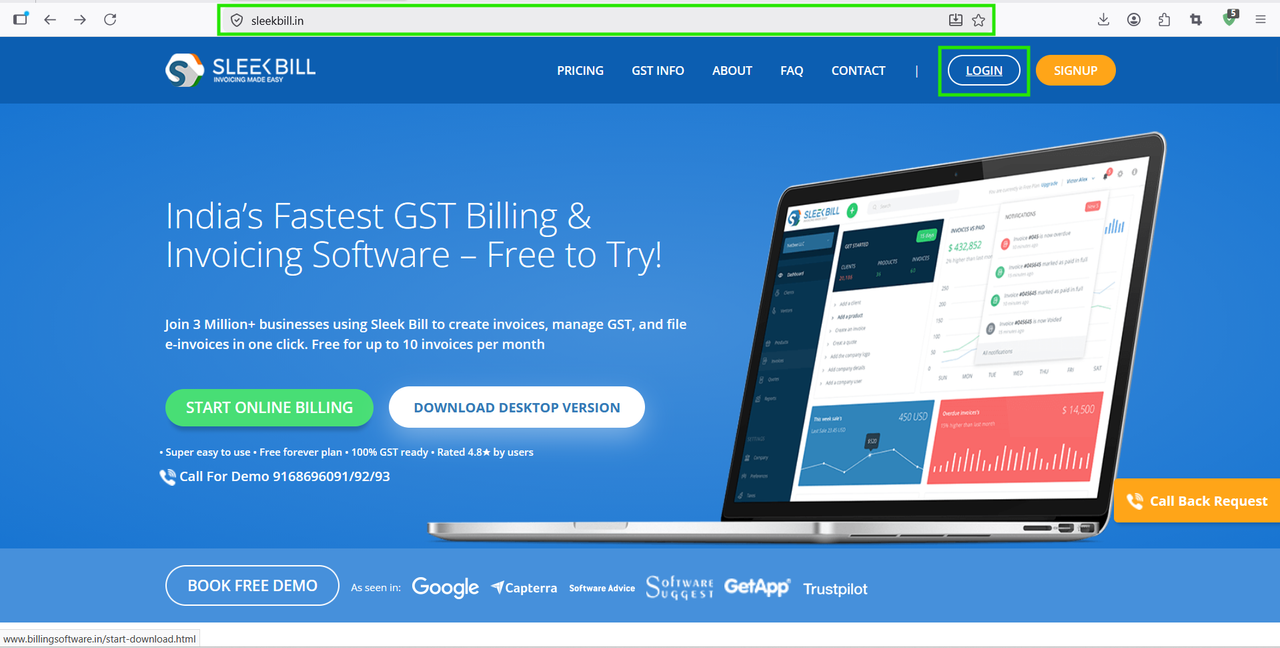
.png)
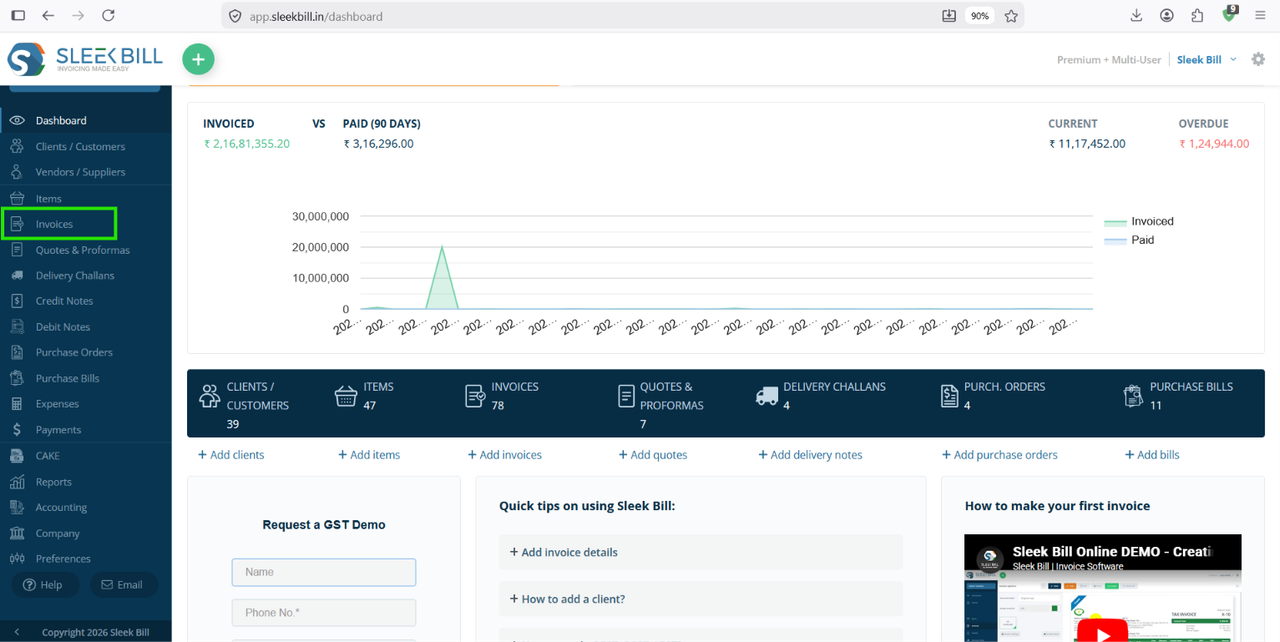 Step 3 : Select Tax Invoice create a new invoice.
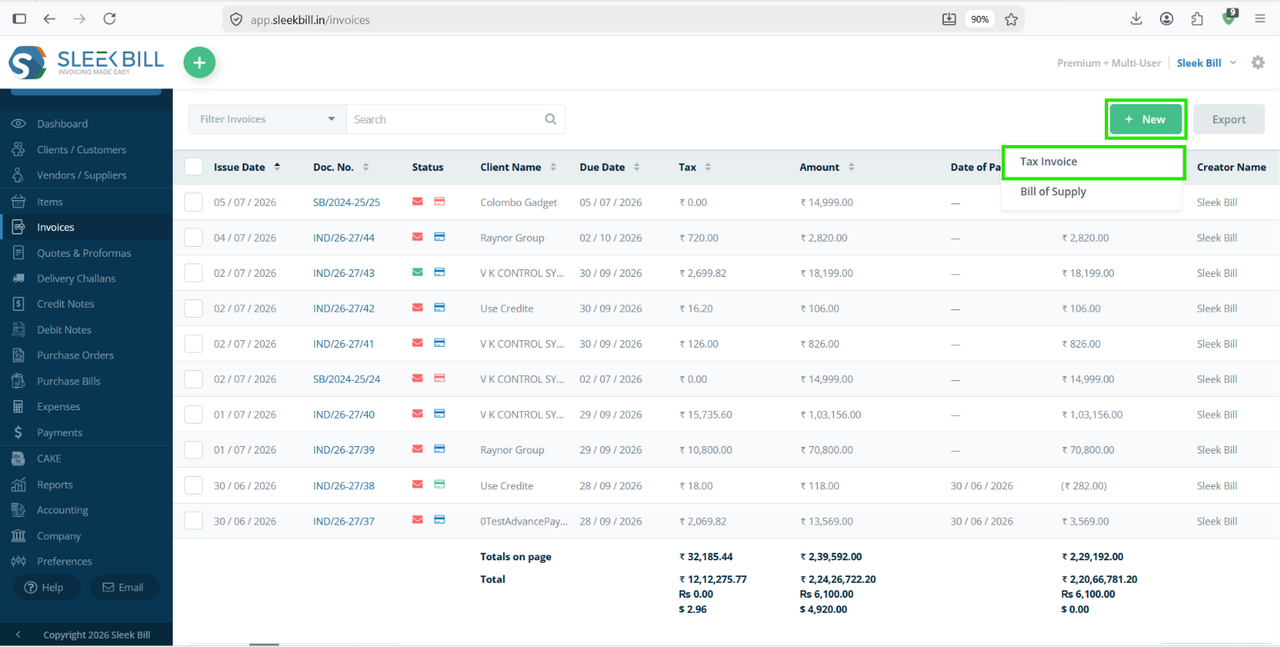 Step 4 : After selecting the client, complete the invoice by adding the required products or services.
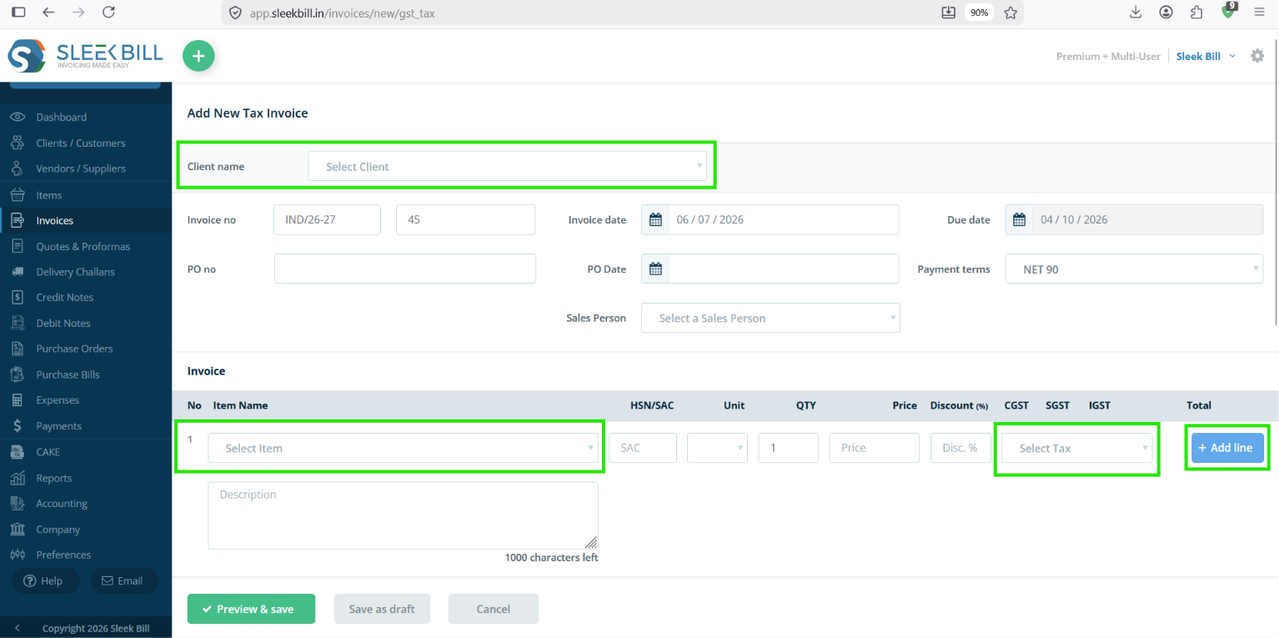 Step 5 : After add all details and add product then click on Preview & Save button at the bottom of software.
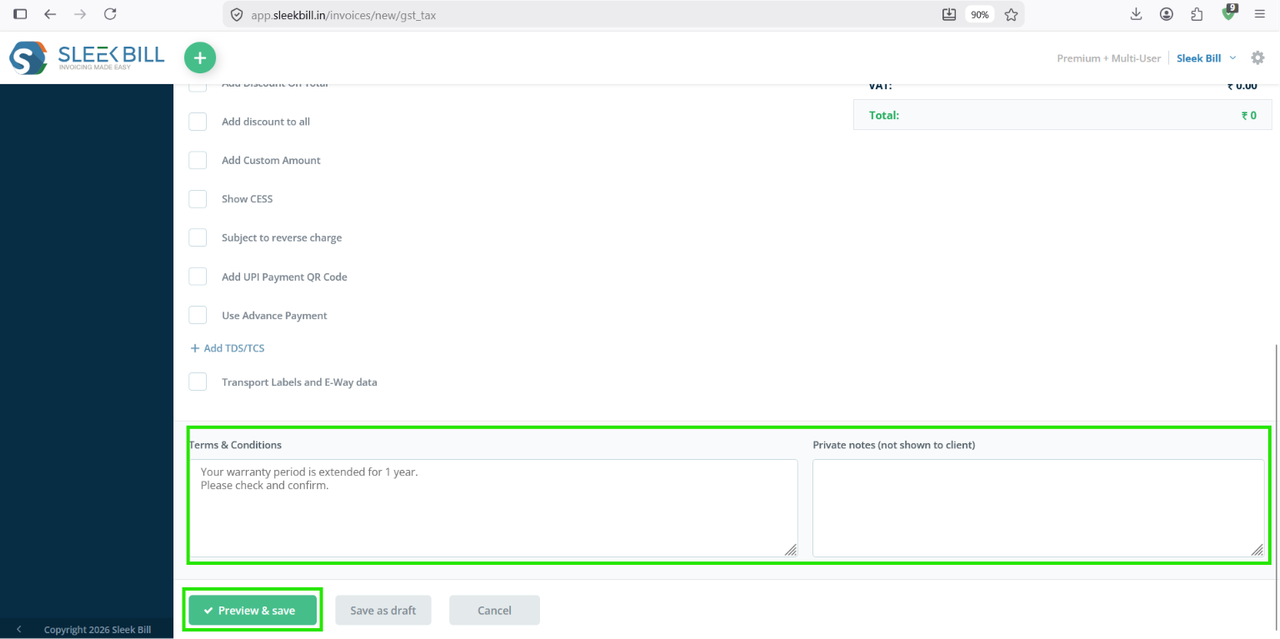 Step 6 : After clicking you will go to preview page then click on invoice setting button on left hand side.
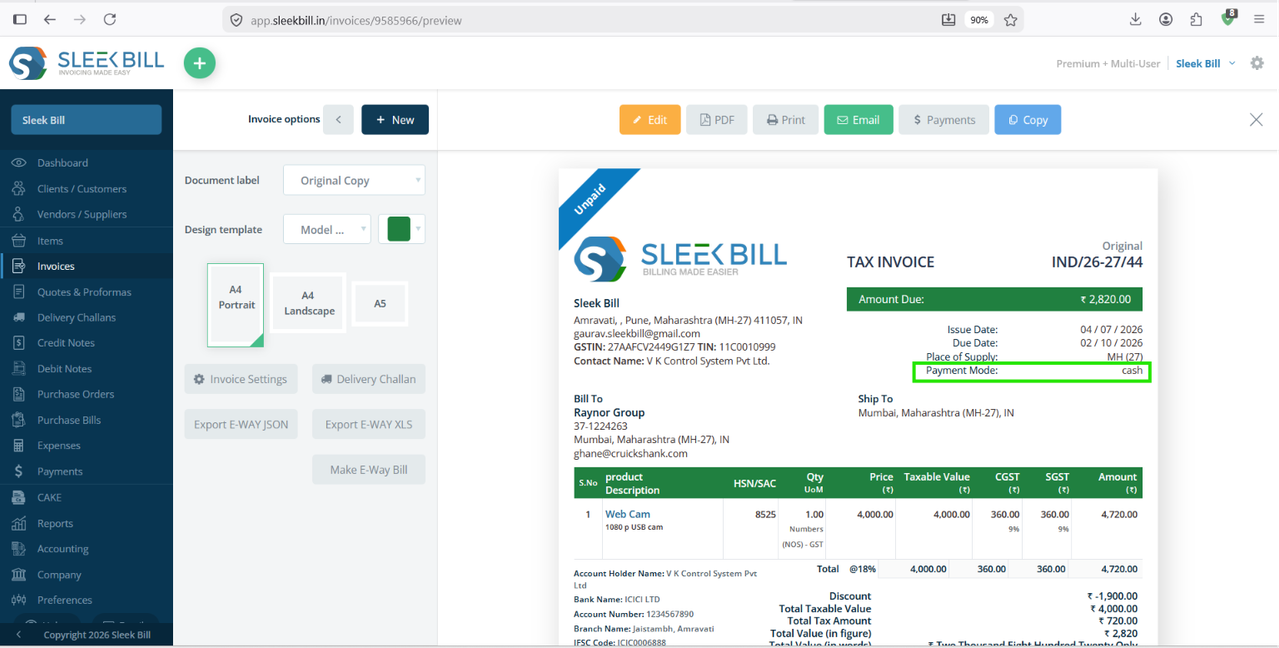
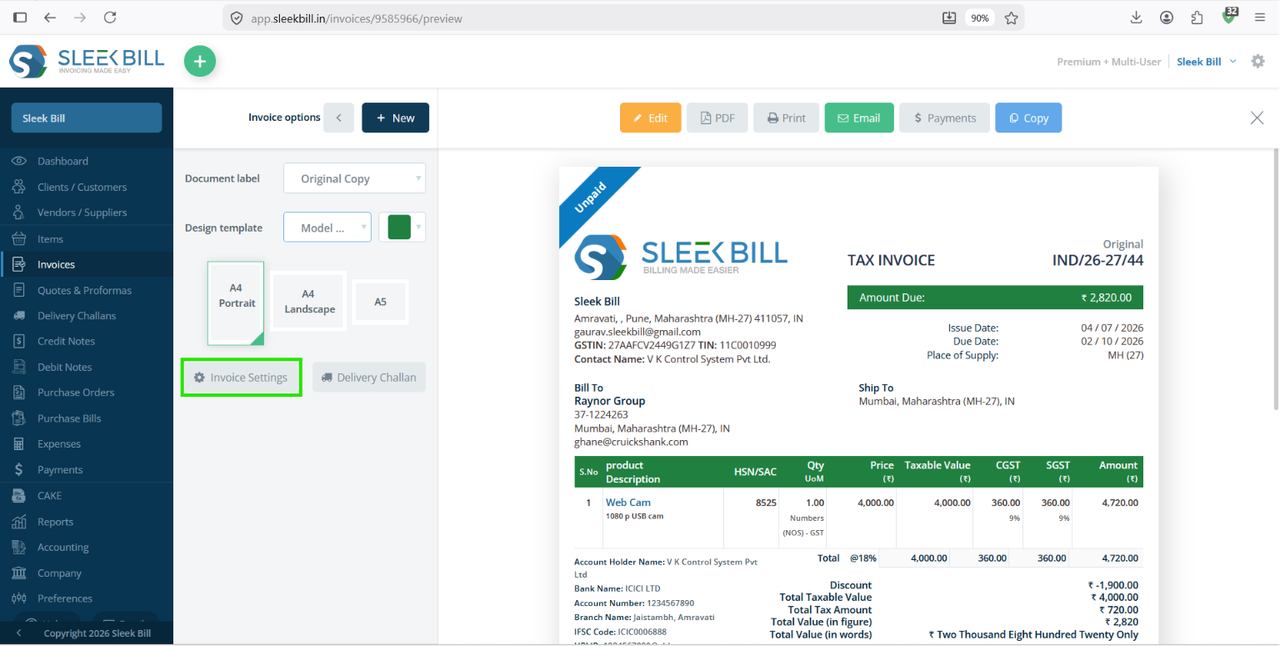 Step 7 : After clicking on invoice setting then popup window appears and "Show payment mode" will toggle it ON.
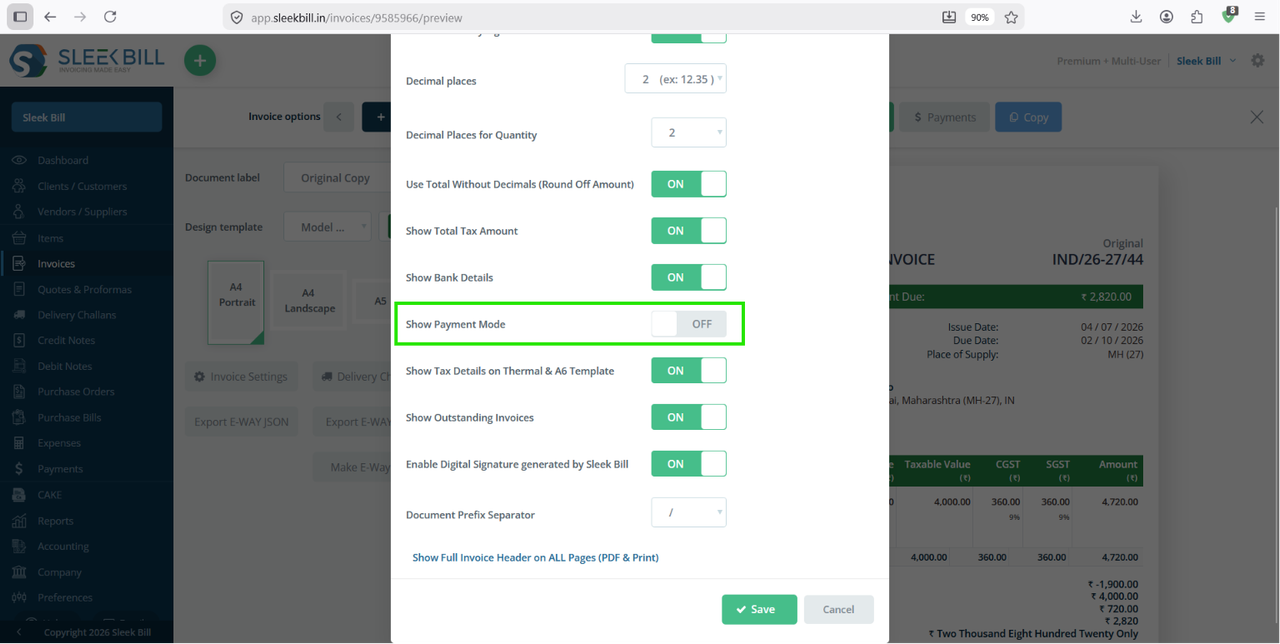
Step 8 : Now click on save.
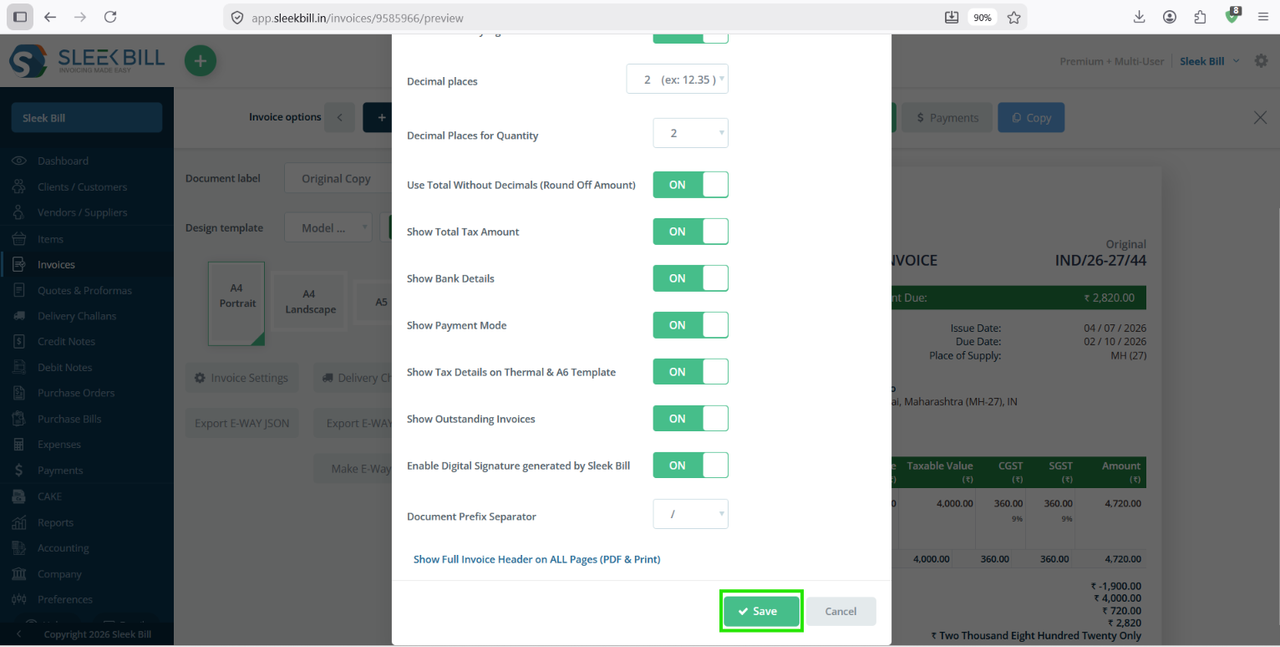
Now You see payment mode on invoice.
Conclusion
Showing the payment mode on your invoice makes billing more transparent, organized, and professional. It helps customers verify their payments, simplifies accounting, and improves financial record management.
With Sleek Bill, enabling this feature takes only a few clicks, allowing you to generate invoices that are both informative and GST.
Frequently Asked Questions (FAQs)
Can I display the payment mode on every invoice?
Yes. Once enabled, the payment mode can be displayed on your invoices.
Which payment methods are supported?
You can show Cash, UPI, Credit Card, Debit Card, Bank Transfer, Cheque, Net Banking, Digital Wallets, and other supported payment methods.
Can I change the payment mode before printing?
Yes. You can select or modify the payment mode while creating or editing the invoice.
Does showing the payment mode affect GST calculations?
No. Payment mode is displayed only for reference and does not affect GST calculations or invoice totals.
Is this feature available in Sleek Bill?
Yes. Sleek Bill allows you to display payment mode on invoices to improve billing clarity and maintain professional documentation.
Was this article helpful?