How to Show Secondary Signature in Quotation and Proforma
Adding a secondary signature to your quotation and proforma documents helps make your business documents more professional and authorized. In Sleek Bill, you can easily enable and display an additional signature for documents like quotations and proforma invoices.
This guide explains the complete process step-by-step.
Why Use a Secondary Signature?
A secondary signature is useful when:
- Two authorized persons need to sign documents
- You want to add an accountant or manager signature
- Your company follows multi-level approval processes
- You want more professional-looking quotations and proforma invoices
.png)
.png)
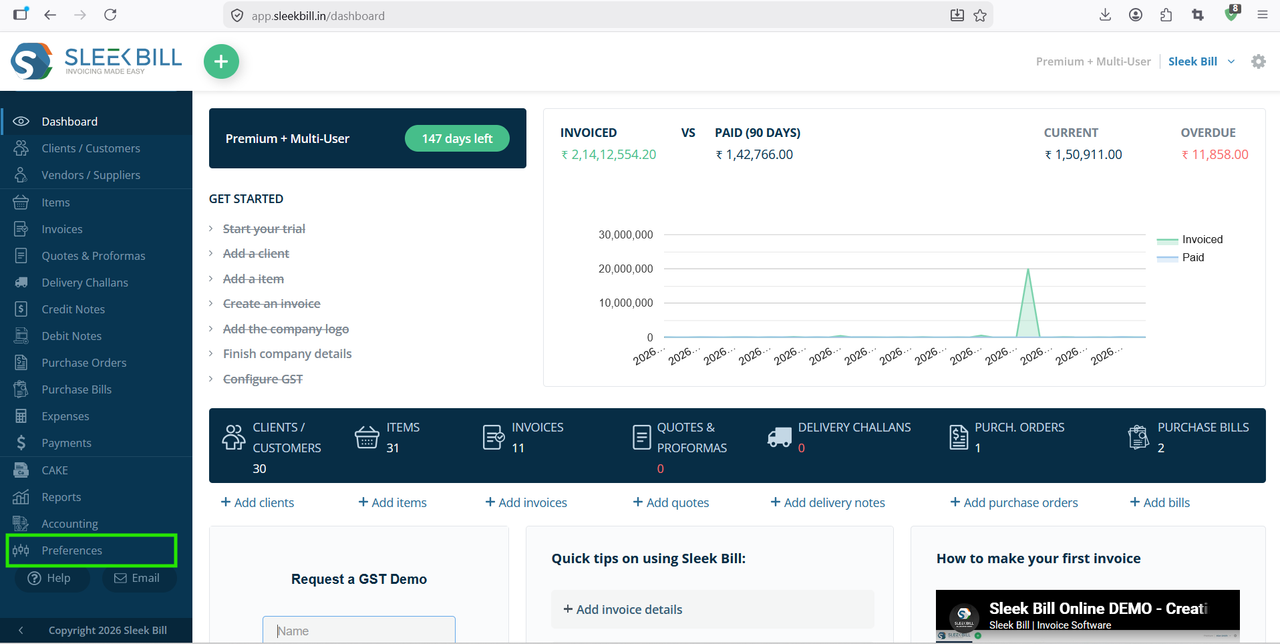
Step 2 : After successful login, you will reach the dashboard. From the left-side menu, click on Preferences.
Step 3 : Inside Preferences, navigate to Documents then go to quotations and proforma
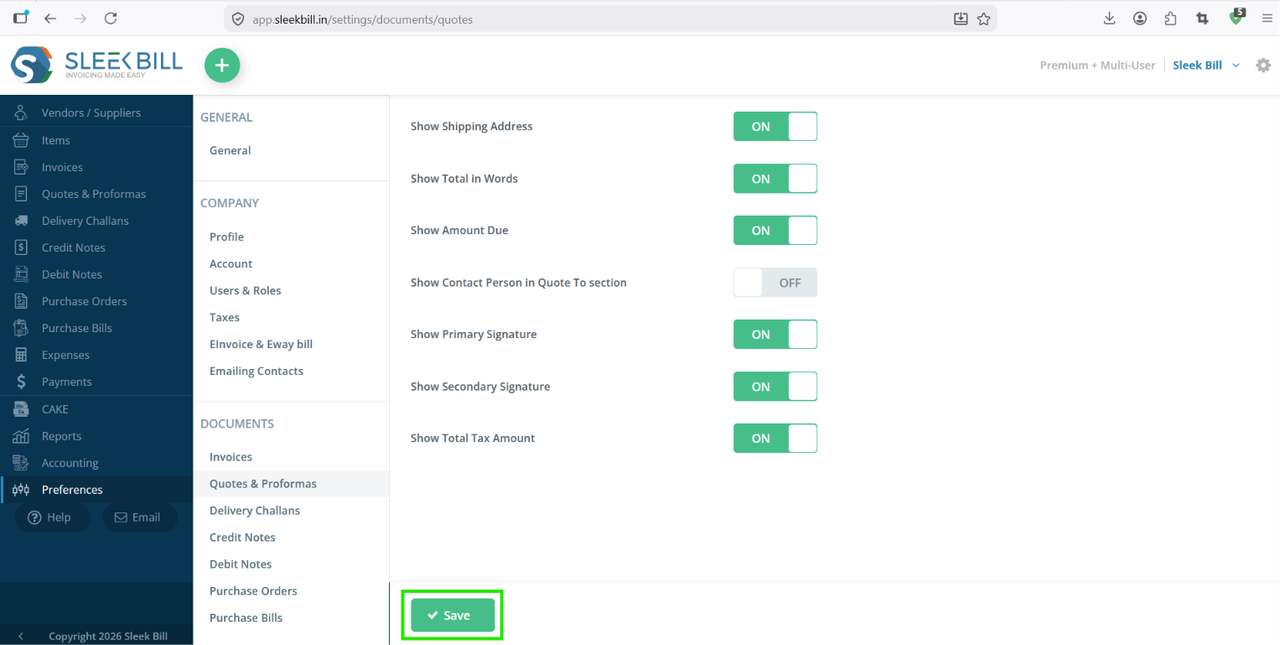
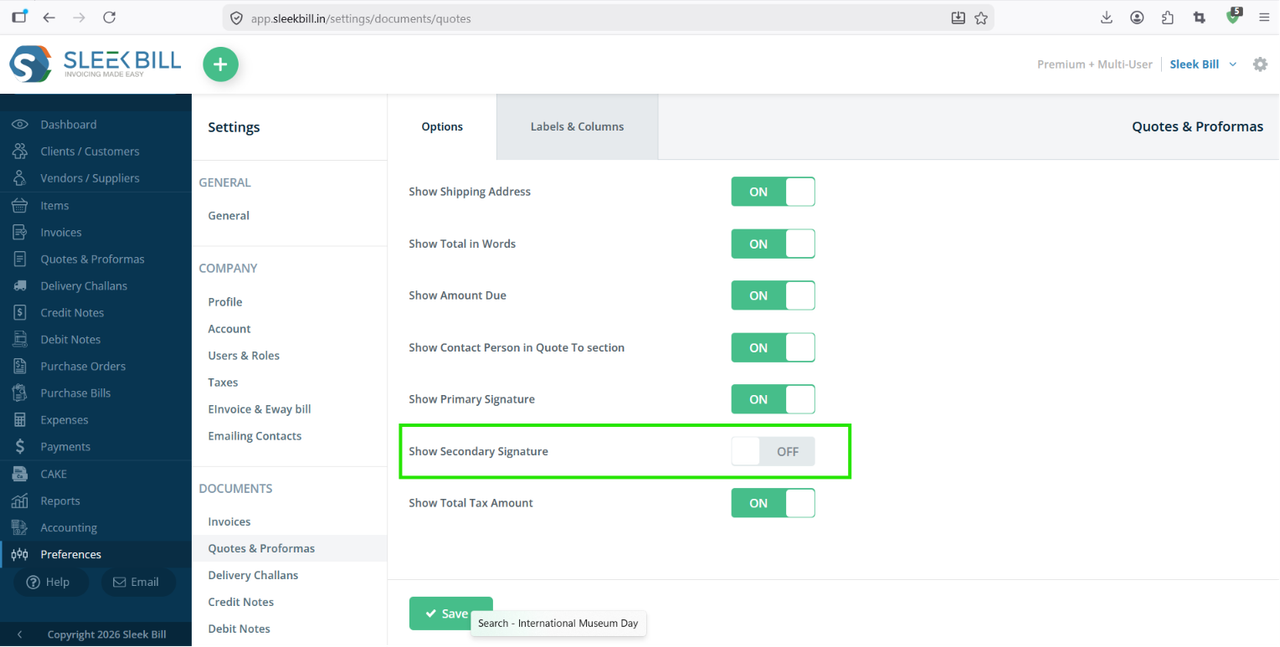
Step 4 : Here you will find the option Show Secondary Signature. Enable this option.
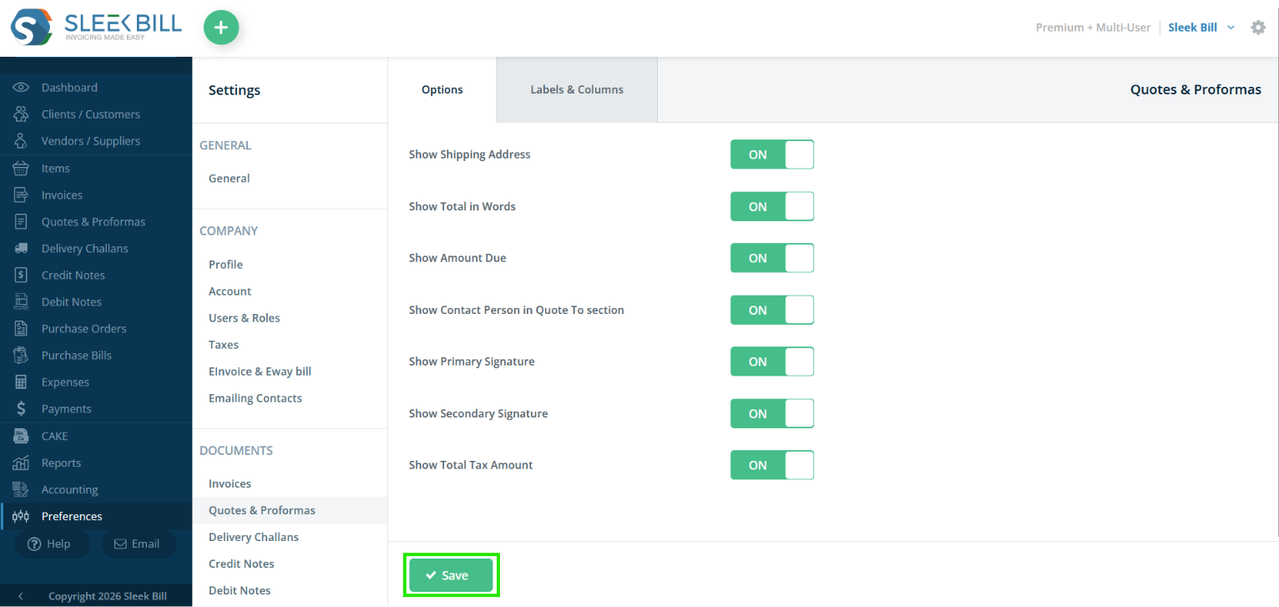
Step 5 : After enabling the option click on the Save button.
Create or open a quotation or proforma invoice and click on Preview or Print.
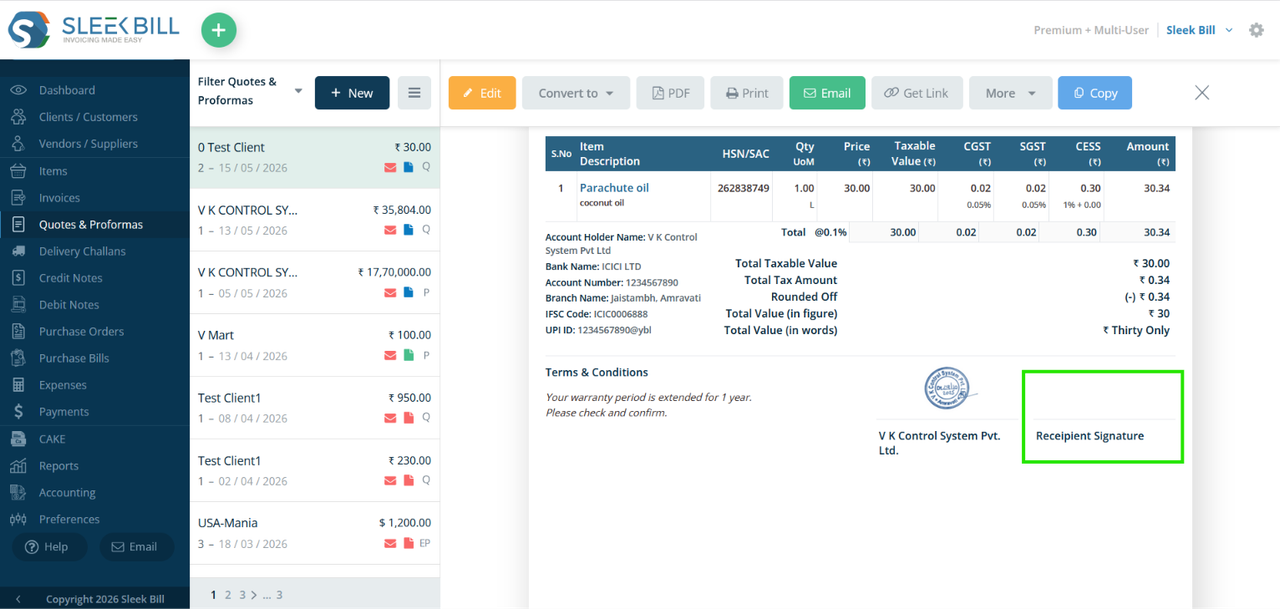
Benefits of Showing Secondary Signature
- Improves document authenticity
- Supports dual authorization workflow
- Creates a professional impression
- Useful for company approvals and accounts verification
Conclusion
Using the secondary signature feature in Sleek Bill is a simple way to make your quotations and proforma invoices more professional and approval-ready. By enabling the option from document preferences, you can quickly display two authorized signatures on your business documents.
Was this article helpful?