How to Show Shipping Address in Sleek Bill?
Hello Sleek Bill users, welcome to the Sleek Bill Knowledge Hub.
Today, we’ll learn how to Show or Hide Shipping Address in Sleek Bill in invoices. Sleek Bill makes invoicing simple and professional.
Offer One useful feature is the
"Show Shipping Address" option.
This feature enables you to display your
customer's shipping address directly on the invoice.
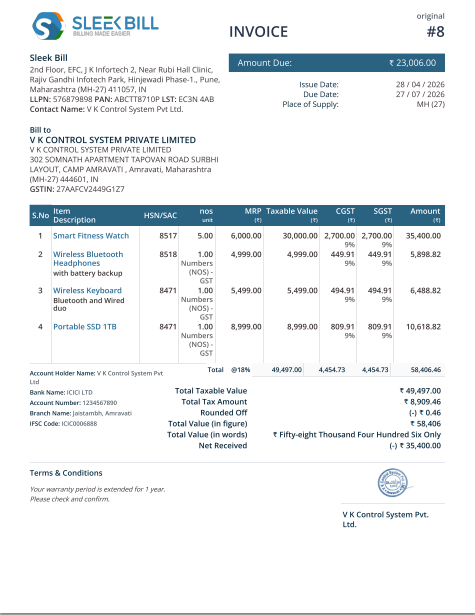
See in the below Invoice Shipping Address is missing.
Why Should You Use It?
Showing the shipping address on an invoice is very helpful to understand where good will dispatch, especially in the case when you deliver products to a different location than the billing address. Because many businesses have separate billing and Shipping address, it helps avoid delivery mistakes, improves accuracy, and gives your invoice a more professional look.
It is particularly useful for businesses involved in shipping, trading, and online sales.
How to Enable Shipping Address in Sleek Bill?
Step 1: Open your browser and visit www.sleekbill.in.
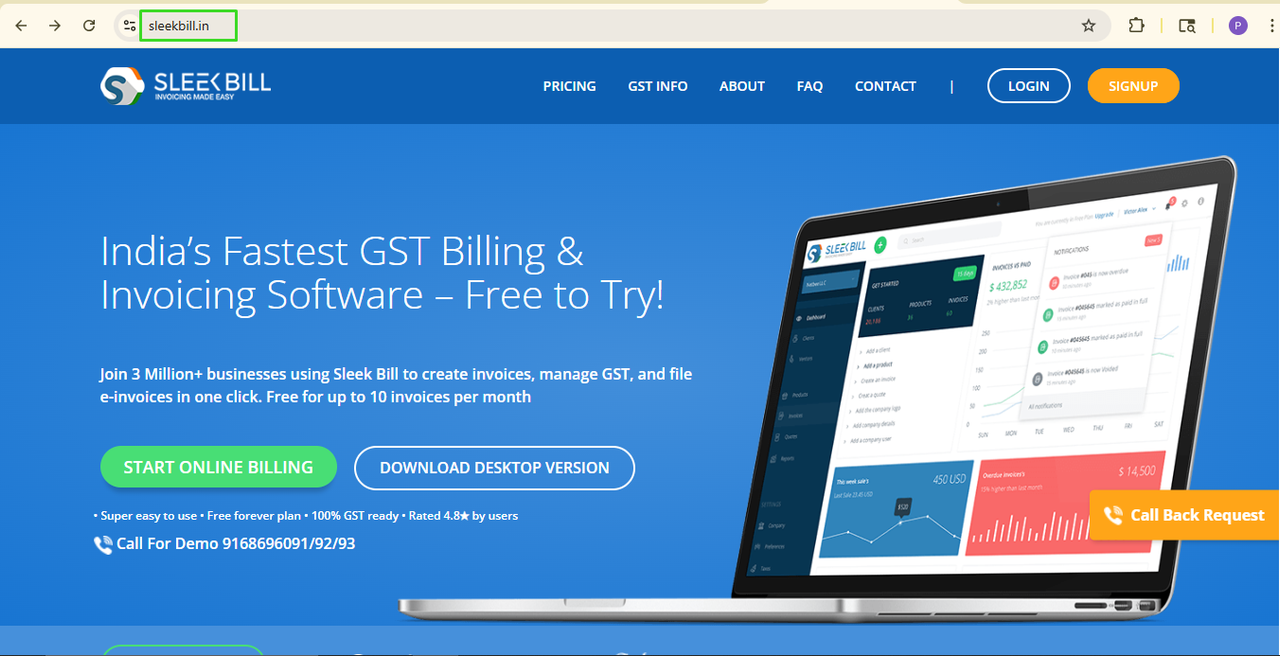
Step 2: Click
on the Login button.

Step 3: Enter
your email ID and password, then click on Sign In.
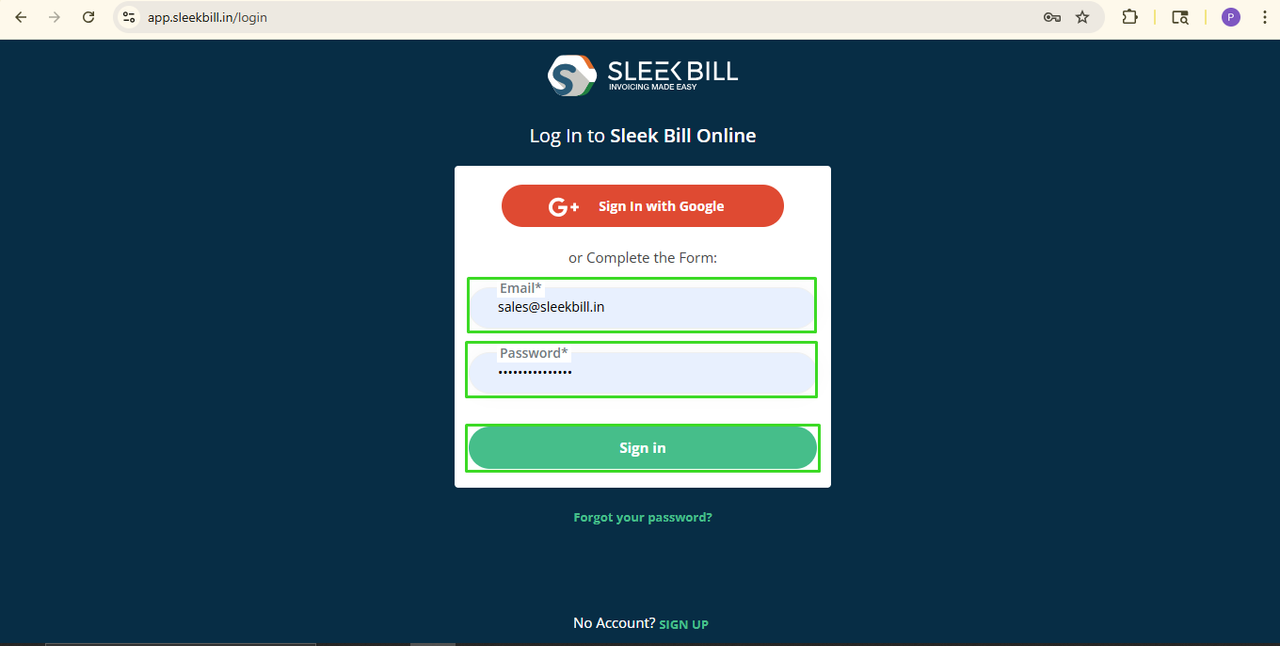 Step 4: Once logged in, you will enter in the Sleek Bill dashboard, click on the Preferences tab below.
 Step 5: Click on the Invoice tab which is below. Then find "Show Shipping Address"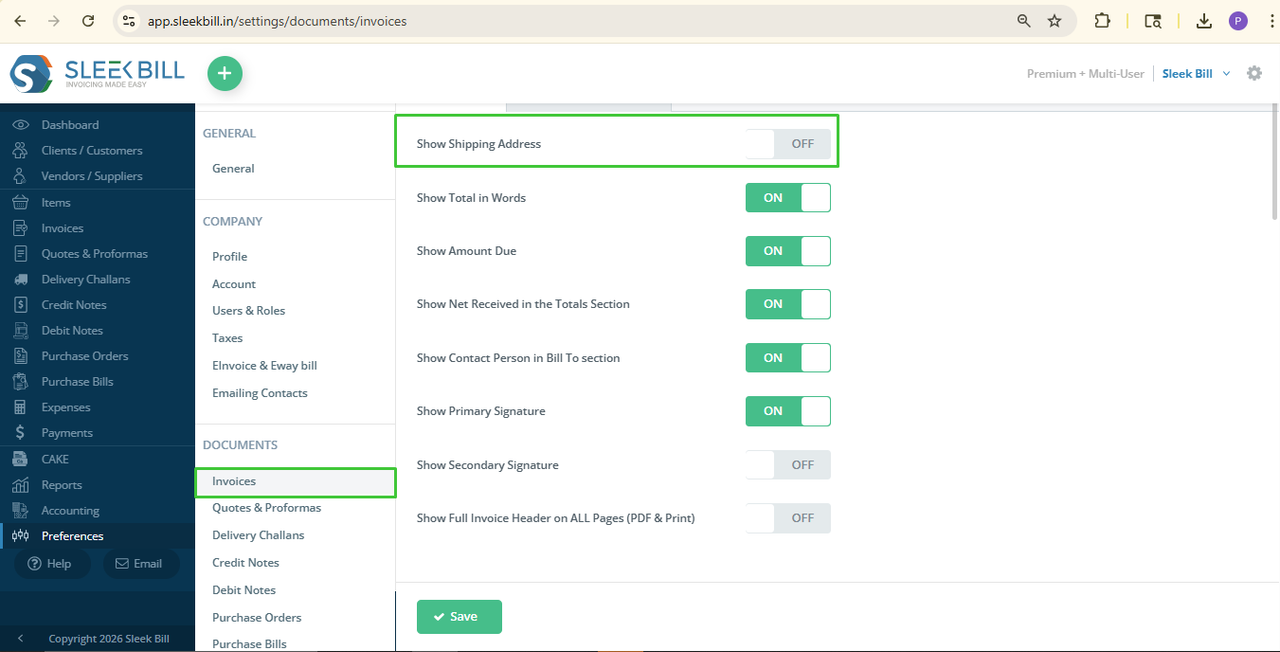
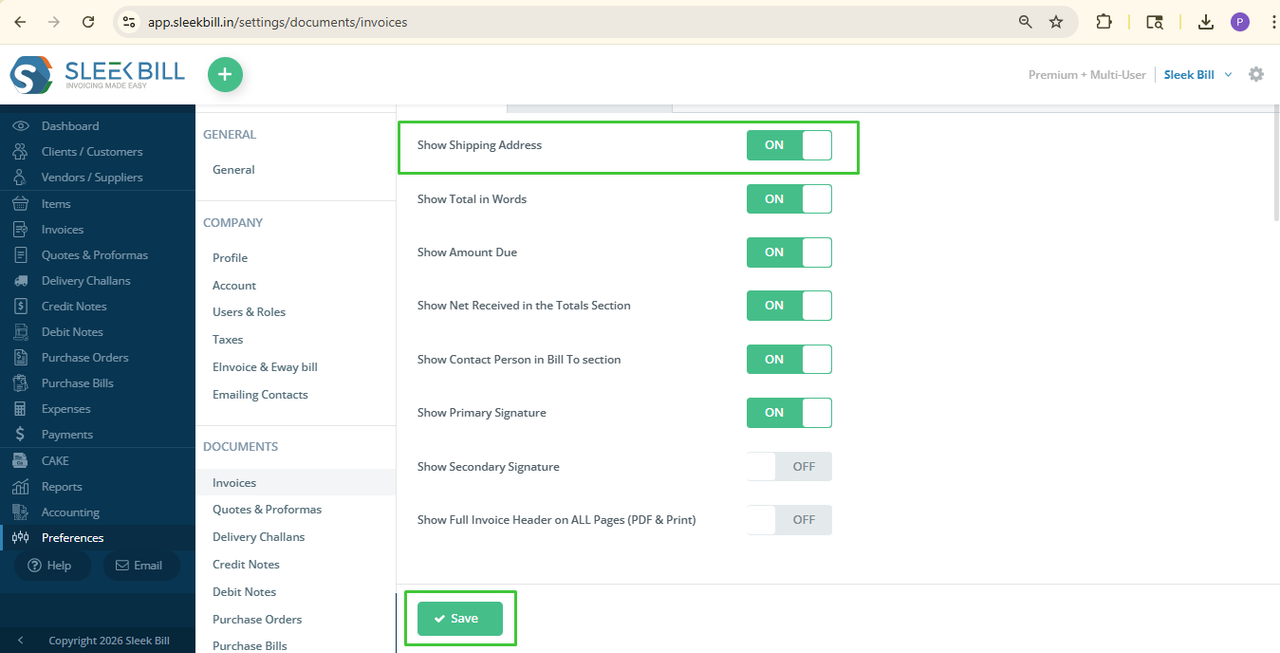
That's it! From now on, whenever you create a new invoice, the shipping address will automatically appear on invoice.
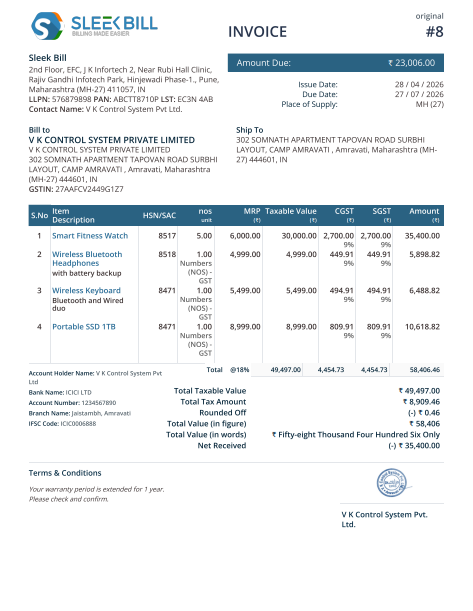
See the below Invoice Ship To Address clearly mention.
Was this article helpful?