How to Show Shipping Address on Quotation in Sleek Bill?
Hello Sleek Bill users, welcome to the Sleek Bill Knowledge Hub. In this guide, we’ll learn how to show or hide the Shipping Address on a quotation or proforma in Sleek Bill.
This simple feature helps you create clearer, more professional, and more accurate quotations or proformas for your customers.
The “Show Shipping Address” option enables you to display the customer’s delivery address on the quotation document.
This is especially useful in a deal when the billing address and shipping address are different.
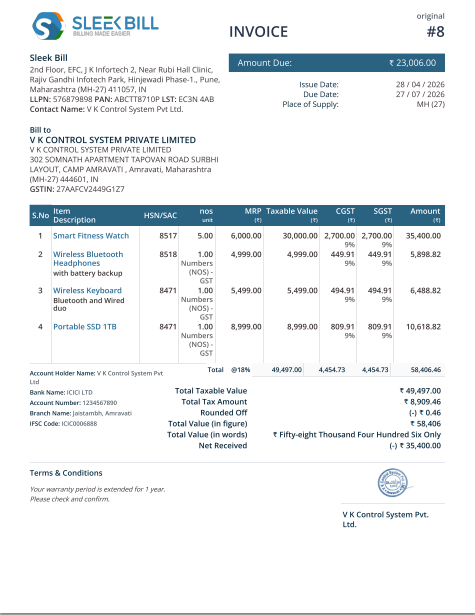
Here is the quotation without the shipping address confuse where the product will be dispatched.
Why is the Shipping Address Important?
- Adding the shipping address to a quotation or proforma helps clearly inform customers where the products will be delivered.
- It reduces confusion, avoids delivery mistakes, and makes your quotation or proformas look more professional.
- This feature is very useful for businesses involved in trading, wholesale, online sales, manufacturing, and product delivery services.
Steps to Enable Shipping Address on Quotation
Step 1: Open your browser and visit Sleek Bill's official website
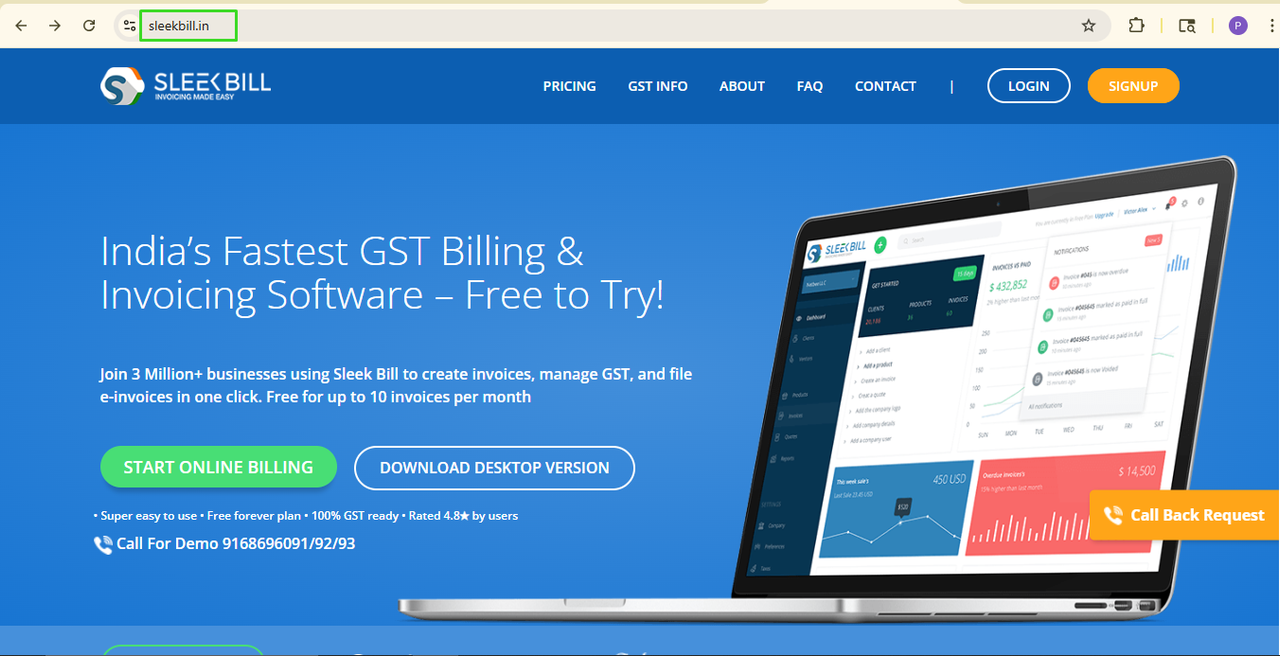 Step 2: Click on the Login button.
 Step 3: Enter your Email ID and Password, then click on Sign In.
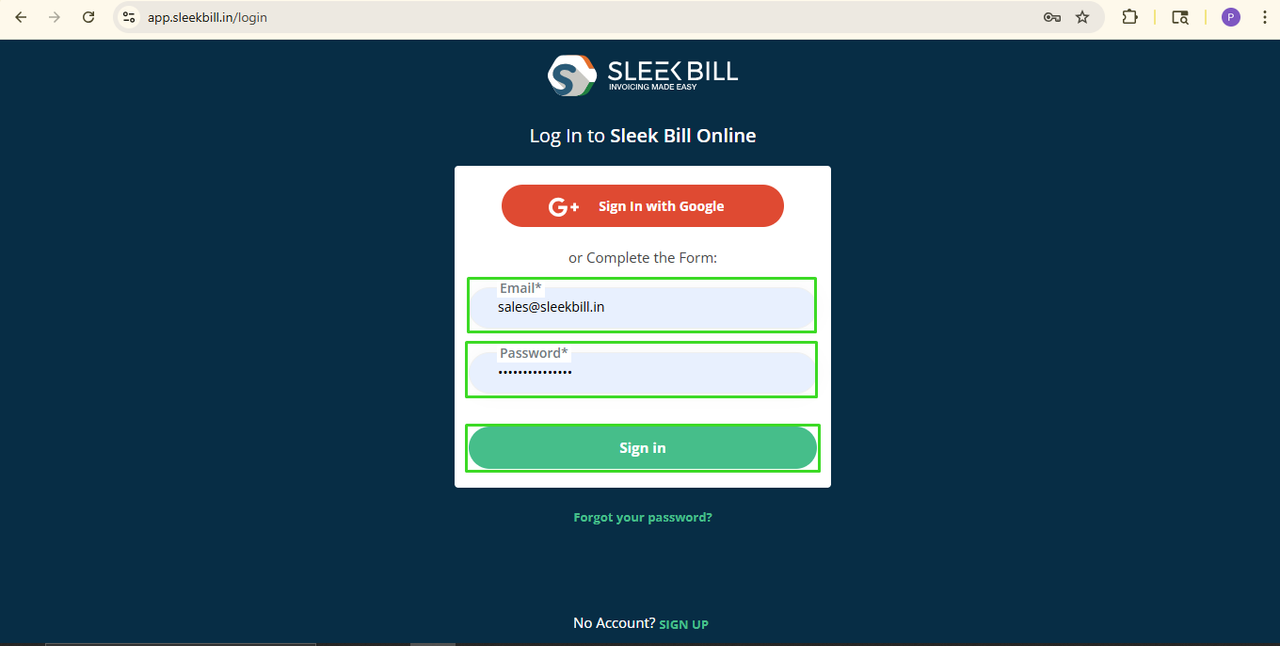 Step 4: Once you log in, you will enter the Sleek Bill dashboard. Go to the Preferences tab.
Step 5: Click on the Quotation & Proformas tab.
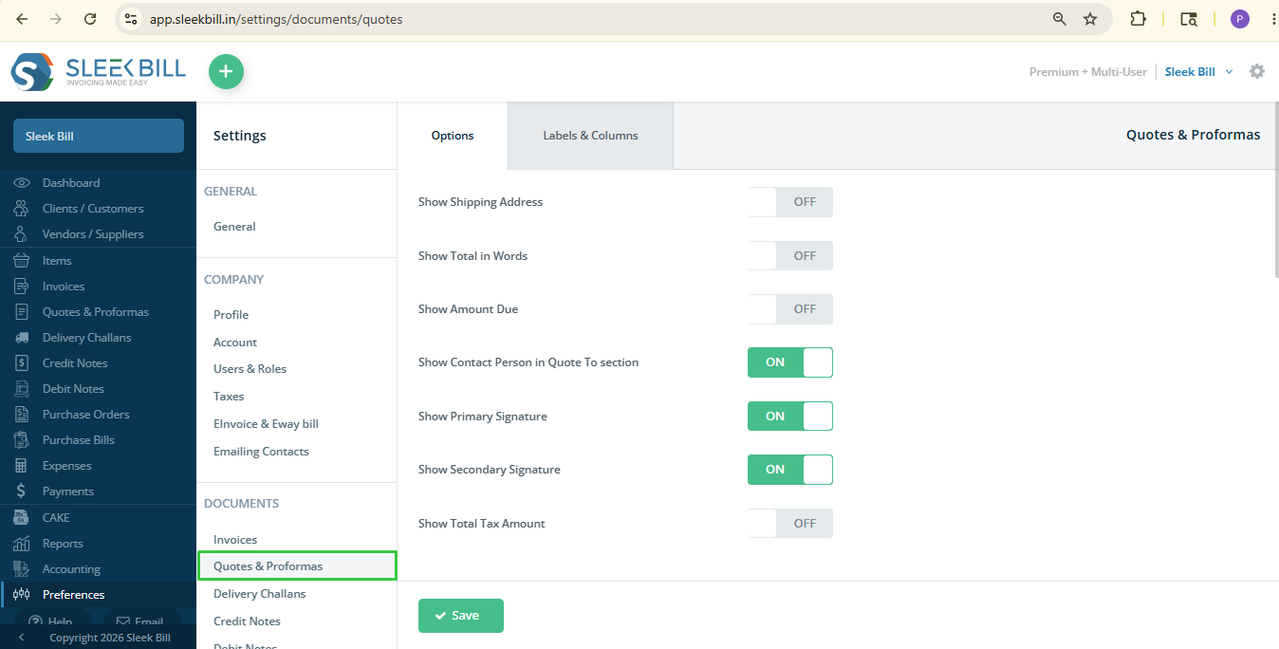 Step 6: Find the option called “Show Shipping Address” and turn it ON.
 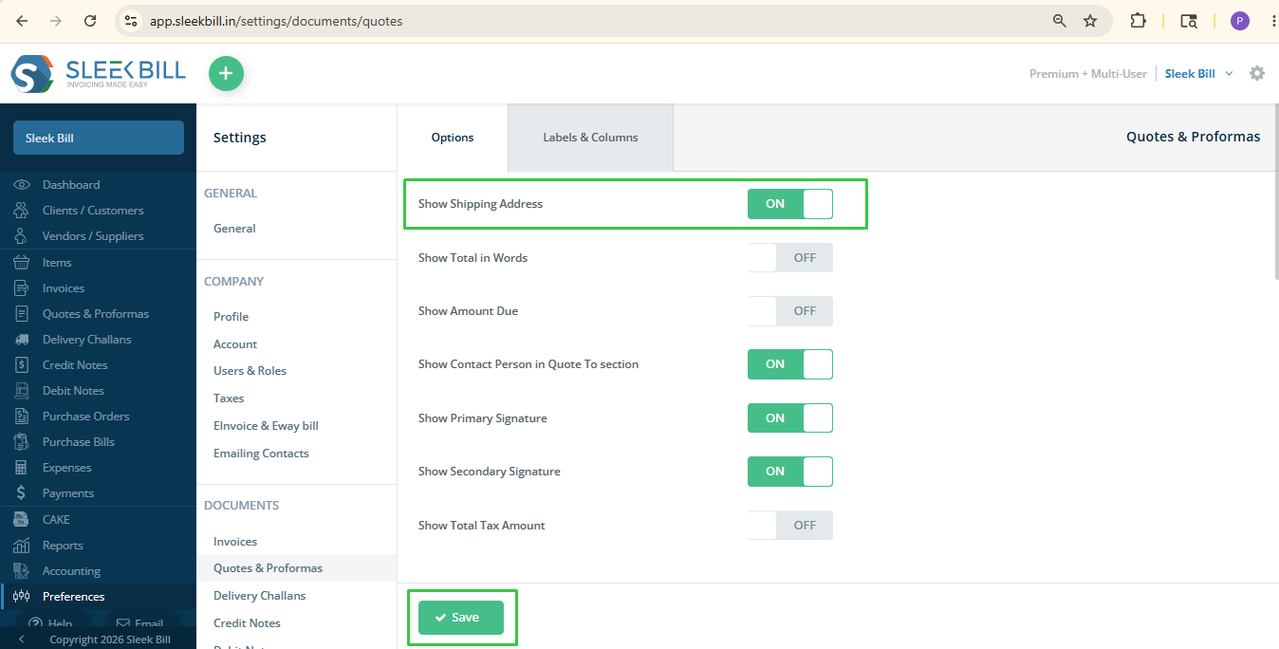 Step 8: Click on the save button.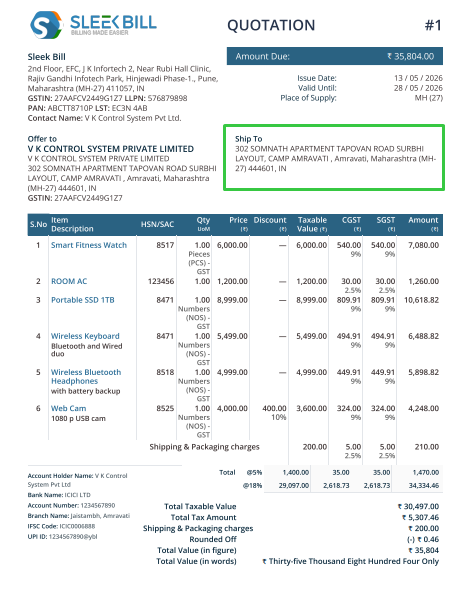
Conclusion:
The
“Show Shipping Address” feature helps you create clean, professional, and
easy-to-understand quotations. It improves delivery accuracy and ensures your
customers receive complete address details on the document. Enable this feature
today and make your quotations more organized and professional with Sleek Bill.
Was this article helpful?