How to Show Tax Details on Thermal & A6 Invoice Templates
If you're using a thermal printer or an A6 invoice format, you may wonder whether it's possible to display tax details clearly without making the invoice look crowded. The good news is that modern billing software allows you to include GST or VAT information even on compact invoice templates.
This guide explains why tax details matter and how to display them on Thermal and A6 invoice templates.
Why Show Tax Details?
Including tax information on your invoices helps you:
- Maintain professional and compliant invoices.
- Give customers a clear breakdown of taxes charged.
- Simplify bookkeeping and tax filing.
- Reduce confusion about the final payable amount.
Even if you're printing on a small paper size, tax information should always be easy to read.
What Tax Details Can Be Displayed?
Depending on your business requirements, your invoice can include:
- Tax percentage for each item
- Tax amount for each item
- Total taxable amount
- CGST, SGST, IGST, or VAT breakdown
- Total tax amount
- Grand total including taxes
These details help customers understand exactly how the final amount is calculated.
How to Show Tax Details on Thermal & A6 Templates
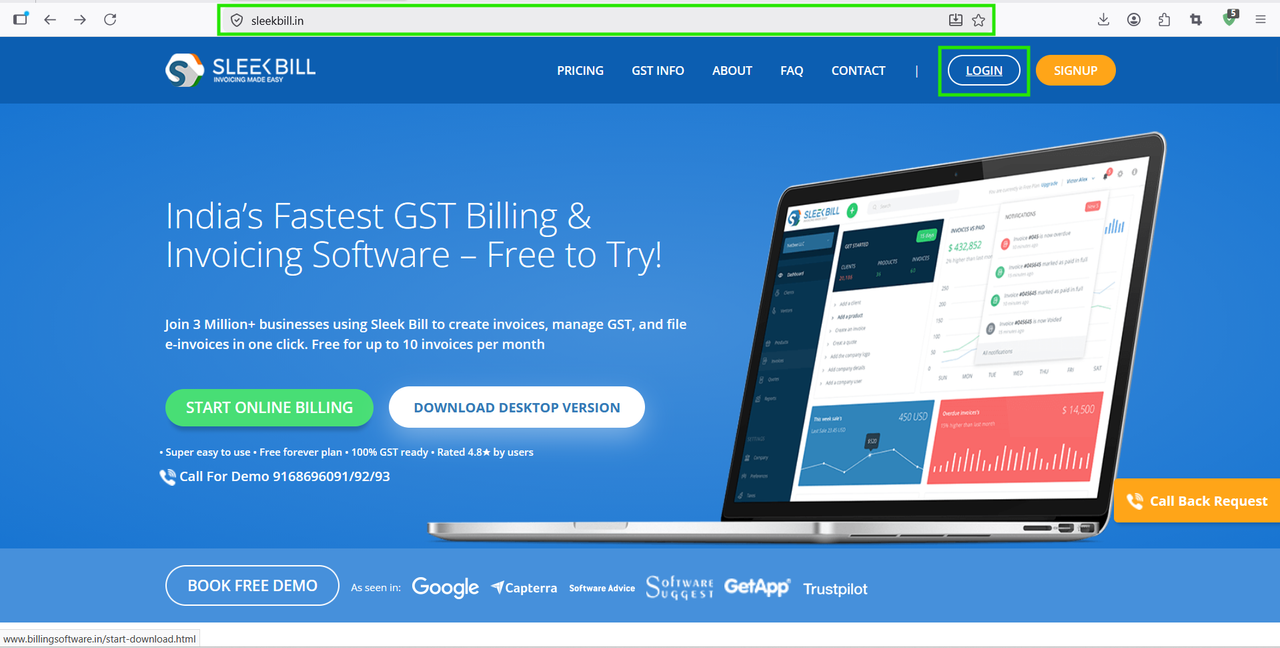
.png)
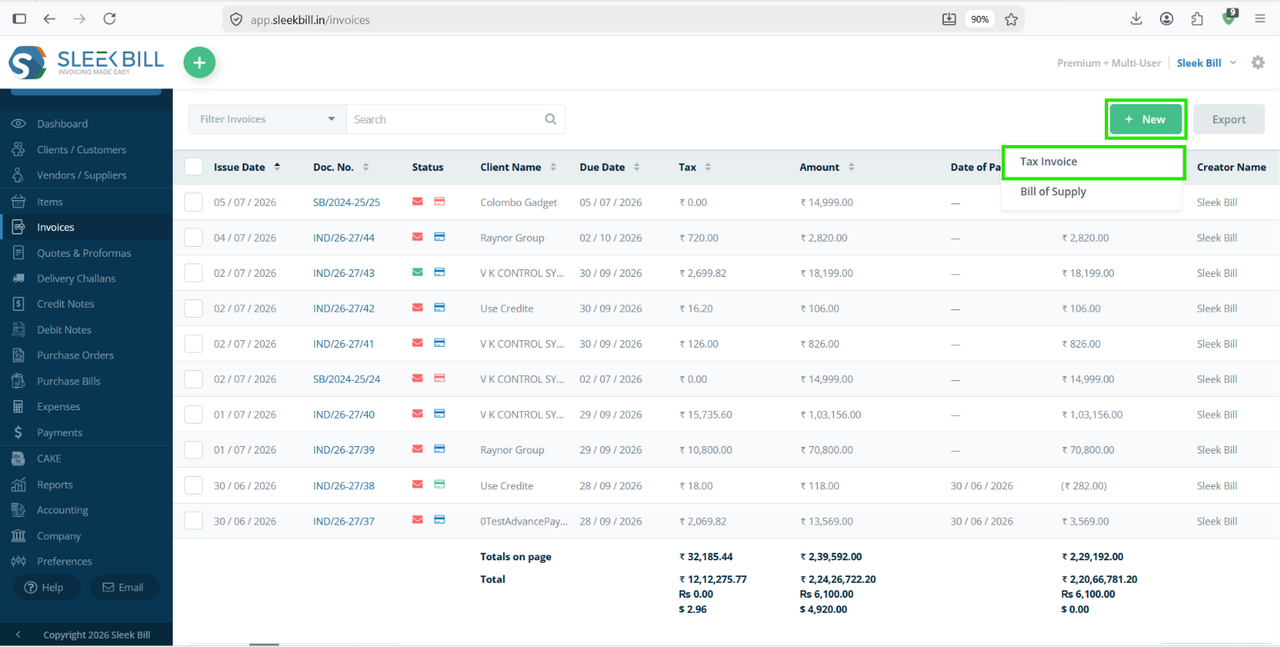
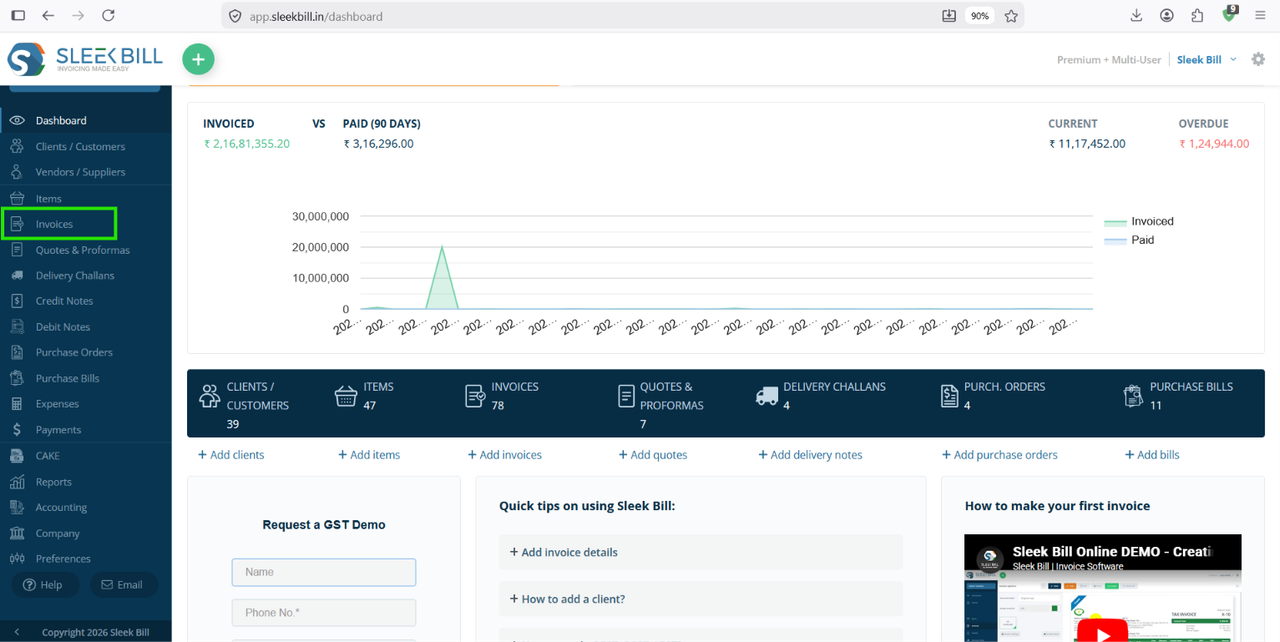 Step 4 : Select Tax Invoice create a new invoice.
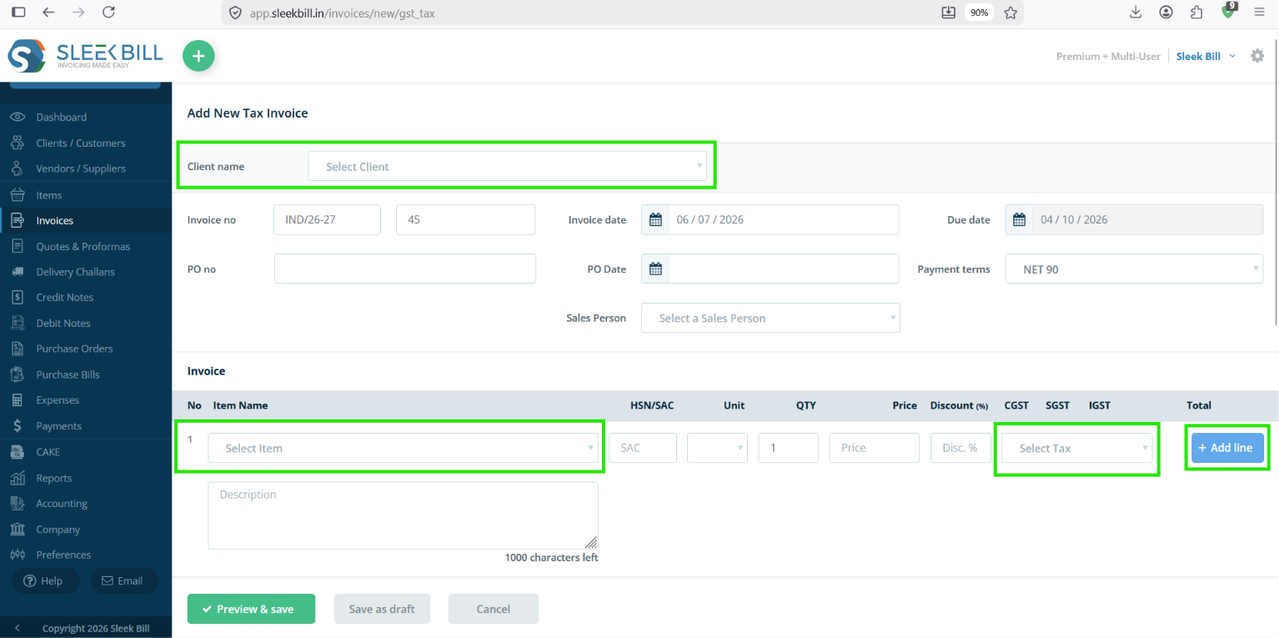
 Step 5 : After selecting the client, complete the invoice by adding the required products or services.
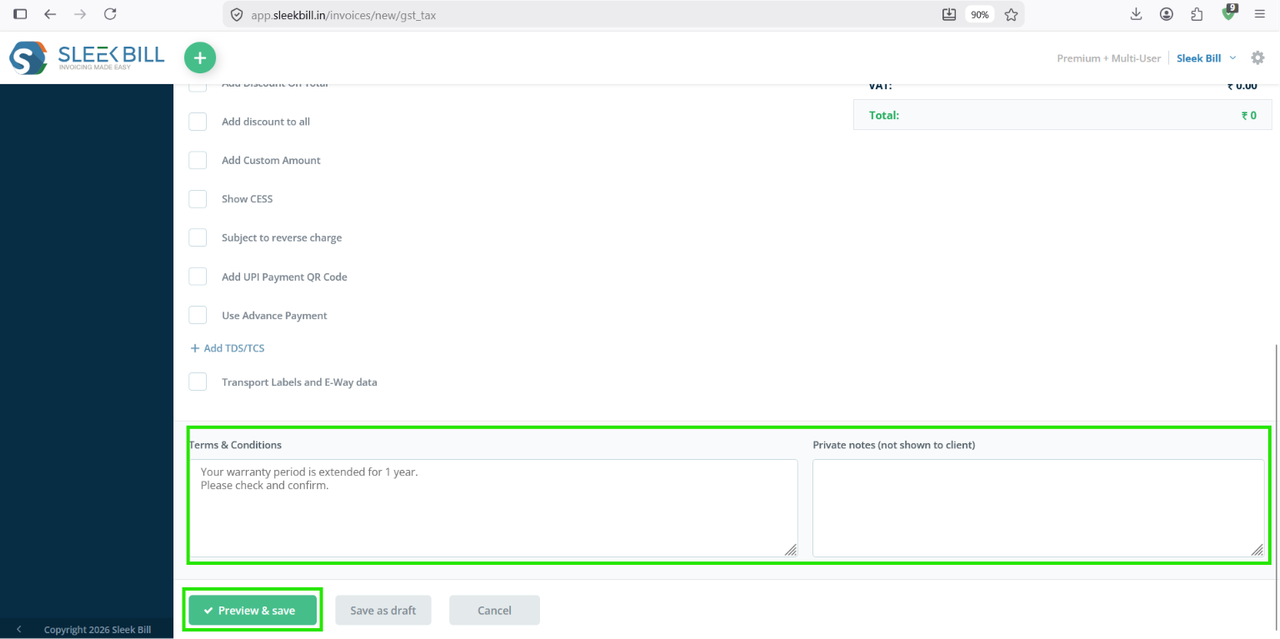
 Step 6 : After add all details and add product then click on Preview & Save button at the bottom of software.
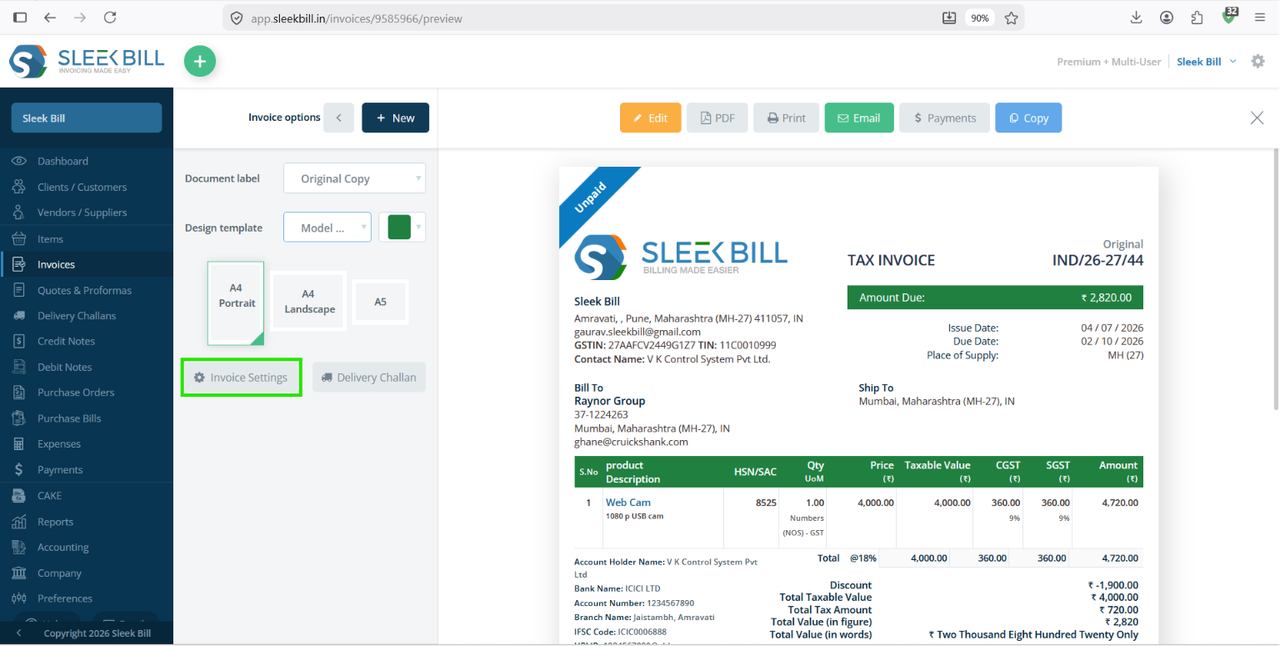
 Step 7 : After clicking you will go to preview page then click on invoice setting button on left hand side.
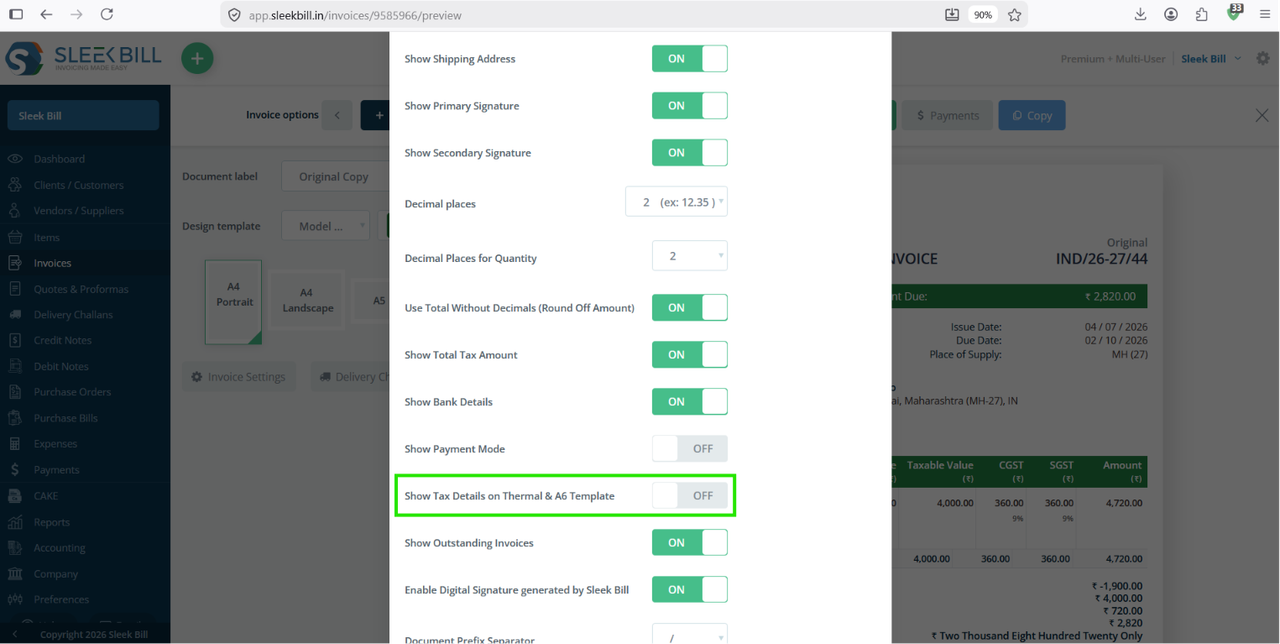
 Step 8 : After clicking on invoice setting then popup window appears and "Show tax details on thermal & A6 template" will toggle it ON.
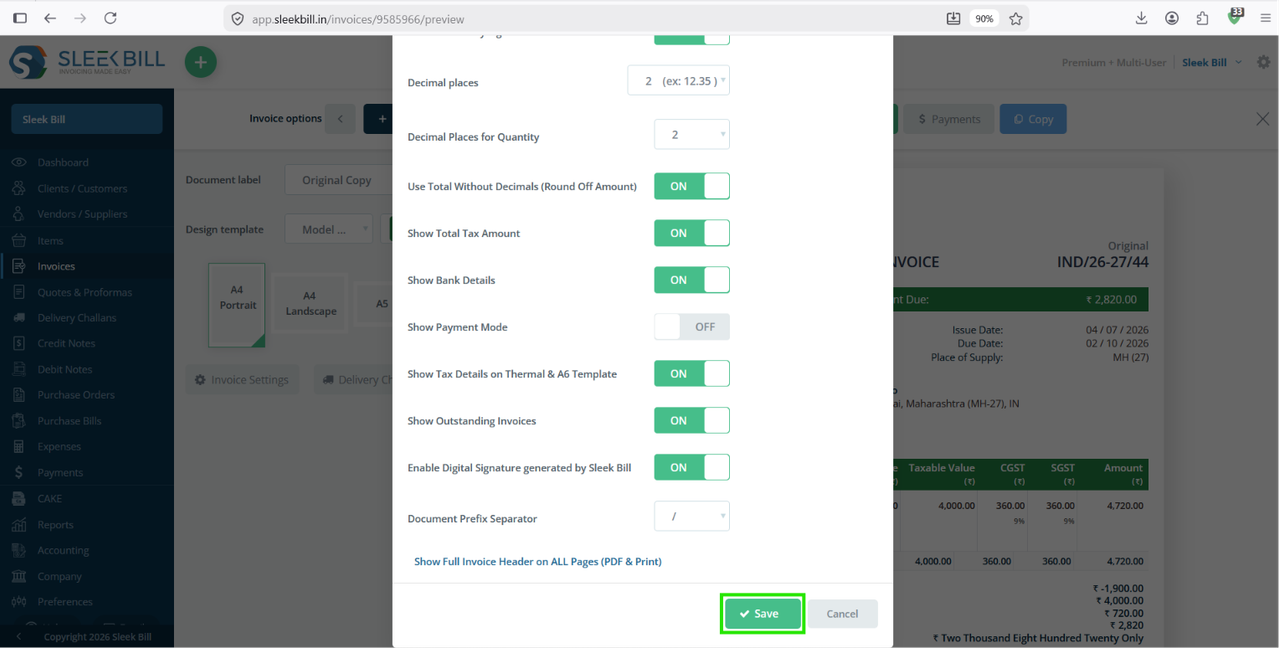
Step 9 : Now click on save.
 Now You see tax details on thermal and A6 invoice format.

Benefits of Displaying Tax Details
Showing tax information on Thermal and A6 invoices offers several advantages:
- Improves invoice transparency.
- Meets taxation requirements.
- Builds customer trust.
- Makes accounting easier.
- Reduces billing mistakes.
Final Thoughts
Displaying tax details on Thermal and A6 invoice templates ensures your invoices remain professional, accurate, and compliant while making the best use of limited printing space. Always preview your invoice after making template changes to ensure everything is aligned and clearly visible.
Whether you use a thermal printer for retail billing or an A6 template for portable invoicing, enabling tax details helps create clear and trustworthy invoices for your customers.
Common Questions
Will tax details fit on a Thermal invoice?
Yes. Thermal templates are designed to display essential tax information in a compact format without sacrificing readability.
Can I show both item-wise tax and a tax summary?
Yes, if your selected template supports both options.
Do I need to recreate existing invoices?
No. Once the template settings are updated, newly printed invoices will display the selected tax details automatically.
Was this article helpful?