How To Show Total Amount In Words In Sleek Bill Invoice?
Hello Sleek
Bill users, welcome to the Sleek Bill Knowledge Hub.
In this article, we will see how to enable showing the total in words on an invoice. When creating an invoice, showing the total amount only in numbers can sometimes confuse. Adding the total amount in words makes your invoice more professional and easier to understand. The actual amount adds an extra layer of correction and helps avoid mistakes. It also improves clarity for your customers and adds an extra layer of trust to your billing documents. With Sleek Bill, you can easily enable this feature in just a few clicks.
See the image below without the total shown in words.
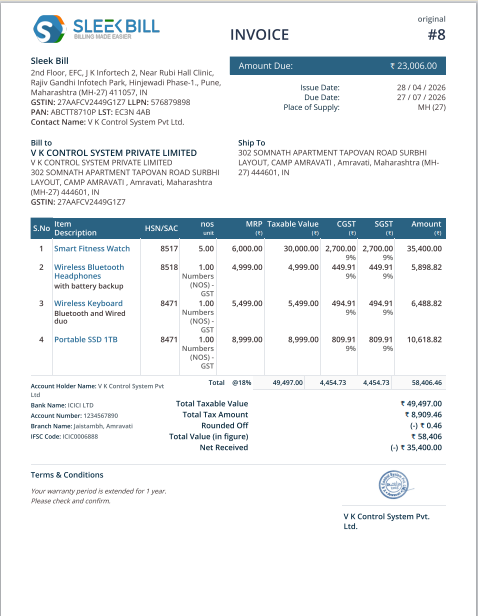
Why Should You Use "Show Total in Words"?
- Your invoices look sharp and professional.
- Mistakes drop way down.
- And customers feel more confident about what they're paying.
- Helpful for accounting and official documentation.

Step 2: Click on the Login button in the top left corner.

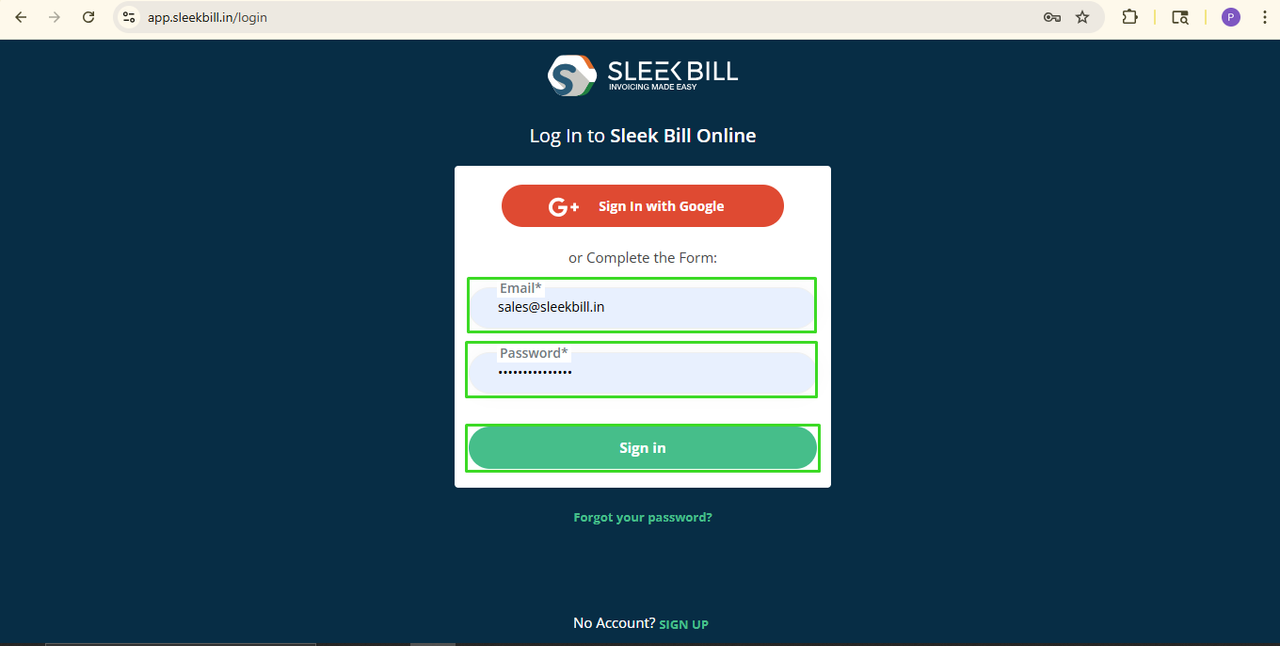
Step 3: Enter
your login credentials, then click on the Sign In button.
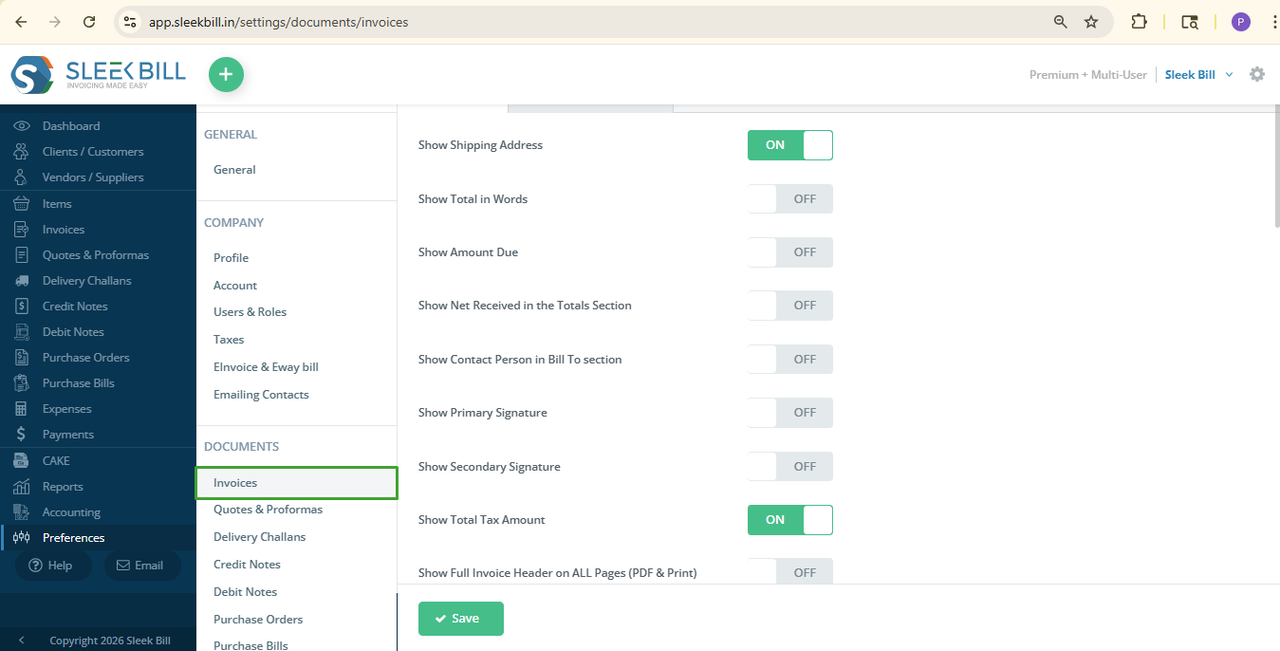
Step 4: After logging in, you will enter the Sleek Bill dashboard. Scroll down and click on the Preferences tab.

Step 5: Now,
click on the Invoice tab.
 Step 6: Find the option
"Show Total in Words" and turn it ON.
Step 6: Find the option
"Show Total in Words" and turn it ON. 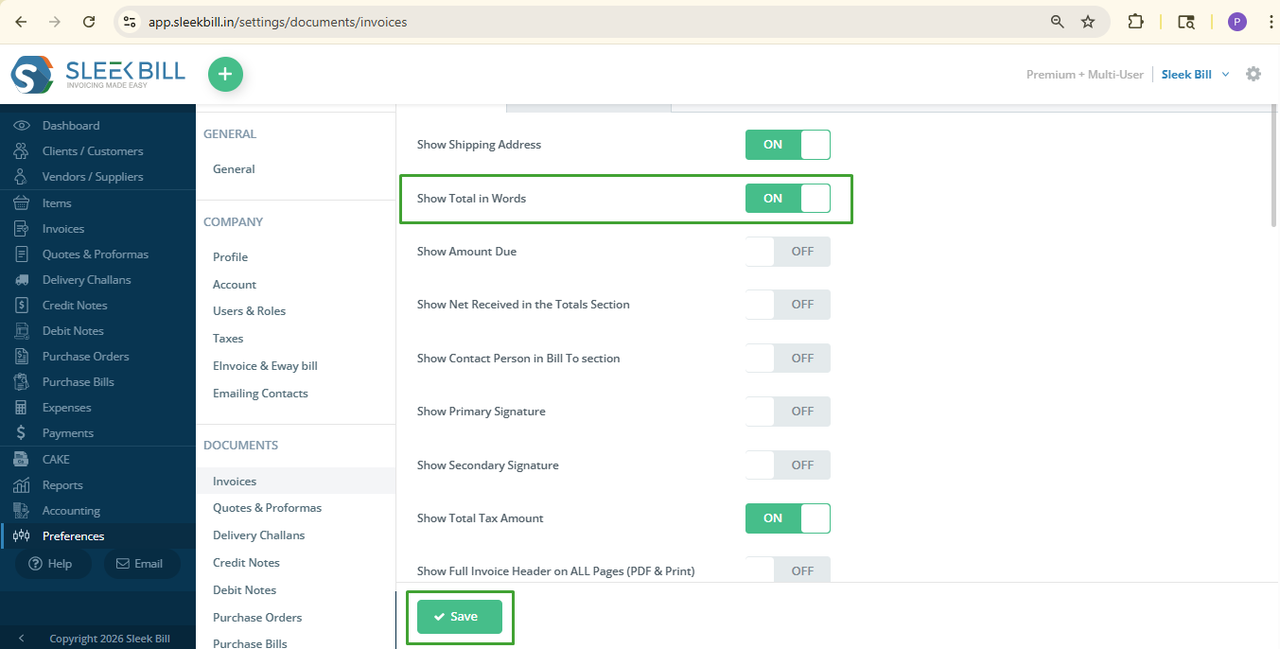
Step 7: Click on the Save button. Simple!
What is the Next:
Now, when you create a new invoice
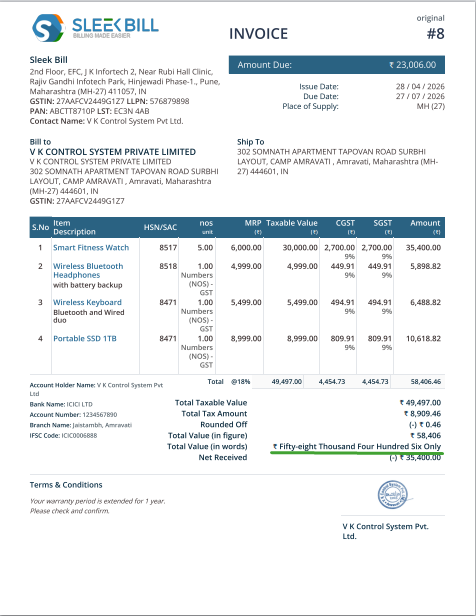
or open an old invoice, the total will automatically display the total amount in words.
You can see in the invoice below.
Conclusion:
This small feature can make a big impact on your invoice. Enabling "Show Total in Words" helps you create clear, professional, and trustworthy invoices.
Try
it today and make your billing even better with Sleek Bill.
Was this article helpful?